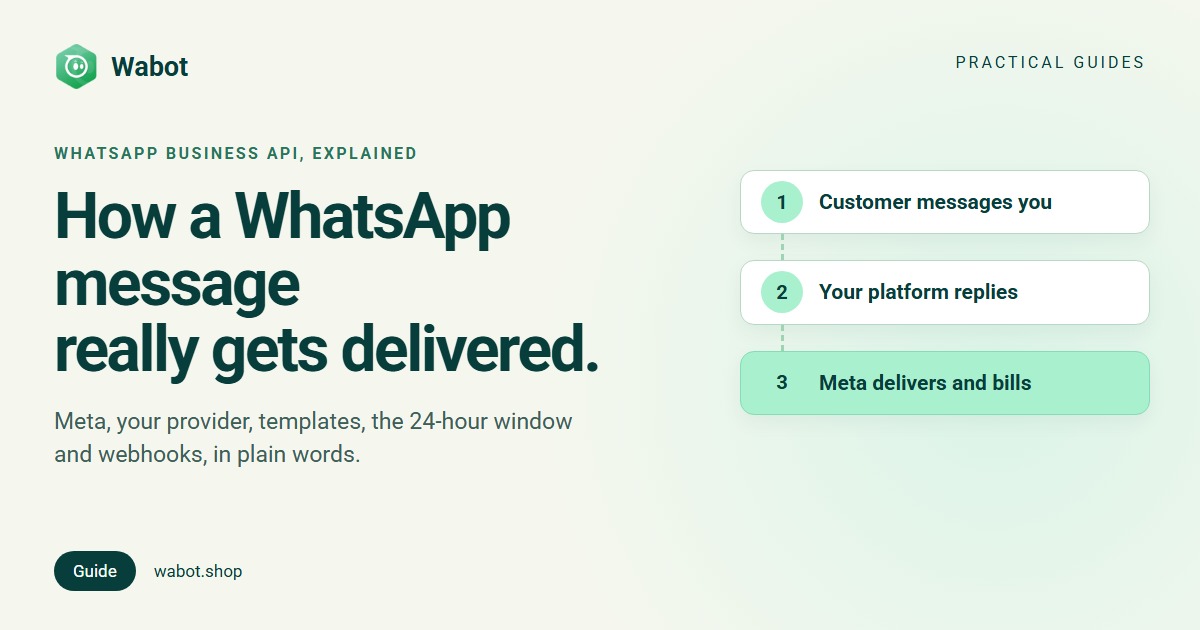
The WhatsApp Business API is how software sends and receives WhatsApp messages for a business number. When a customer writes to you, Meta passes the message to your platform through a webhook. When you reply, your platform sends an API request to Meta’s Cloud API, and Meta delivers it to the customer’s phone. Meta charges for each delivered message you send, usually to your own Meta account.
There’s no Meta app to download. You use the API through a provider’s platform, or you build your own software on it. Below: the parts in plain words, a diagram of the flow, a message’s journey step by step, what it costs, and when you need it.
The parts of the WhatsApp Business API, in plain words
| Part | What it is |
|---|---|
| Meta | Runs WhatsApp and the platform, and sets the rules and prices (Meta: about the platform). |
| The Cloud API | The connection Meta hosts. Software calls it to send messages (Cloud API explained). |
| A provider or platform | The software your team uses: shared inbox, templates, campaigns, automation (how to choose one). |
| Business portfolio | Your business in Meta Business Suite, holding the accounts below. |
| Your phone number | A real or virtual number, shown to customers with your display name. |
| WhatsApp account and Messaging account | The first holds your number, the second your templates and billing. They replaced the old WhatsApp Business Account (WABA) from 23 September 2026 (Meta: account model). |
| Templates | Messages you write in advance and Meta approves; the only ones allowed outside the 24-hour window. |
| The 24-hour window | Opens when a customer messages or calls you. While it’s open, you can reply freely. |
| Webhooks | How Meta tells your platform about new messages and the status of yours (sent, delivered, read, failed). |
| Billing | Meta charges per delivered message to your Messaging account’s payment method, or through a provider that extends credit. |
The flow at a glance
Meta’s docs put it plainly: the platform “relies heavily on webhooks”, because the content of every message a customer sends you, and every delivery update for yours, reaches your software by webhook (Meta: about the platform). Developers who want to build that part themselves can follow our WhatsApp webhook setup guide.
A message’s journey, step by step
- A customer messages your number, from a chat link, your website or a Click-to-WhatsApp ad. A 24-hour customer service window opens.
- Meta sends the message to your platform as a webhook: a small JSON message with the content, who sent it and a message ID.
- The platform saves it to the chat. It appears in the shared inbox, and automations can run: a keyword reply, an AI agent, assigning the chat to a teammate.
- Someone replies: an agent in the inbox, a bot, or one of your systems. The platform turns the reply into an API request to the Cloud API.
- Meta delivers it to the customer’s phone, then sends status webhooks back: sent, delivered, read (or failed, with an error code).
- Meta counts the charge. Only delivered messages are charged. This reply is a service message, and the first 1,000 each month are free for each number.
- Days later, the window has closed. To message the customer again, for example with a shipping update, the platform sends an approved template. That works any time, as long as the customer agreed to hear from you (how opt-in works).
When the business writes first, the journey starts at step 7: a template goes out, and if the customer replies, a new window opens. The code behind steps 4 and 5 is in how to send messages with the WhatsApp API.
Templates and the 24-hour window
| Situation | What you can send | How Meta charges it |
|---|---|---|
| The customer messaged or called you in the last 24 hours | Any message: text, images, buttons, documents, or a template | Free-form replies are service messages; a template is charged by its category |
| The window has closed, or you’re writing first | An approved template only | Marketing, utility or authentication |
Each new message from the customer resets the 24-hour timer (Meta: service messages). A free-form message after it closes fails with error 131047 (how to fix it).
Templates are reviewed automatically when you create or edit them, and only an approved one can be sent; WhatsApp Manager says review can take up to 24 hours (Meta: template fundamentals). Each has a category: marketing (offers, news), utility (order and account updates) or authentication (one-time passcodes). More in template categories explained and template examples.
What it costs, and who bills you
Meta charges per delivered message you send, by category and the recipient’s country code. Messages customers send you are free (Meta: pricing). Some list rates per message:
| Recipient’s country | Marketing | Utility | Service |
|---|---|---|---|
| United States and Canada (North America) | $0.025 | $0.0034 | $0.0034 |
| United Kingdom | $0.0635 | $0.022 | $0.022 |
| Brazil | $0.0625 | $0.0068 | $0.0068 |
| India | $0.0118 | $0.0014 | $0.0014 |
Meta’s list rates in USD, effective 1 October 2026, before tax and volume discounts. Every market, plus a calculator: WhatsApp API pricing.
- 1,000 free service messages per number per month. Replies inside the window are free up to that point; Meta charges from the 1,001st.
- Up to 7 days of free messaging after a Click-to-WhatsApp ad. When someone messages you from a Facebook or Instagram ad that opens WhatsApp (from the WhatsApp app on Android or iOS) and you reply within 24 hours, Meta opens a free entry point window from your reply that can stay open for up to 7 days: marketing, utility, authentication and service messages in it are free, templates included. How Click-to-WhatsApp ads work.
Who sends the bill depends on the provider. Meta’s partner overview explains it: Solution Partners can extend credit and invoice you for messages; clients of Tech Providers add their own payment method, Meta bills them, and the provider charges only for its own services. Without a payment method, Meta stops delivering service messages once the free 1,000 are used. More in is the WhatsApp Business API free.
What is the WhatsApp Business API used for?
Meta’s own list (About the platform): order confirmations and shipping updates, appointment availability and reminders, recommending related products, transactions from product discovery to payment, one-time passwords, and custom interactive experiences. In practice, businesses use it for:
- A team inbox on one number, with chats assigned to the right person (shared inbox for teams).
- Automatic replies and follow-ups that run day and night.
- AI agents that answer from your own information (WhatsApp AI agent).
- Campaigns: approved templates sent to customers who opted in.
- Notifications from your systems: your shop, booking tool or CRM sends updates through the API.
Benefits of the WhatsApp Business API
- One number, the whole team, with chats assigned and a full history.
- Automation and AI that don’t wait for someone to pick up a phone.
- It connects to your systems through webhooks and the API.
- Room to grow. A new business portfolio can message 250 unique customers outside a window per 24 hours. Completing a scaling path, such as business verification, can lift that to 2,000, and after that Meta raises it automatically to 10,000, 100,000 and unlimited for businesses that qualify (Meta: messaging limits, read 21 Nov 2026; how to increase yours). Each number can send up to 80 messages a second by default (20 for a number also used in the Business app).
- It’s the official route. WhatsApp’s Terms of Service list “bulk messaging, auto-messaging, auto-dialing, and the like” among communications you may not send, and unofficial “bulk sender” software is a common way to get a number banned (why). Meta says every message is still protected by Signal protocol encryption before it leaves the device, and the API itself runs over HTTPS.
The trade-offs: you pay per message, templates need approval, marketing needs opt-in, and free-form replies only work inside the 24-hour window.
WhatsApp Business app vs API
| WhatsApp Business app | WhatsApp Business API | |
|---|---|---|
| What it is | A free app you use by hand | A connection for software, used through a platform |
| Who replies | Whoever holds the phone and its linked devices | A team in a shared inbox, plus bots and your systems |
| Messaging cost | Free app and chats; business broadcasts are paid where available | Per delivered message, set by Meta |
| Automation and integrations | Basic built-in tools | Workflows, AI agents, API and webhooks |
More detail in WhatsApp Business app vs API. You don’t always have to choose: with coexistence, a number on the Business app can join the API and keep working in the app.
How to get started, and where Wabot fits
- Pick a provider (10 questions to ask), or build on the Cloud API yourself (setup guide).
- Connect your number through Meta’s Embedded Signup, which collects your business details, creates the WhatsApp and Messaging accounts and gives your provider access. Already on WhatsApp? See using your existing number.
- Add a payment method in Meta, submit your first templates, and verify your business when you need higher limits.
Wabot is a Meta Tech Provider: you add your own payment method in Meta, and Meta bills you directly, with no markup from us. In Wabot, open Settings → Meta Platforms and choose Connect your WhatsApp Business app (keeps the app on your phone) or Use a new number. Both use Meta’s Embedded Signup.
Your team then shares one inbox with assigned chats, internal notes and saved replies. Automation → Workflows handles keyword replies and follow-ups, AI agents answer from your own information, and campaigns send templates now or later. Developers get a REST API and webhooks under Settings → Developer. The free plan lets you sign up and connect a number; chatting and campaigns need a paid plan from $9 a month (see plans).
See the WhatsApp Business API working on your own number
Create your free Wabot account and connect your WhatsApp number in Meta's signup window. No card needed.
Frequently asked questions
Is the WhatsApp Business API an app I can download?
No. It’s a connection for software, run by Meta. You use it through a provider’s platform, which gives your team an inbox, or you build your own software on Meta’s Cloud API.
What is a WhatsApp Business API account?
Since September 2026 it’s two linked accounts in your Meta business portfolio: a WhatsApp account for your number and display name, and a Messaging account for templates and billing. They replace the old WhatsApp Business Account (WABA), and Embedded Signup creates both.
Is the WhatsApp Business API free?
Using Meta’s Cloud API costs nothing, and messages customers send you are free. Meta charges per delivered message you send, with 1,000 free service replies per number each month. Most platforms also charge a plan fee.
Can I use my existing WhatsApp number?
If it’s on the WhatsApp Business app, yes: connect it through Embedded Signup and keep using the app (coexistence). A number registered straight onto the API can’t be used in the WhatsApp apps at the same time.
Do I need a developer to use the WhatsApp Business API?
Not with a platform: you connect your number in Meta’s signup window and work in the platform’s inbox. You need a developer to build your own software on the Cloud API, or to connect the platform to your systems.
The short version
The WhatsApp Business API is a connection, not an app: customer messages reach your platform by webhook, your replies go back as API requests, and Meta delivers them and charges per delivered message.
Inside 24 hours of a customer’s message you can reply freely; outside it you send approved templates to people who opted in. Pick a platform for the inbox and automation, connect your number through Embedded Signup, and you’re running.