Yes, you can use WhatsApp inside Claude. Add the Wabot – WhatsApp connector from the Claude directory, sign in with your Wabot account (or create one on the spot), and Claude can send approved templates, reply to customers, create new templates and read your WhatsApp Business conversations. You type what you want in plain words; Claude shows you the message and sends it after you say yes.
This guide is for business owners and teams who use Claude on the web, desktop or phone. It covers what the connector does, setup in three steps, eight prompts to copy, the WhatsApp rules Claude follows, and fixes for the usual snags. Developers who want an API-key setup for Claude Code or Claude Desktop should read WhatsApp MCP for Claude instead.
What you can do with WhatsApp in Claude
Once connected, these all work from an ordinary Claude chat:
| You ask Claude to… | What happens |
|---|---|
| See who’s waiting | Claude reads your recent chats and lists customers who still need a reply, and what they asked |
| Send a template | Claude finds the contact, fills the template’s variables and sends it from your WhatsApp Business number |
| Reply to a customer | Inside the 24-hour window after their last message, Claude sends a free-text reply |
| Write a new template | Claude drafts it, submits it to Meta for review and tells you when it’s approved or why it was rejected |
| Wait for an answer | Claude watches the conversation and reports the customer’s reply as it arrives |
| Add contacts | Claude looks up a contact by phone number or creates a new one |
Wabot is the bridge: it holds your connection to Meta’s official WhatsApp Cloud API, and Claude talks to Wabot through the connector. Messages go out from your own business number, under your own Meta account, exactly as if you’d sent them from the Wabot inbox.
Connect WhatsApp to Claude in 3 steps
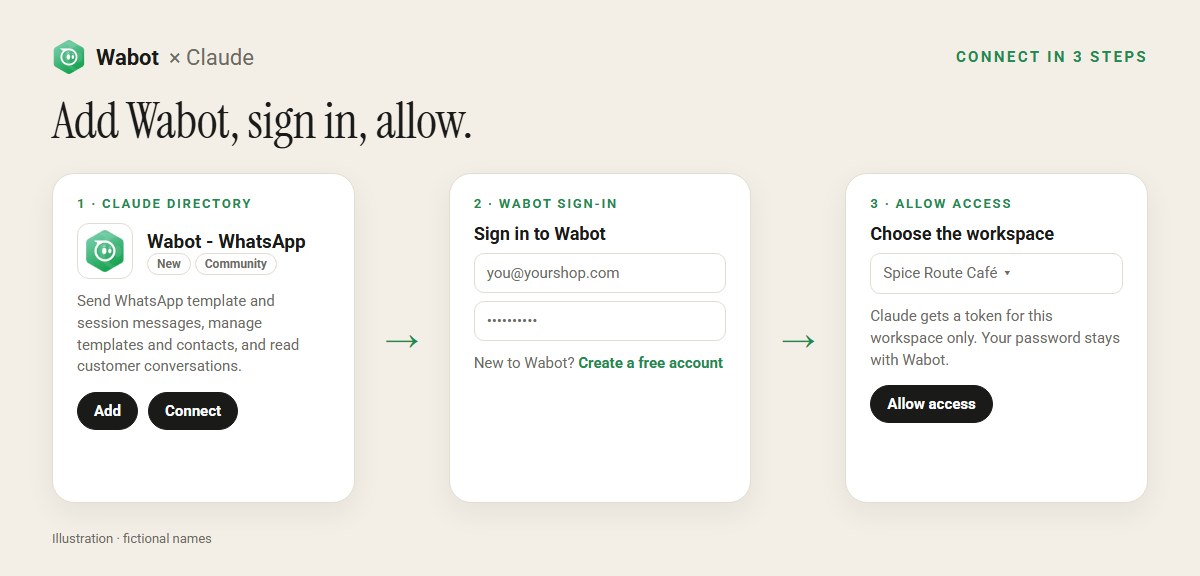
1. Add Wabot – WhatsApp
Open the Wabot – WhatsApp listing and click Add (Sign in to add if you’re not signed in to Claude). You can also search for Wabot in Claude under Settings → Connectors. Then click Connect.
2. Sign in to Wabot and allow access
A Wabot page opens on api.wabot.shop. Sign in with your Wabot email and password. No account yet? Use the Create a free account link on that page, then come back and sign in. If your login belongs to several workspaces, choose the one Claude may use, then click Allow access.
Claude never sees your password. It receives a token for that one workspace, and you can cut it off at any time by disconnecting the connector in Claude or changing your Wabot password.
3. Connect your WhatsApp number (first time only)
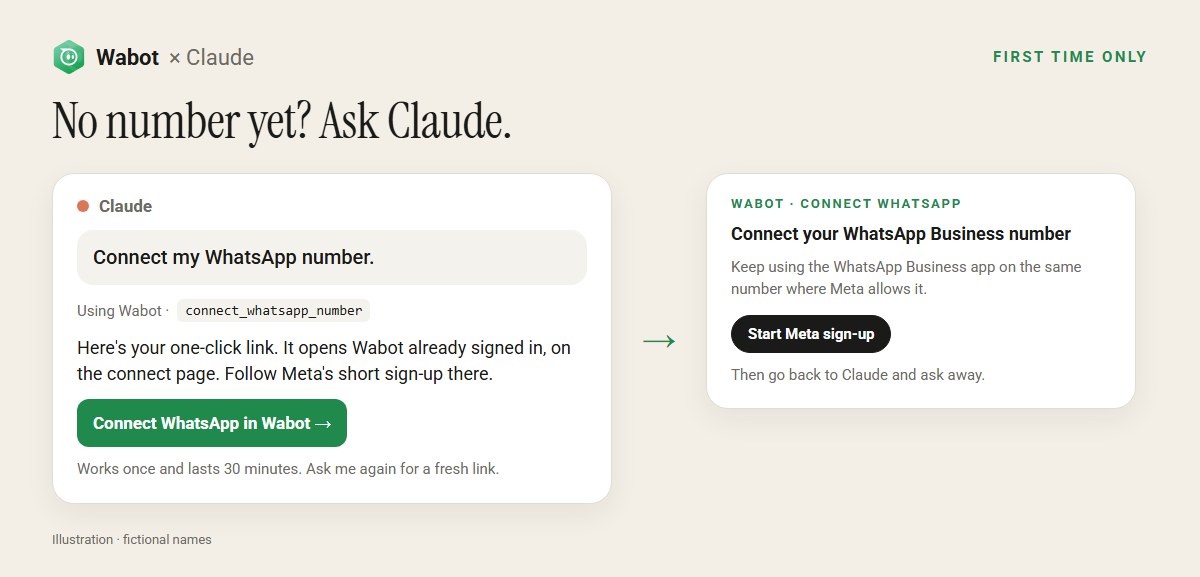
If your workspace has no WhatsApp number yet, just ask Claude: “Connect my WhatsApp number.” Claude replies with a one-click link that opens Wabot already signed in, on the connect page. Follow Meta’s short sign-up there. The link works once and lasts 30 minutes; ask again for a fresh one. Already using the WhatsApp Business app on that number? You can usually keep it: see using your existing number.
Start with a prompt that sends nothing, like “Which WhatsApp numbers are connected?”, to check everything is wired up.
8 prompts to copy
Change the names, numbers and template names to yours. Claude will ask before anything is sent or changed.
Inbox
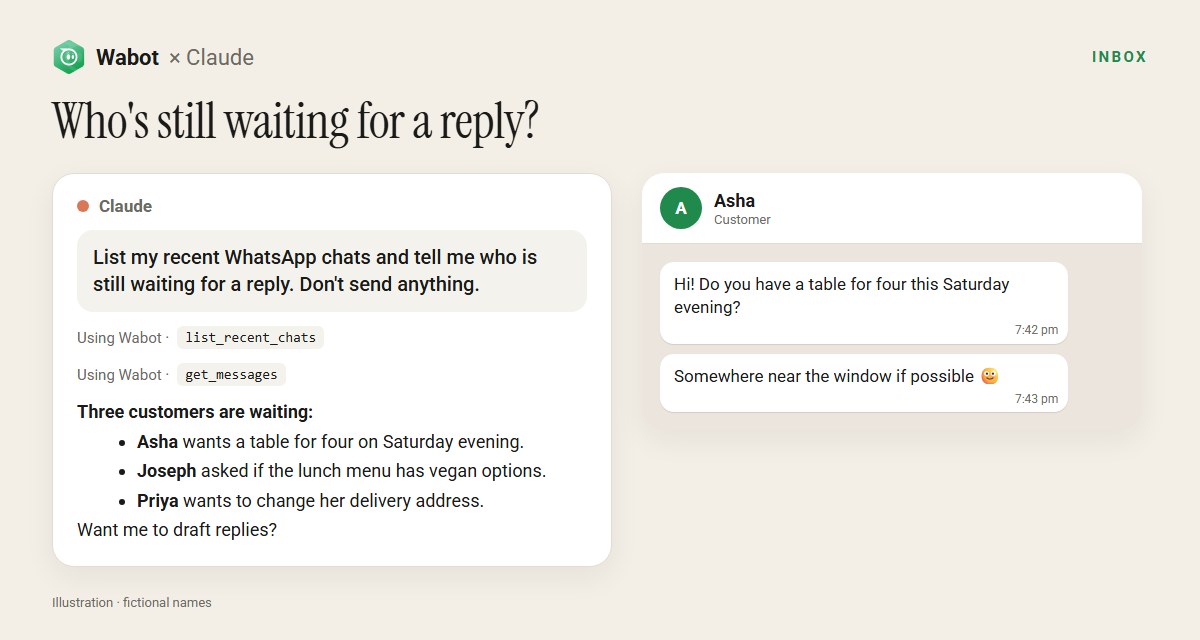
List my recent WhatsApp chats and tell me who is still waiting for a reply from us and what they asked. Don't send anything.
Show me my conversation with +91 98xxx xxxxx from the last two days and summarise what the customer wants.
Send and reply
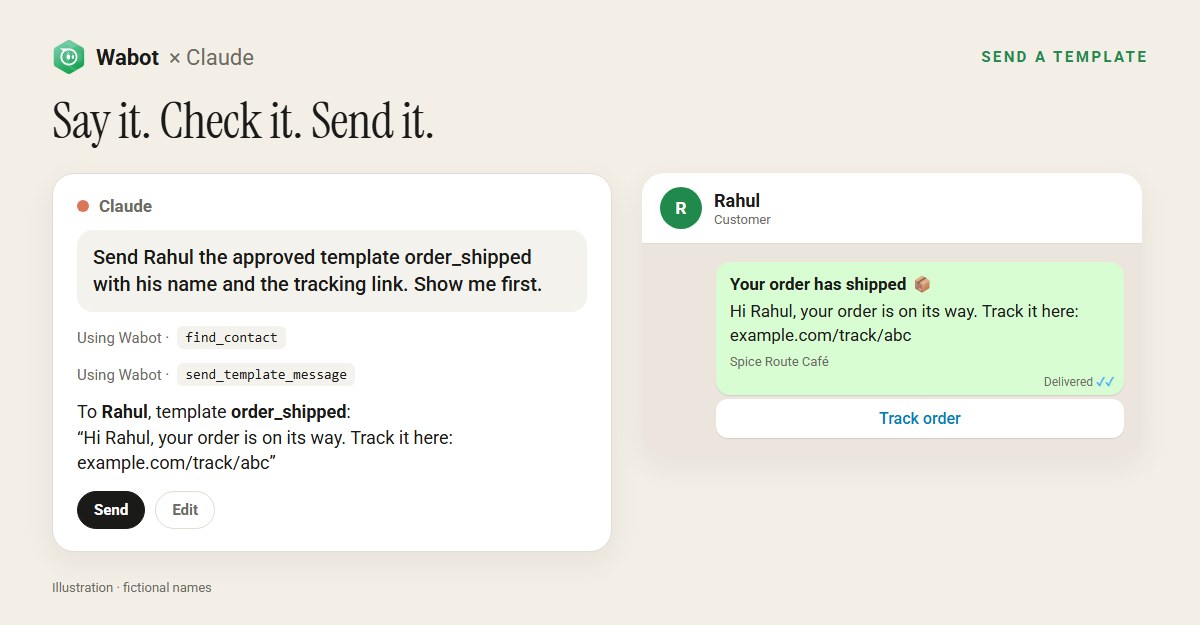
Find the contact with phone 91 98xxx xxxxx and send the approved template order_shipped with their name and the tracking link https://example.com/track/abc. Show me the message before you send it.
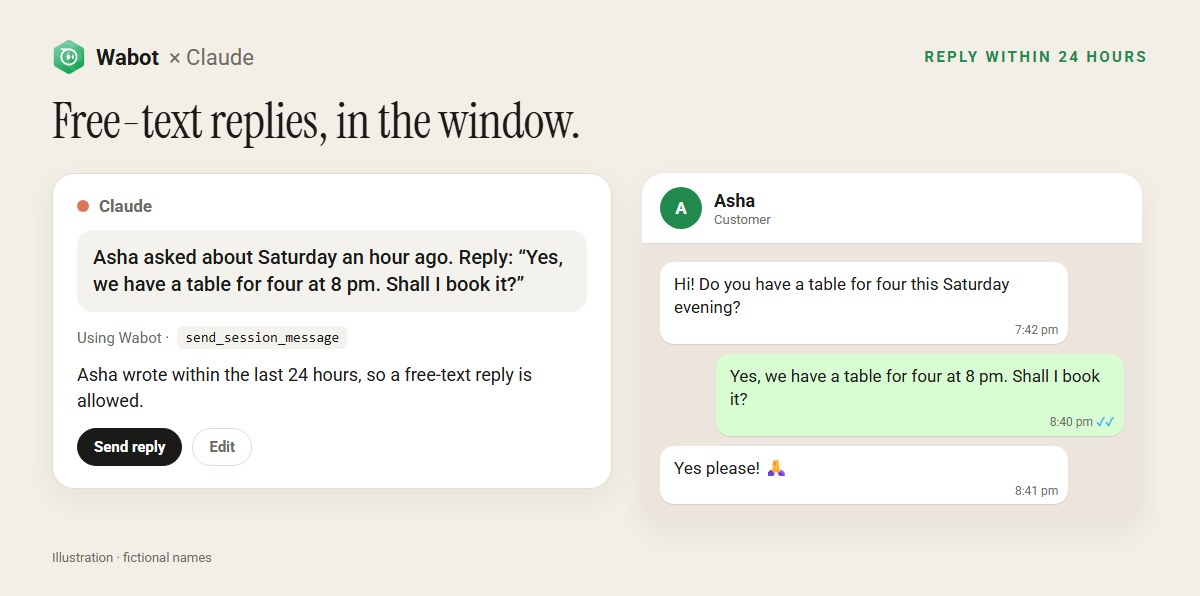
Asha asked about Saturday's table an hour ago. Reply: "Yes, we have a table for four at 8 pm. Shall I book it?"
Send Anu the approved template booking_hold, then wait for her reply and tell me what she said.
Templates
List my approved templates and tell me which one fits a payment reminder.
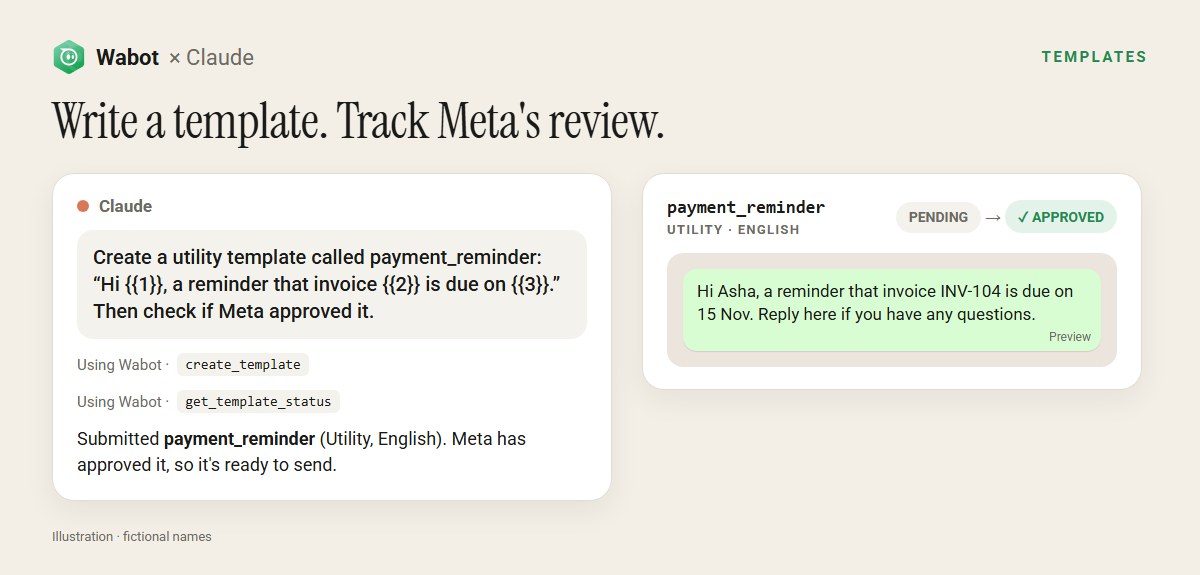
Create a utility template called payment_reminder in English: "Hi {{1}}, a reminder that invoice {{2}} is due on {{3}}. Reply here if you have any questions." Use Asha, INV-104 and 15 Nov as examples. Then check whether Meta approved it.
Contacts
Add Rahul, +91 98xxx xxxxx, as a contact, then send him the approved welcome template.
New templates start as pending; Meta usually reviews them in minutes to a few hours. If one is rejected, Claude tells you the reason and can submit a corrected version. Not sure which category to choose? See template categories explained.
The WhatsApp rules Claude follows
WhatsApp’s rules apply to every message, however it’s sent. Knowing them explains most of Claude’s questions:
- First message, or more than 24 hours since the customer last wrote: only an approved template can be sent. Claude will look for one or offer to create it.
- Within 24 hours of the customer’s last message: any free-text reply is allowed.
- Marketing messages need the customer’s opt-in. Claude can send them, but you’re responsible for who receives them.
If you try to send free text outside the window, WhatsApp refuses it with error 131047; Claude will suggest a template instead.
Claude on web, desktop, mobile and Claude Code
| Where you use Claude | How to connect Wabot | Guide |
|---|---|---|
| claude.ai in a browser | Add Wabot – WhatsApp from the directory, sign in | This page |
| Claude desktop and mobile apps | Same connector; it follows your Claude account | This page |
| Claude Code | The directory connector, or an API-key setup with one terminal command | WhatsApp MCP for Claude |
| ChatGPT, Codex, Cursor and others | Wabot’s MCP server with API credentials | WhatsApp MCP server |
Wabot also publishes an open-source Claude plugin with three skills that teach Claude WhatsApp’s template and 24-hour rules, so you can read every instruction Claude is given. ChatGPT users: see the ChatGPT and Codex guide.
Is it safe?
- You approve every send. Tools that send messages or change data are marked as write actions, so Claude asks before using them. Read the recipient and the text before you say yes.
- One workspace, revocable. Claude only gets a token for the workspace you picked; disconnect in Claude at any time.
- Logged. Wabot records each tool call (tool name, workspace, time) and does not store your Claude conversation. See the privacy policy.
- Test on your own number first before you let Claude message customers.
Wabot – WhatsApp is a community connector in Claude’s directory: it passed Anthropic’s automated review, and Wabot, not Anthropic, builds and maintains it. Wabot connects to WhatsApp through Meta’s official Cloud API as a Meta Tech Provider; it doesn’t automate the consumer WhatsApp app. More about how the directory works: Claude directory docs.
What the Claude connector doesn’t do (yet)
The connector covers templates, contacts, sending and conversations. Broadcast campaigns, scheduling, analytics and building automations aren’t part of it today: do those in the Wabot app, for example a no-code WhatsApp chatbot or the campaigns in our WhatsApp marketing guide. Developers can reach workflows and WhatsApp Flows through the full MCP server with API credentials.
Troubleshooting
| What you see | What to do |
|---|---|
| Claude says no WhatsApp number is connected | Ask Claude “Connect my WhatsApp number” and open the link it gives you within 30 minutes |
| The connect link says it has expired | Links work once and last 30 minutes. Ask Claude for a new one |
| Claude is using the wrong workspace | Disconnect Wabot – WhatsApp in Claude’s connector settings, connect again and pick the right workspace |
| A template can’t be sent | It’s probably still pending or was rejected. Ask Claude to check its status; see template errors explained |
| A free-text reply fails | The 24-hour window has closed (error 131047). Send an approved template instead |
| Claude doesn’t seem to use Wabot | Check the connector is switched on for the chat (the tools menu under the message box), or name it: “Using Wabot, …” |
Still stuck? The Claude integration docs have more detail, or message us on WhatsApp from the Wabot app.
Put Claude on your WhatsApp number
Create your free Wabot account here and connect your WhatsApp Business number. Then add Wabot – WhatsApp from the Claude directory and sign in.
Frequently asked questions
Can Claude send WhatsApp messages?
Yes, with the Wabot – WhatsApp connector. Claude can send approved templates to anyone who has opted in, and free-text replies within 24 hours of a customer’s last message. It asks you before each send.
Is the Wabot connector free?
Adding the connector is free and Wabot is free to start. You need a Wabot account with a connected WhatsApp Business number; Meta bills WhatsApp messages to your own Meta account.
Is it an official Anthropic or WhatsApp product?
No. Wabot – WhatsApp is a community connector in the Claude directory, built and maintained by Wabot. It uses Meta’s official WhatsApp Cloud API; Wabot is a Meta Tech Provider.
Does Claude get my Wabot password?
No. You sign in on a Wabot page and Claude receives a token for the workspace you chose. Disconnecting in Claude or changing your password ends its access.
Can I keep using the WhatsApp Business app?
In most cases, yes: Meta lets many numbers use the Business app and the Cloud API together. Wabot’s connect page walks you through it.
Does it work on the Claude mobile app?
Yes. Connectors follow your Claude account, so once Wabot – WhatsApp is connected you can use it from the Claude app on your phone too.
Can Claude run broadcast campaigns?
Not through the connector today. Create and schedule campaigns in the Wabot app; use Claude for templates, contacts, one-to-one sends and the inbox.
The bottom line
WhatsApp in Claude takes one connector and a sign-in. Add Wabot – WhatsApp, start with a question that sends nothing, then let Claude send templates, reply inside the 24-hour window and write new templates while you approve each message. Setup details and troubleshooting: docs.wabot.shop/integrations/claude.