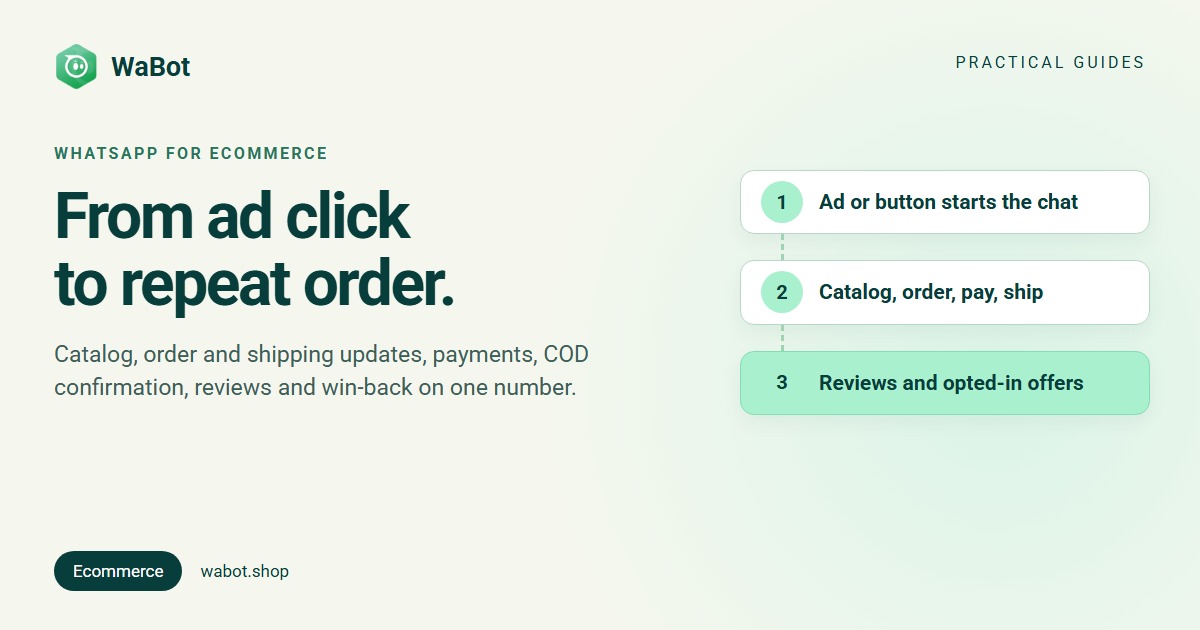
WhatsApp for ecommerce means running the whole customer journey on one business number: the ad or website button that starts the chat, the catalog and product questions, the order confirmation and shipping updates, the payment, the cash-on-delivery check, the review request, and the offers that bring people back. A small store can do much of this on the free WhatsApp Business app; once orders come from a website, several people answer the same number, or you want updates sent automatically, you need the WhatsApp Business API.
This guide follows the journey stage by stage: what to send, normal message or approved template, what Meta charges in India, and seven example messages to adapt, with a detailed how-to linked at each stage.
Three rules that shape every stage
- The 24-hour window. Meta’s pricing documentation explains that when a customer messages you, a 24-hour customer service window opens. Inside it you can send normal messages: text, photos, a catalog, a payment request. Outside it, the API only lets you send a Meta-approved template.
- The category decides the price. Meta’s template categorisation rules put non-promotional messages about the customer’s own order in Utility; its examples include order confirmations, delivery updates and feedback requests tied to a specific order. Anything promotional, and any mixed message such as an order update with a promo code, is Marketing. In India from 1 October 2026 that’s ₹0.115 per utility message against ₹0.8631 per marketing message, plus 18% GST, billed by Meta (choosing the category).
- Marketing needs opt-in. Meta’s Business Messaging Policy lets you message people only if they gave you their number and you have their opt-in permission, and you must honour every request to stop. A number on an order isn’t permission to receive offers; ask at checkout and keep a record (how to collect WhatsApp opt-in).
1. Discovery: the ad or button that starts the chat
Two things bring shoppers into the chat. Click-to-WhatsApp ads on Facebook and Instagram open a chat with your number instead of a landing page (how to set them up). And a WhatsApp button on your product pages is a wa.me link with a pre-filled message such as “Hi, I have a question about the Cotton Kurta, size M”, so you know which product they were looking at (add a WhatsApp button to your website; the free link generator makes the link or a QR code).
Ad chats have a bonus. According to Meta’s pricing page, when a customer messages you from a Click-to-WhatsApp ad on the Android or iOS app and you reply inside the customer service window, that reply isn’t charged and opens a free entry point window of up to 7 days in which marketing, utility, authentication and service messages aren’t charged.
Either way, the first reply decides whether the chat goes anywhere. An instant automatic reply that answers the usual questions and says when a person will pick up keeps the customer talking (25 auto-reply messages to copy).
Example 1: first reply to a new chat
Hi! 👋 Thanks for messaging Anvi Boutique. Reply:
1 to see our catalog
2 to check an order
3 to talk to our team
We reply within 15 minutes, 10 am–8 pm.
2. Catalog and product enquiries
A WhatsApp catalog puts your products inside the chat: photos, prices, descriptions, a cart. On the Business app you build it under Tools → Catalog; on the API it lives in Meta Commerce Manager (how to create a WhatsApp catalog). To run the whole shop from the chat, catalog, cart, payment and the messages around checkout, follow the WhatsApp store setup guide.
Meta’s sell-products guide lists the formats you can send: a catalog message, a single-product message, a multi-product message of up to 30 products in sections, and a product carousel. The customer adds up to 99 units of each item to a cart and sends it as one order; a sent cart can’t be edited. On the API the order arrives as data, which is what lets software reply with a payment request. Catalogs must follow the Meta Commerce Policy.
Example 2: sending the catalog (normal message, inside the window)
Here's our catalog 🛍️ Tap below, add what you like to the cart and send the order. The payment link comes right here in the chat.
3. Order confirmation and shipping updates
The two messages that stop “did my order go through?” and “where is it?” from becoming support chats. They go out hours or days after the customer last wrote, so they must be approved utility templates, and they must stay about the order: add an offer and Meta treats the whole template as marketing. On Shopify, the order and fulfilment events can trigger them automatically (Shopify WhatsApp order notifications, step by step). Delivered, delayed and failed-delivery wording: 30+ template examples.
Example 3: order confirmed (utility template)
Hi {{1}}, thank you for your order! Order {{2}} is confirmed and will be delivered by {{3}}. We'll message you when it ships.
Example 4: order shipped (utility template)
Good news, {{1}}! Your order {{2}} has shipped with {{3}} 🚚
Tracking number: {{4}}
Track it here: {{5}}
4. Payment collection
For prepaid orders taken in the chat, the payment can happen without leaving WhatsApp. Meta’s Payments API documentation for India describes payment through the UPI apps on the customer’s phone, with cards, net banking and wallets through a connected gateway, and names Razorpay and PayU among the supported gateways. In practice the customer orders from your catalog and gets an order summary with a Review and Pay button (catalog order to payment, automated).
For an order still unpaid, a short reminder with a pay link works as long as it stays factual: a reminder about the customer’s own invoice is utility, a reminder with a discount is marketing (14 payment reminder templates to copy).
5. Cash on delivery: confirm before you ship
COD orders nobody wanted cost you the courier charge both ways. The usual practice is to ask the customer to confirm before dispatch: a utility template with the order number and amount, two quick-reply buttons, and a holding period, say 24 hours and one more reminder before the order is cancelled. It’s also the moment to ask them to check the delivery address.
Example 5: COD confirmation (utility template, buttons: Confirm, Cancel)
Hi {{1}}, please confirm your cash-on-delivery order {{2}} for {{3}}. Reply 1 to confirm or 2 to cancel. Unconfirmed orders are held for 24 hours.
6. Reviews after delivery
Ask a few days after the order ships, while the unboxing is fresh, with a button that opens your Google review page. Ask everyone: Google’s review content policy treats selectively asking only happy customers as fake engagement. You can still ask how the order went first, as long as everyone gets the link and an unhappy customer also hears from a person; a workflow can send it a set number of seconds after a Shopify order is fulfilled (the review request flow). Meta counts a feedback request tied to a specific order as utility; wording that persuades makes it marketing.
Example 6: review request (utility template, buttons: Loved it, Not happy)
Hi {{1}}, your order {{2}} should have reached you by now. Is everything as you expected?
7. Repeat purchases and win-back
This is where WhatsApp earns its keep for a store, and where the rules bite. Back-in-stock alerts, new collections, festival offers and “it’s been a while” messages are all marketing templates: only to customers who opted in to offers, with an opt-out line, to a segment rather than everyone. Tag customers by what they bought, so saree buyers hear about sarees. Send each offer as a template campaign with a per-contact report (how a broadcast campaign works), and for customers who’ve gone quiet, a three-message sequence with stop rules (win back inactive customers on WhatsApp).
Example 7: back in stock (marketing template, opted-in customers only)
Hi {{1}}, good news: {{2}} is back in stock. We've held one aside for 24 hours; order here: {{3}}. Reply STOP to opt out.
What each message costs in India
Meta’s rates for Indian numbers from 1 October 2026, per delivered message, excluding 18% GST, billed by Meta directly:
| Message | Meta category | Rate per message |
|---|---|---|
| Reply within 24 hours of the customer’s message | Service | First 1,000 a month free per number, then ₹0.115 |
| Order confirmed, shipped, delivered, delayed | Utility | ₹0.115 |
| COD confirmation, payment reminder (no offer), review request tied to the order | Utility | ₹0.115 |
| Login or checkout OTP | Authentication | ₹0.115 |
| Offer, festival sale, back in stock, win-back | Marketing | ₹0.8631 |
| Any message inside a Click-to-WhatsApp free entry point window | Any | Not charged, per Meta’s pricing page |
Worked monthly examples and a calculator: WhatsApp Business API pricing in India.
How Wabot handles this
- First replies and one inbox. Set an auto response for new chats and control how often the same customer receives it; optionally, an AI agent trained on your website, prices and FAQs answers routine questions any time of day, pay-as-you-go from your Wabot wallet. Chats from your button, QR code and ads land in one shared inbox for the whole team (auto-reply setup).
- Catalog to paid order. Under Commerce → Products, connect with Facebook and select your Meta catalog. A workflow sends the catalog when a customer’s message contains catalog, and when they order from it, sends a payment request with a Review and Pay button through Razorpay, in INR; a successful payment gets a thank-you and the tag paid. Orders show up under Commerce → Orders with their payment status (the full build; commerce guide).
- Shopify order and shipping updates. Connect your store under Settings → Integrations → Shopify; its Automation tab has Order Confirmation and Order Fulfillment switches that install a template each and set up a ready-made workflow. Orders without a customer phone number are skipped (Shopify guide).
- COD replies that route themselves. A workflow step triggered by Interactive quick reply buttons where the title is exactly Confirm can Add to groups or tags, Assign to team member and Create follow-up.
- Templates and campaigns. Settings → Templates has a Category dropdown, and a template Meta moved from Utility to Marketing is marked “re-categorised by Meta”. Campaigns go to the contacts, groups or tags you pick, now or scheduled, with blocked contacts excluded, and results show sent, delivered, read and failed per contact, for example “Contact stopped marketing messages” (campaigns guide; the win-back sequence).
The shared inbox, templates and campaigns are on the Starter plan (₹840/month + GST); workflows are on the Base Plan (₹9,240/year + GST). Connecting your number on the Free plan starts a 15-day Base Plan trial. Meta’s per-message charges are billed by Meta directly, with no Wabot markup. Not sure you need the API? Read WhatsApp Business app vs API.
Run your store's WhatsApp from one inbox
Create your free Wabot account, connect your WhatsApp number, link your catalog or Shopify store and send order updates, payment requests and opted-in offers from one number. Connecting a number starts a 15-day Base Plan trial, no card needed.
Frequently asked questions
Do I need the WhatsApp Business API for ecommerce?
A small store answering a few chats a day can use the free WhatsApp Business app with its catalog. You need the API when orders come from a website, several people answer one number, or you want confirmations and shipping updates sent automatically.
Is a WhatsApp order confirmation free?
No. Sent after the customer’s last message, it’s a utility template, charged by Meta at ₹0.115 per delivered message in India plus 18% GST. Replies within 24 hours of a customer’s message are free for the first 1,000 a month per number.
Can customers pay inside WhatsApp in India?
Yes. Meta’s Payments API for India supports payment through UPI apps on the customer’s phone and through connected gateways such as Razorpay and PayU. A customer who orders from your catalog in the chat gets an order summary with a Review and Pay button.
Can I send offers to everyone who has ordered from me?
Only to customers who agreed to receive offers from your business. Meta’s Business Messaging Policy requires opt-in permission, and a number on an order isn’t that. Offers are marketing templates at ₹0.8631 each in India plus GST, with a way to opt out.
The bottom line
WhatsApp for ecommerce works when every stage is the right kind of message: normal replies while the window is open, utility templates for the order itself, and marketing templates only for people who said yes. Start with an instant first reply, an order confirmation and a shipping update; add the catalog, payments and reviews once those run on their own.