Click-to-WhatsApp ads are good at one thing Meta can measure: starting chats. Ads Manager tells you how many conversations each ad started and what each one cost. Unless you share them, the sales that happen inside the chat are invisible to it. So the ad that looks cheapest can quietly be the one that sells least.
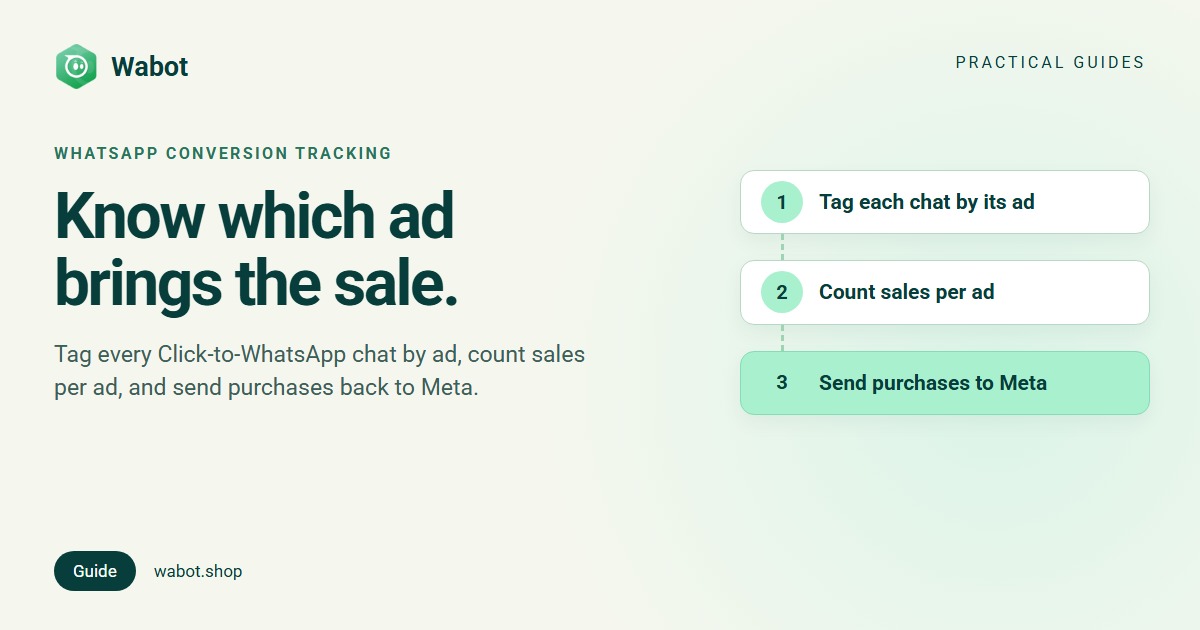
WhatsApp conversion tracking closes that gap in three steps: tag every ad chat with the ad it came from, count the sales per ad, and send those sales back to Meta so it can find more buyers instead of more chatters. This guide covers all three, using Meta’s own documentation, read on 23 November 2026.
Cost per chat isn’t cost per sale
Here’s an example with made-up numbers. Two ads, the same $300.00 budget each, and an average order of $60.00:
| Ad | Spend | Chats | Cost per chat | Sales | Cost per sale | Revenue |
|---|---|---|---|---|---|---|
| Ad A: “Free delivery this week” | $300.00 | 150 | $2.00 | 9 | $33.33 | $540.00 |
| Ad B: “Send us a photo, get a price” | $300.00 | 100 | $3.00 | 15 | $20.00 | $900.00 |
Judged on cost per chat, ad A wins at $2.00. Judged on sales, ad B wins: $20.00 per sale against $33.33, and $900.00 of revenue against $540.00. Without sales per ad, you’d move budget to the wrong one.
Meta makes a similar point. When you optimise for purchases through messaging, its help page says to measure the campaign on Meta Purchases and cost per on-Meta purchase, “rather than conversations started”.
What Meta sends with every ad chat
When someone taps your ad and sends the pre-filled message, the first message carries a referral block with the ad’s details. Meta’s webhook reference lists these fields, among others:
| Field | What it is | Why it matters |
|---|---|---|
source_id | The ad’s ID | Tells you exactly which ad started the chat |
headline | The ad’s headline | Readable name for your team |
body | The ad’s primary text | Shows which offer the customer saw |
source_url | A link to the ad | Open the ad from the chat |
ctwa_clid | The click ID for this one ad click | Matches a later purchase back to the ad |
Meta’s Conversions API guide is clear about the click ID: when you receive it, “store it with the conversation”. One exception: chats from ads in WhatsApp Status arrive without a click ID.
Step 1: tag every ad chat with its ad
In Wabot, a workflow reads the ad details for you. Build it once and every ad chat that starts with the ad’s pre-filled text is labelled from the first message:
- Open Automation → Workflows and create a workflow.
- Add one step per ad with Add step. Give each the trigger Customer sends a message and the message type Click-to-WhatsApp ad message. Wabot adds the ad’s details as variables:
{{ad_source_id}},{{ad_headline}},{{ad_body}},{{ad_source_url}},{{ad_source_type}}and{{ctwa_clid}}. - Give each step the condition Variable
{{ad_source_id}}is the ad’s ID, copied from Ads Manager. - In that step, add Add to groups or tags with a tag such as Ad: Free delivery, and Create deal with a title such as Free delivery ad. Add Assign to team member if one person handles that offer.
- Add one more step with the same trigger and type but no ad condition, so it runs for every ad chat. Put your reply here (Send a message, or Hand off to an AI bot to let your AI agent answer), so each customer gets one reply whichever ad they came from.
Every step whose conditions match runs, and when any step matches a message, the AI bot doesn’t also answer it on its own. That’s why the reply sits in the catch-all step. If you also assign the chat to a person, tick Keep AI bot replies on, or the AI bot won’t answer. Deals need Pipelines switched on in Settings, and Create deal skips a contact who already has an open deal. A workflow holds up to 10 steps, so one workflow covers up to nine ads plus the catch-all.
Our Click-to-WhatsApp ads guide covers setting up the ads themselves.
Step 2: count the sales per ad
When a chat turns into an order, move its deal to your pipeline’s won stage (Won, Purchased or Converted, depending on the template) and enter the order value. That stage then shows each sale with the ad in its title, so you can count sales and revenue per ad and fill in the table above with real numbers. Our sales pipeline guide shows how deals move from enquiry to won.
Then work out, for each ad over the same dates:
- Cost per sale = the ad’s spend in Ads Manager ÷ its won deals.
- Revenue per dollar spent = the value of its won deals ÷ its spend.
- Chat-to-sale rate = its won deals ÷ its chats.
Keep one more number in mind: replies are often free. If the customer wrote from the WhatsApp app on Android or iOS and you reply within 24 hours, Meta opens a free entry point window that may stay open for up to 7 days. Marketing, utility, authentication and service messages in it are free, so following up on an ad chat costs little. More in our guide to what is free on the API.
Step 3: send your sales back to Meta
Counting sales tells you which ad works. Sharing them with Meta lets Meta’s delivery system act on it. With purchase events, you can choose the performance goal Maximize number of purchases through messaging, so Meta shows your ad to people likely to buy. Its help page (read 23 November 2026) sets these conditions for WhatsApp:
- You’ve shared 10 or more purchase events with Meta within a prior 30-day period.
- Each chat started from the ad and was identified as a purchase within 7 days of the click.
- Each Facebook Page qualifies separately, and Meta recommends running the campaign for at least 7 days.
- These features are unavailable for ads delivered to and from Europe and Japan.
These are the ways to get purchases to Meta:
| Your setup | How purchases reach Meta | Watch out for |
|---|---|---|
| WhatsApp Business app | Turn on sharing of events, then add chats to the lists New order, Pending payment, Paid or Order complete | Meta’s separate Use orders method isn’t available in India, Malaysia or Pakistan |
| API, with a messaging partner that sends events | The partner sends purchase events through Meta’s Conversions API for Business Messaging | Meta keeps a list of partners that send these events. Wabot isn’t on it today |
| API, with your own developer | Your system sends a Purchase event with the chat’s ctwa_clid to Meta’s Conversions API | Send each sale within 7 days, since older events are rejected. Meta doesn’t remove duplicates, so send each sale once |
| Meta’s automatic events | Meta analyses new chats that start from your ads and detects leads and purchases itself | On the API, needs a provider that has integrated Meta’s Automatic Events API (Wabot hasn’t). Not in the EU, UK, Japan or South Korea |
Using Wabot with your own developer
Wabot doesn’t send purchase events to Meta. What it does give you is the click ID: in the ad workflow, add Send to a webhook and include {{ctwa_clid}} and {{ad_source_id}} in the body. Your system stores them with the customer and, when the order is paid, sends the Purchase event with the order value. Skip chats from Status ads, which have no click ID (the value arrives as the text null). Meta’s onboarding guide lists what the rest needs: a dataset linked to your WhatsApp Business Account, and an app with advanced access to the whatsapp_business_management and whatsapp_business_manage_events permissions, Marketing API access and a login integration (Embedded Signup or Facebook Login for Business). Meta wrote the guide for messaging partners, so read its requirements before you start. Our webhook guide and n8n guide show the webhook side.
Automatic events
Meta can also detect purchases itself. It says it uses “regex and natural language processing” on new chats from your ads, and that this may let you use the leads and purchases goals. On the API, it works through a provider that has integrated Meta’s Automatic Events API; you then switch it on in Meta Business Suite under Settings → Accounts → WhatsApp accounts → Privacy and data sharing. Wabot hasn’t integrated it yet. Two things to weigh: Meta reads those chats to do it, and in the WhatsApp Business app, turning it on disconnects linked devices and can limit features such as broadcast lists and greeting messages. Ads Manager can break purchases down into reported and auto-detected.
Mistakes that break the numbers
- Comparing different date ranges. Use the same dates for spend and for won deals, and allow a few days for slow buyers.
- Changing an ad’s offer mid-test. Two offers end up mixed in one row. Duplicate the ad instead.
- Counting chats from Status ads the same way. They have no click ID, and Meta’s goal list for Status chat ads doesn’t include purchases.
- Reporting a sale twice. Meta doesn’t deduplicate these events, so one order must mean one event.
Tag every ad chat automatically
Create your free Wabot account and connect your WhatsApp number. No card needed.
What Wabot does here, and what it doesn’t
| Task | In Wabot |
|---|---|
| Read the ad ID, headline, text, link and click ID from each ad chat | Yes, as workflow variables |
| Tag, assign and reply to ad chats per ad | Yes, with a workflow |
| Track each ad chat as a deal and mark it won with a value | Yes, with Pipelines |
| Pass the click ID to your own system | Yes, with Send to a webhook |
| Report purchases per ad | No built-in report; count won deals per ad |
| Send purchase events to Meta for you, or Meta’s automatic events | No |
Workflows depend on your plan. In India they’re on the Base Plan (₹9,240/year + GST); see the pricing page, or ask us which plan includes them in your country.
Frequently asked questions
How do I track conversions from Click-to-WhatsApp ads?
Ads Manager shows the chats an ad started, and only counts sales that are shared with Meta. To see sales yourself, keep the ad ID that arrives with each chat’s first message, record which chats buy, and count sales per ad. To let Meta optimise for sales, share each purchase within 7 days of the ad click, through the WhatsApp Business app or Meta’s Conversions API (via a messaging partner or your own developer).
What is ctwa_clid in WhatsApp?
It’s Meta’s click ID for a Click-to-WhatsApp ad. It arrives with the first message from someone who tapped your ad, and it’s how a purchase you report is matched to that ad. Meta says to store it with the conversation. Chats from ads in WhatsApp Status don’t carry one.
Can I optimise Click-to-WhatsApp ads for purchases?
Yes, with the performance goal “Maximize number of purchases through messaging”. Meta’s help page says you must have shared 10 or more purchase events within a prior 30-day period, each identified within 7 days of the ad click, and each Facebook Page qualifies separately (read 23 November 2026).
Does Wabot send purchase events to Meta?
Not today, and it hasn’t integrated Meta’s automatic events either. Wabot gives each ad chat’s details, including the click ID, to your workflows. A workflow can tag and route the chat, create a deal, and pass the click ID to your own system with Send to a webhook, which a developer can use to report purchases to Meta.
Can I see which ad a WhatsApp chat came from?
Yes, on the API. When someone taps a Click-to-WhatsApp ad and sends the pre-filled text, that first message carries the ad’s ID, headline, text, link and click ID. In Wabot, a workflow reads these as variables, so it can tag the chat and create a deal named after the ad.
Are replies to Click-to-WhatsApp ad chats free?
Often. On the WhatsApp Business API, if the customer wrote from the Android or iOS app and you reply within 24 hours, Meta opens a free entry point window that may stay open for up to 7 days. Marketing, utility, authentication and service messages in it are free; Meta Business Agent messages are still charged.
The short version
Ads Manager counts chats. Your business runs on sales. Tag every Click-to-WhatsApp chat with its ad from the first message, mark the ones that buy, and compare cost per sale, not cost per chat.
Share each purchase with Meta within 7 days of the ad click, through the WhatsApp Business app or the Conversions API. Once Meta has 10 or more in 30 days, switch the campaign to optimise for purchases through messaging.