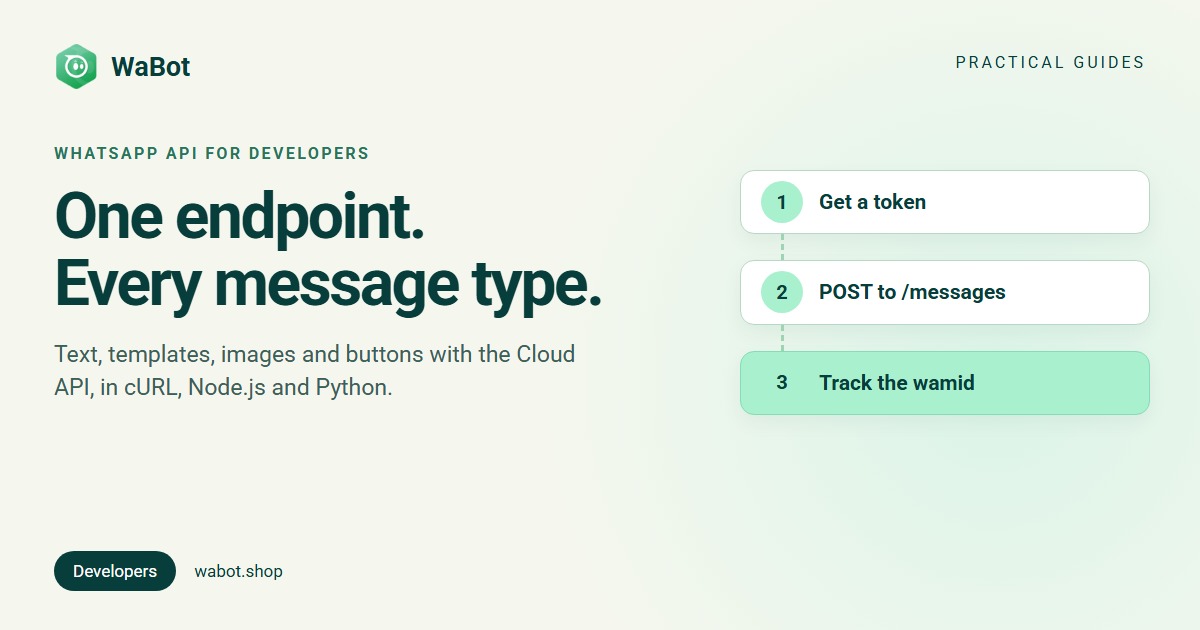
To send a WhatsApp message through the API, you POST a JSON body to Meta’s Cloud API endpoint /<PHONE_NUMBER_ID>/messages with an access token. The body names the recipient, the message type (text, template, image, interactive) and the content. Free-form messages only go through while the customer’s 24-hour window is open. Outside it, you send an approved template.
Below: requests for each type in cURL, Node.js and Python, reading the response, the first errors you’ll hit, and the same sends through Wabot’s REST API.
What you need before the first request
- Phone number ID: the ID of your business number on Meta’s side (not the number itself). It’s on the API Setup page of your app in the App Dashboard.
- Access token: a system user token. The temporary token from API Setup expires quickly. More in our guide to WhatsApp API keys and tokens.
- Recipient number with a plus sign and country code (+15551234567). Without the plus sign, Meta adds your business number’s country code in front, which can reach the wrong person.
- Graph API version: Meta’s examples use v27.0 today. Use your app’s version.
- Opt-in: Meta only allows messages to people who agreed to hear from you (how to collect opt-in).
Haven’t set up the Cloud API yet? Start with our WhatsApp Cloud API setup guide or the overview in WhatsApp Cloud API explained.
Send a text message
Every message uses the same endpoint and the same envelope: messaging_product, recipient_type, to and type, plus an object named after the type. For text, the body can be up to 4,096 characters, and preview_url turns on a link preview (Meta: text messages).
curl 'https://graph.facebook.com/v27.0/<PHONE_NUMBER_ID>/messages' \
  -H 'Authorization: Bearer <ACCESS_TOKEN>' \
  -H 'Content-Type: application/json' \
  -d '{
    "messaging_product": "whatsapp",
    "recipient_type": "individual",
    "to": "+15551234567",
    "type": "text",
    "text": { "preview_url": false, "body": "Hi Maya, your table for 4 is confirmed for 7 pm." }
  }'
This only works inside the 24-hour window; to start a conversation, use a template.
Send a template message with variables
A template message names an approved template and its language, and fills its variables. For a template whose body is Hi {{1}}, your order {{2}} has shipped., the body component carries one parameter per placeholder, in order. Templates created with named parameters ({{first_name}}) also need parameter_name on each value (Meta: template fundamentals).
curl 'https://graph.facebook.com/v27.0/<PHONE_NUMBER_ID>/messages' \
  -H 'Authorization: Bearer <ACCESS_TOKEN>' \
  -H 'Content-Type: application/json' \
  -d '{
    "messaging_product": "whatsapp",
    "recipient_type": "individual",
    "to": "+15551234567",
    "type": "template",
    "template": {
      "name": "order_shipped",
      "language": { "code": "en_US" },
      "components": [{
        "type": "body",
        "parameters": [
          { "type": "text", "text": "Maya" },
          { "type": "text", "text": "#1042" }
        ]
      }]
    }
  }'
The template must be APPROVED, in the language code you created it in. A media header also needs a header component.
The same requests in Node.js and Python
A small helper per language adds the envelope, sends, and returns the message ID. Keep the token and phone number ID in environment variables, not in code.
// Node.js 18+ (built-in fetch), saved as send.mjs
const GRAPH_URL = `https://graph.facebook.com/v27.0/${process.env.PHONE_NUMBER_ID}/messages`;

async function sendWhatsApp(message) {
  const res = await fetch(GRAPH_URL, {
    method: "POST",
    headers: {
      Authorization: `Bearer ${process.env.ACCESS_TOKEN}`,
      "Content-Type": "application/json",
    },
    body: JSON.stringify({ messaging_product: "whatsapp", recipient_type: "individual", ...message }),
  });
  const data = await res.json();
  if (!res.ok) throw new Error(`${data.error.code}: ${data.error.message}`);
  return data.messages[0].id; // the wamid
}

// Text: only inside the 24-hour window
await sendWhatsApp({ to: "+15551234567", type: "text", text: { body: "Thanks, we got your order." } });

// Template: any time
await sendWhatsApp({
  to: "+15551234567",
  type: "template",
  template: {
    name: "order_shipped",
    language: { code: "en_US" },
    components: [{ type: "body", parameters: [{ type: "text", text: "Maya" }, { type: "text", text: "#1042" }] }],
  },
});
import os
import requests
GRAPH_URL = f"https://graph.facebook.com/v27.0/{os.environ['PHONE_NUMBER_ID']}/messages"
HEADERS = {"Authorization": f"Bearer {os.environ['ACCESS_TOKEN']}"}
def send_whatsapp(message):
body = {"messaging_product": "whatsapp", "recipient_type": "individual", **message}
res = requests.post(GRAPH_URL, headers=HEADERS, json=body, timeout=15)
data = res.json()
if not res.ok:
raise RuntimeError(f"{data['error']['code']}: {data['error']['message']}")
return data["messages"][0]["id"] # the wamid
# Text: only inside the 24-hour window
send_whatsapp({"to": "+15551234567", "type": "text", "text": {"body": "Thanks, we got your order."}})
# Template: any time
send_whatsapp({
"to": "+15551234567",
"type": "template",
"template": {
"name": "order_shipped",
"language": {"code": "en_US"},
"components": [{"type": "body", "parameters": [
{"type": "text", "text": "Maya"},
{"type": "text", "text": "#1042"},
]}],
},
})Send an image or reply buttons
Media can be sent by link (a public HTTPS URL) or by the id of media you uploaded to Meta first, which Meta recommends for performance. JPEG and PNG images can be up to 5 MB, and the caption up to 1,024 characters (Meta: image messages).
{
  "messaging_product": "whatsapp",
  "recipient_type": "individual",
  "to": "+15551234567",
  "type": "image",
  "image": {
    "link": "https://example.com/images/menu.jpg",
    "caption": "Here's this week's menu"
  }
}
Reply buttons (also service messages) give the customer up to 3 choices. Each title can be up to 20 characters, and the id (up to 256 characters) comes back to your webhook when they tap it (Meta: reply buttons).
{
  "messaging_product": "whatsapp",
  "recipient_type": "individual",
  "to": "+15551234567",
  "type": "interactive",
  "interactive": {
    "type": "button",
    "body": { "text": "Your appointment is tomorrow at 10 am. Can you make it?" },
    "action": {
      "buttons": [
        { "type": "reply", "reply": { "id": "confirm", "title": "Yes, see you" } },
        { "type": "reply", "reply": { "id": "reschedule", "title": "Reschedule" } }
      ]
    }
  }
}
The 24-hour rule: when you need a template
| Situation | What you can send |
|---|---|
| The customer messaged or called you in the last 24 hours | Any message: text, media, buttons, templates |
| The window has closed | Approved templates only |
| You’re messaging someone first | Approved templates only |
Each new message from the customer resets the 24-hour timer (Meta: send messages). A free-form message outside the window fails with error 131047 (how to fix it).
Cost follows the same split. Replies inside the window are service messages: the first 1,000 per business number each month are free. Templates are charged per delivered message by category (marketing, utility, authentication). Rates by country: WhatsApp API pricing.
Reading the response
{
  "messaging_product": "whatsapp",
  "contacts": [{ "input": "+15551234567", "wa_id": "15551234567" }],
  "messages": [{ "id": "wamid.HBgLMTU1NTEyMzQ1NjcVAgARGBI1RjQyNUE3NEYxMzAzMzQ5MkEA" }]
}- 200 means accepted, not delivered. Meta reports sent, delivered, read and failed later in status webhooks that carry the same
wamid, so save it with your own record. Setup: WhatsApp webhook setup. wa_idmay differ frominput, for example when a number was entered in another format.message_statusappears only when a template is being paced by Meta.- Delivery order can differ from send order. If one message must arrive first, wait for its delivered status.
Common errors and how to fix them
Errors come back as an error object with code, message, error_data.details and fbtrace_id. Meta advises building your handling around code and details (Meta: error codes).
| Code | What it means | Fix |
|---|---|---|
| 131047 | More than 24 hours since the customer last messaged you | Send a template (guide) |
| 132000 | Parameter count doesn’t match the template | One value per placeholder (guide) |
| 132001 | Template doesn’t exist in that language, or isn’t approved | Check the name, language code and status |
| 132012 | Parameter values in the wrong format | Match the template’s parameter format |
| 131026 | Message can’t be delivered to that number | Check the number is on WhatsApp (guide) |
| 190 | Access token expired | Get a new token; use a system user token |
| 130429 | Throughput limit reached | Slow down and try again later |
| 131056 | Too many messages to the same number in a short time | Wait before messaging that number again |
| 100 | Unsupported or misspelled parameter | Check field names against the reference |
More codes: WhatsApp API error codes explained.
Send the same messages with Wabot’s API
If your number is connected to Wabot, you call Wabot’s REST API and Wabot sends through Meta’s Cloud API for your number. You don’t handle Meta tokens or template components, and each message is saved to that contact’s chat, so your team sees it in the Wabot inbox.
- Get your credentials. In Wabot, open Settings → Developer → Client Settings and copy the Client ID and Client Secret. Every account has them. Keep the Client Secret on your server.
- Get a token.
POST /v1/authenticatewith the headersclientidandclientsecretreturns atoken(valid 1 hour) and arefreshToken(7 days, replaced each time you refresh). Send the token asAuthorization: <token>, with no “Bearer”. - Find the number’s ID.
GET /account/getlists your connected numbers with theirwhatsappPhoneId.
curl -X POST https://api.wabot.shop/v1/authenticate \
  -H "clientid: $WABOT_CLIENT_ID" \
  -H "clientsecret: $WABOT_CLIENT_SECRET"
Template message (any time): POST /send-message/{whatsappPhoneId}. Wabot looks up the template’s language and builds the components. receipentName is spelled that way in the API, and the variables keys name, email and any key starting with custom fill the body variables in the order you give them. Send an array of these objects to send in bulk.
curl -X POST "https://api.wabot.shop/send-message/$WHATSAPP_PHONE_ID" \
  -H "Authorization: $TOKEN" \
  -H "Content-Type: application/json" \
  -d '{
    "templateName": "order_shipped",
    "to": "+15551234567",
    "receipentName": "Maya",
    "variables": { "name": "Maya", "custom_order": "#1042" },
    "callback_url": "https://example.com/wabot/status",
    "event": ["delivered", "read", "failed"]
  }'
The response is 200 with "message": "All messages sent successfully" and a results list, or 207 if some failed, with each failure’s reason. It doesn’t include the WhatsApp message ID, so to track a message, pass callback_url and event (sent, delivered, read, failed, replied). Wabot then posts updates such as {"status": "delivered", "senderPhoneNumber": "+15551234567"} to your URL.
Session message (inside the 24-hour window): POST /v1/send-message/{whatsappPhoneId} with typOfmsg set to normal_message (text, or media with mediaUrl and fileType image, video or document), quick_reply or cta (one link button). Media goes by public URL; there’s no upload endpoint.
{
  "typOfmsg": "quick_reply",
  "receipentPhone": "+15551234567",
  "header": { "type": "text", "text": "Order #1042" },
  "message": "Was your delivery on time?",
  "buttons": [{ "text": "Yes" }, { "text": "No" }]
}| Meta Cloud API directly | Wabot API | |
|---|---|---|
| Auth | Bearer system user token | Client ID + Secret → 1-hour token, no “Bearer” |
| Template send | You build the components | templateName + variables |
| Message ID in the response | Yes (wamid) | No: use callback_url |
| Media | Public link or uploaded media ID | Public URL |
| Where replies show up | Your webhook; you build the inbox | The Wabot inbox, plus webhooks |
The REST API allows 105 requests a minute and answers 429 above that; 402 means a plan limit was reached. Meta bills messages to your own Meta account, with no markup from us. Full reference: authentication and messages in the Wabot docs. Working in Claude, Cursor or Codex? The Wabot MCP server sends the same messages with its send_template_message and send_session_message tools.
Send your first WhatsApp message through the API
Create your free Wabot account and connect your WhatsApp number. Your Client ID and Client Secret are under Settings → Developer. No card needed.
Frequently asked questions
Can I send a WhatsApp message through the API without a template?
Yes, but only inside the customer’s 24-hour window: after they message or call you, you can send text, media and interactive messages for 24 hours. Otherwise only an approved template goes through.
What is the phone number ID, and where do I find it?
It’s the ID Meta gives your business phone number, not the number itself. You’ll find it on the API Setup page of your app in the App Dashboard. In Wabot, the account endpoint lists it as whatsappPhoneId for each connected number.
Why does the API return 200 but the message never arrives?
A 200 only means Meta accepted the request. Delivery is reported later in status webhooks, and a failed status carries the error code, such as 131026. Meta keeps trying to deliver for up to 30 days (10 minutes for authentication templates), then drops the message.
Can I send bulk WhatsApp messages through the API?
Each Cloud API request sends one message to one recipient, so bulk means many requests within your throughput limit. Use approved templates, and send marketing only to customers who opted in. Wabot’s template endpoint also accepts an array of messages.
Does sending messages through the API cost money?
Meta charges per delivered template message, by category and the recipient’s country. Replies inside the 24-hour window are service messages, and the first 1,000 per business number each month are free. With Wabot, Meta bills you directly, with no markup from us.
The short version
Every WhatsApp API message is one POST to /<PHONE_NUMBER_ID>/messages: text, media and buttons inside the 24-hour window, approved templates any time. Save the wamid from the response and watch your webhook for the delivery status.
Rather not manage tokens, template components and an inbox? Wabot’s API sends the same messages with a template name and a few variables.