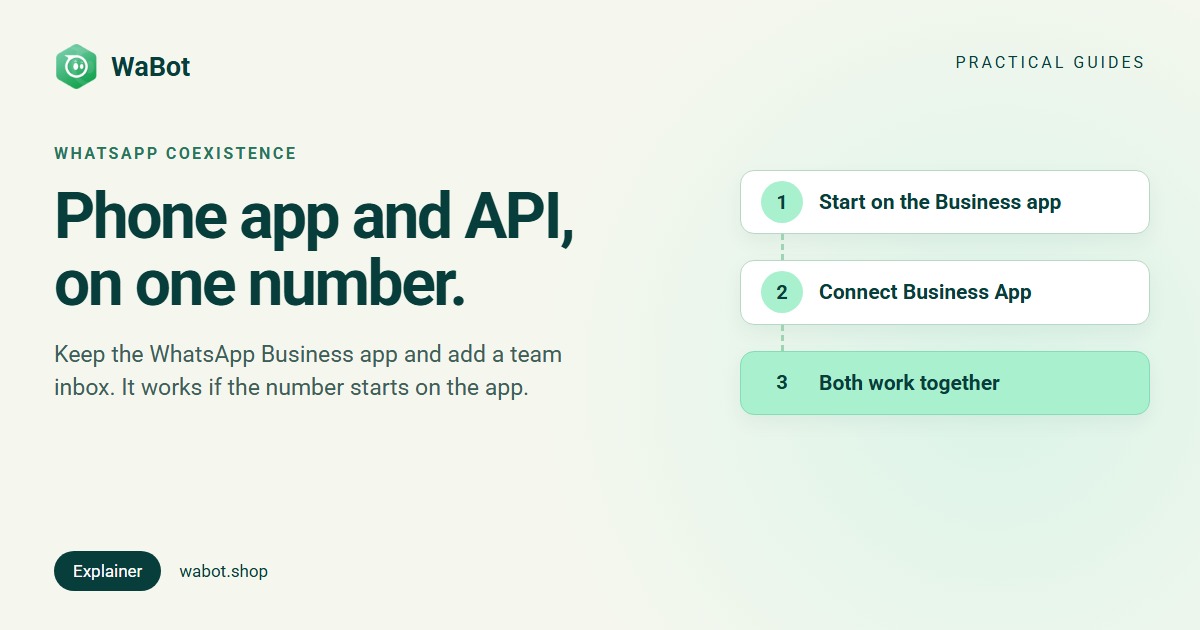
“Can I keep WhatsApp on my phone and still use Wabot on the same number?” It’s the question we hear most from new customers. The answer is yes. Meta calls it coexistence.
There’s one catch that trips people up: the order matters. If your number is on the WhatsApp Business app first and you then connect it to Wabot, both keep working. If the number goes straight onto the API first, the phone app stops working on it. This guide explains why in plain words, shows which button to press in Wabot, and what to do if you’ve already connected the other way.
First, the two kinds of WhatsApp for business
The WhatsApp Business app is the free app on your phone. You chat with customers from your phone, and from a few linked devices.
The WhatsApp Business API is the version for software. Meta calls it the Cloud API. It has no app of its own. Tools like Wabot plug into it so a whole team can share one number, send campaigns and reply automatically. Our app vs API comparison goes deeper.
For years, a number had to pick one of the two. Coexistence changed that: one number, working in the phone app and in Wabot at the same time.
What coexistence looks like
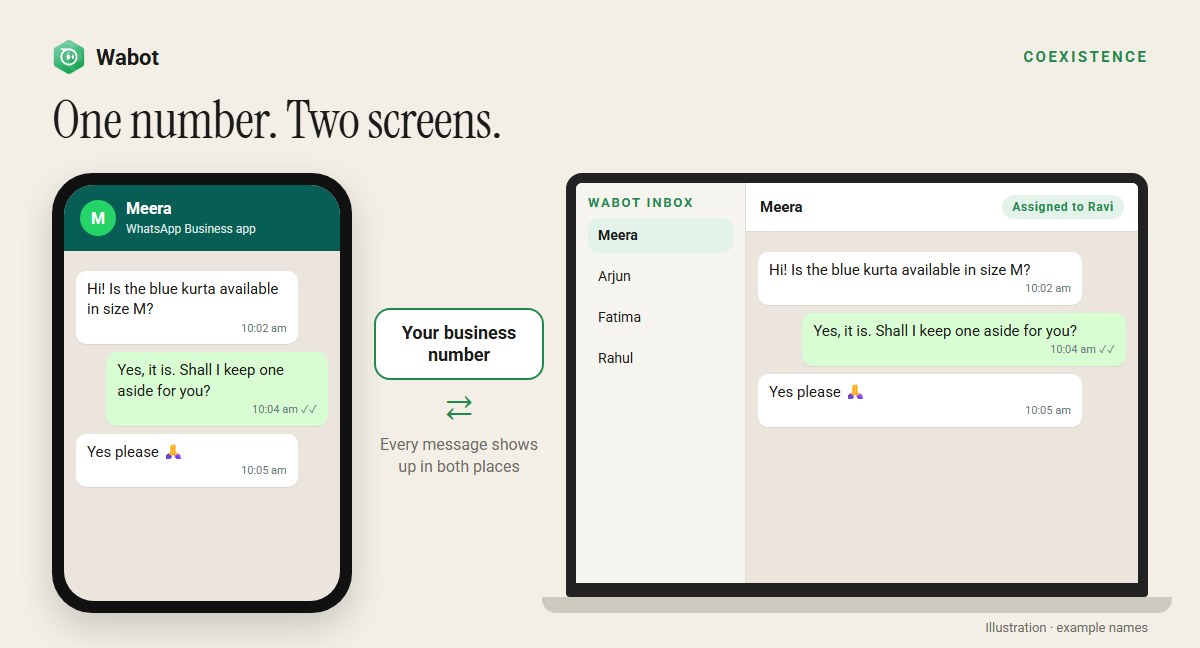
A customer messages your number. You see it on your phone, and your team sees it in Wabot’s inbox. Reply from either one and the conversation stays in step: messages you send from the phone are copied into Wabot, so nobody answers twice.
- You keep chatting from your phone, like you do today.
- Your team answers from the shared Wabot inbox, each with their own login.
- Wabot adds what the phone app can’t do: automatic replies, campaigns and reports.
Why the order matters
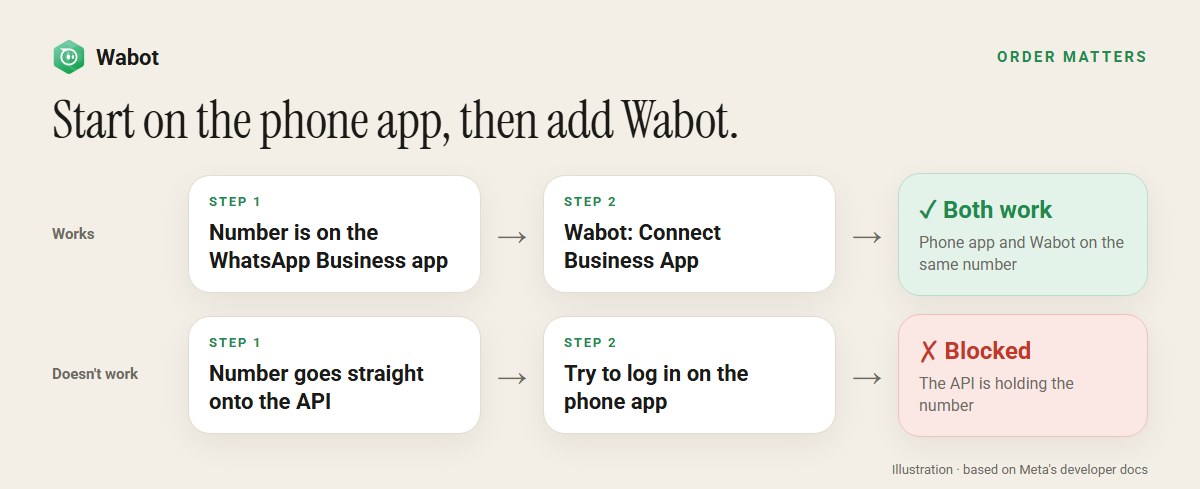
Think of your number as a front door with one key. The phone app holds the key. Coexistence lets Wabot get a copy of that key while you keep the original. That’s why the number has to be on the app first: there has to be a key to copy.
Now the other way round. When a number is connected straight to the API, the API holds the only key. The phone app can’t open the door. Meta’s guide to migrating numbers says you’ll be “unable to use that number with the WhatsApp Business app again” until the number is deregistered from the API.
Meta’s Business app onboarding page only describes one direction: a business that already uses the WhatsApp Business app connects that existing number. It doesn’t describe going from the API back to the app.
Planning to use the phone app as well? Put the number on the WhatsApp Business app before you connect it to Wabot. It saves a lot of trouble later.
Which button to press in Wabot
Both buttons are in Settings → Meta Platforms → WhatsApp. The connect guide shows each screen.
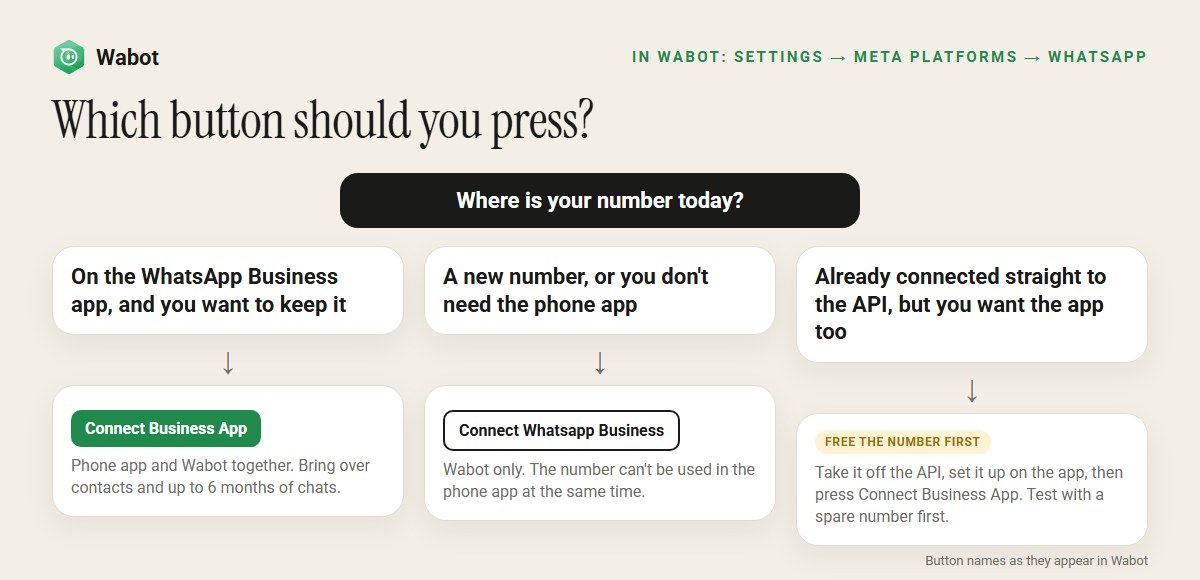
| Where your number is today | What to press | What you get |
|---|---|---|
| On the WhatsApp Business app, and you want to keep using it | Connect Business App | Phone app and Wabot together, with your contacts and recent chats copied over |
| A brand-new number, or you don’t need the phone app | Connect Whatsapp Business | Wabot only. The number can’t be used in the phone app at the same time |
| On personal WhatsApp (not the Business app) | Move it to the Business app first, or follow our guide to using an existing number | Personal WhatsApp can’t use coexistence |
| Already connected straight to the API, and you want the app too | Free the number first (next section) | Possible, but test it first |
Already connected to the API? How to get the phone app back
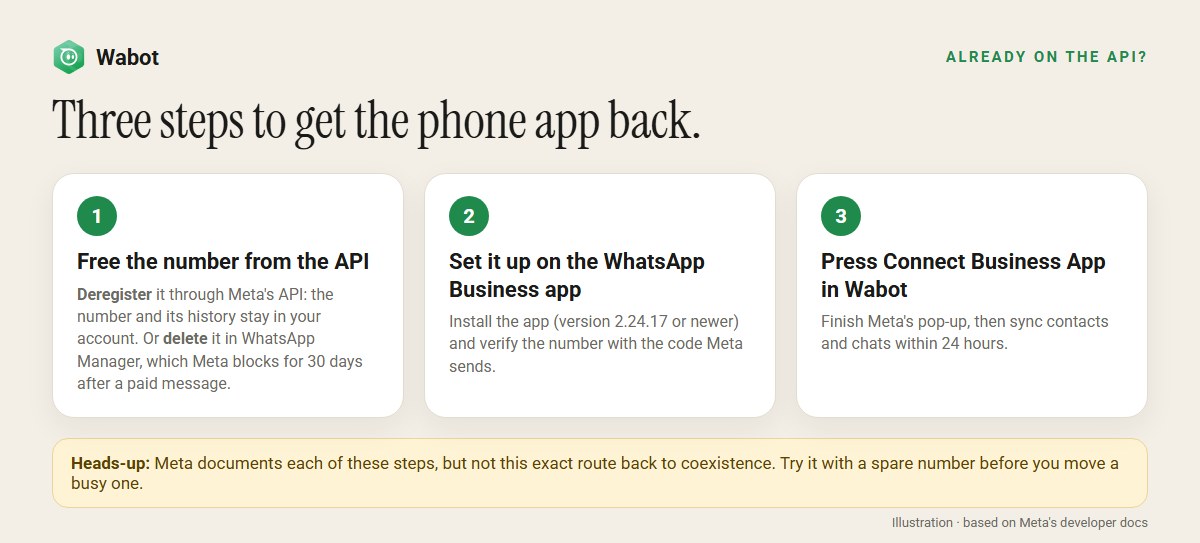
If your number went straight onto the API and you now want the phone app too, it takes three steps.
- Free the number from the API. There are two ways, compared in the table below.
- Set it up on the WhatsApp Business app. Install the app on the phone, version 2.24.17 or newer, and verify the number with the code Meta sends.
- Press Connect Business App in Wabot. Finish Meta’s pop-up, tapping Connect on the message it sends to your Business app. Then copy your contacts and chats within 24 hours.
| Deregister | Delete | |
|---|---|---|
| What it does | Takes the number off the API. The number and its message history stay in your WhatsApp Business Account | Removes the number from your WhatsApp Business Account |
| Where | Through Meta’s API. Wabot has no button for it | WhatsApp Manager → Account tools → Phone numbers → trash icon |
| Who | Your provider, using the API | An admin of your Meta business portfolio |
| Limits | Up to 10 tries per number in 72 hours | Blocked for 30 days after the number sends a paid message |
The details come from Meta’s pages on registration and phone numbers. If your number is connected through Wabot, message us on WhatsApp before you start and we’ll go through it with you.
Meta documents each step on its own, but it doesn’t describe this exact route from the API back to coexistence. Try it with a spare number before you move the number your customers use every day.
Keep your phone app and add a team inbox
Create your free Wabot account, then press Connect Business App to put your WhatsApp Business number on the API without giving up the app. No card needed.
What changes on your phone
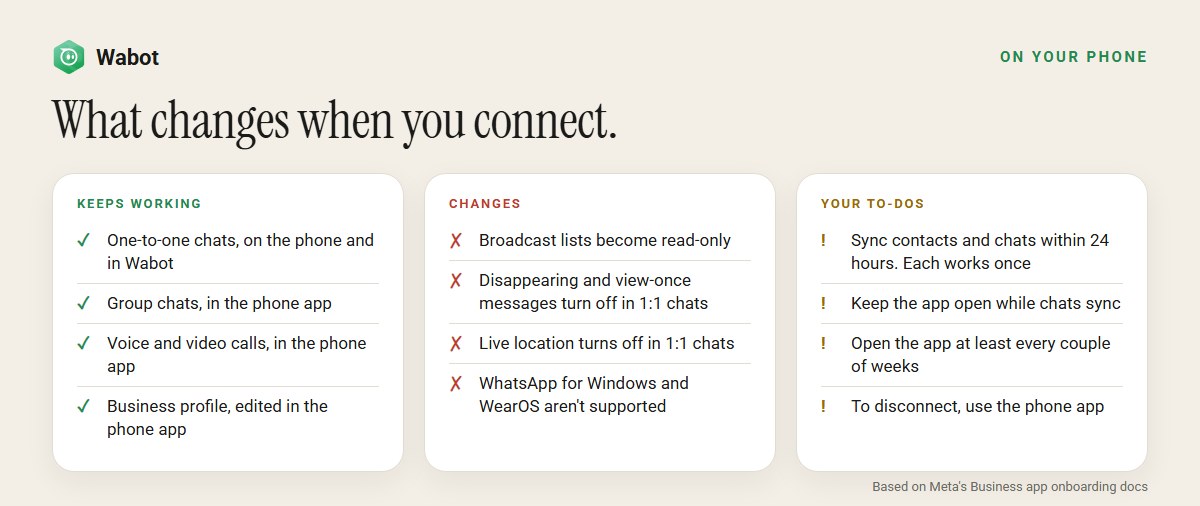
Most things carry on as normal. A few features change, according to Meta’s onboarding page.
Keeps working
- One-to-one chats, on the phone and in Wabot.
- Group chats and voice and video calls, in the phone app. They aren’t part of the API, so they stay on the phone.
- Your business profile, which you keep editing in the phone app.
Changes
- Broadcast lists become read-only, and you can’t make new ones. Send campaigns from Wabot instead. They also get past the broadcast list limits.
- Disappearing messages, view-once and live location are switched off in one-to-one chats.
- Linked devices are logged out when you connect. You can link them again, except WhatsApp for Windows and WearOS, which Meta doesn’t support here.
- Sending speed is fixed at 20 messages per second for the number.
- Old conversations: if a customer wrote to you before you connected, Wabot can only reply with an approved template message until they message you again.
Your first-day checklist
- Update the app to version 2.24.17 or newer before you start.
- Keep the phone nearby. During Meta’s pop-up, a message arrives in your WhatsApp Business app. Tap Connect, choose whether to share your chat history, and copy the verification code back into the pop-up.
- Copy your contacts and chats within 24 hours. In Wabot, open the number’s ⋮ menu and use Synchronize Contacts and Synchronize History. Each works once. History covers up to 6 months of one-to-one chats. Photos and files come along only for about the last 14 days.
- Leave the app open while your chats copy across.
- Keep using the phone. Meta disconnects the number if the phone app goes unused for about 14 days.
- Know how to switch it off. Disconnect from the phone: Settings → Account → Business Platform → Disconnect Account. Offboard Account in Wabot only turns the number off inside Wabot.
Frequently asked questions
Can I use the WhatsApp Business app and the API on the same number?
Yes. Meta calls it coexistence. Your number has to be on the WhatsApp Business app first. Then you connect it to a provider like Wabot through Meta’s Business app sign-up. In Wabot, that’s the Connect Business App button.
I connected my number to the API first. Can I add the phone app now?
Not while the number is on the API. Meta says an API number can’t be used in the WhatsApp Business app until it’s deregistered from the API. Meta doesn’t describe a direct route from the API back to coexistence. Free the number, set it up on the app, then connect it with Connect Business App. Test with a spare number first.
Will I lose my chats when I connect my Business app number to Wabot?
No. Your chats stay on your phone. Wabot can also copy your contacts and up to 6 months of one-to-one chats into its inbox. You have 24 hours after connecting to do this, and each sync works only once. Group chats aren’t copied.
Do messages I send from my phone show up in Wabot?
Yes. Messages you send from the phone app are copied into Wabot’s inbox, so your team sees the whole conversation.
Can I still make WhatsApp calls and use groups?
Yes, in the phone app. Calls and group chats aren’t part of the API, so they stay on your phone. Broadcast lists become read-only. Use campaigns in Wabot instead.
How do I turn coexistence off?
From the phone. In the WhatsApp Business app, go to Settings, Account, Business Platform and tap Disconnect Account. Offboard Account in Wabot only switches the number off inside Wabot.
Is coexistence available in India?
Yes. Meta opened Business app onboarding to Indian (+91) numbers in May 2025. You need WhatsApp Business app version 2.24.17 or newer.
The short version
Yes, one number can work in the WhatsApp Business app and in Wabot at the same time. Start with the number on the phone app, then press Connect Business App in Wabot and copy your chats within 24 hours.
If the number is already on the API only, the phone app won’t work on it until you free it. Plan that move carefully and test it first. Need a hand? Message us on WhatsApp.
Connect your WhatsApp Business app to Wabot
Free account, no card needed. Press Connect Business App and keep chatting from your phone while your team uses the inbox.