Festival season, and the orders are coming in on WhatsApp. A customer asks for the catalog, you send photos one by one, they pick a saree and two bangle sets, you type the total, send your UPI ID, wait for the screenshot and check it against the bank SMS. Forty orders a day and the evening is gone.
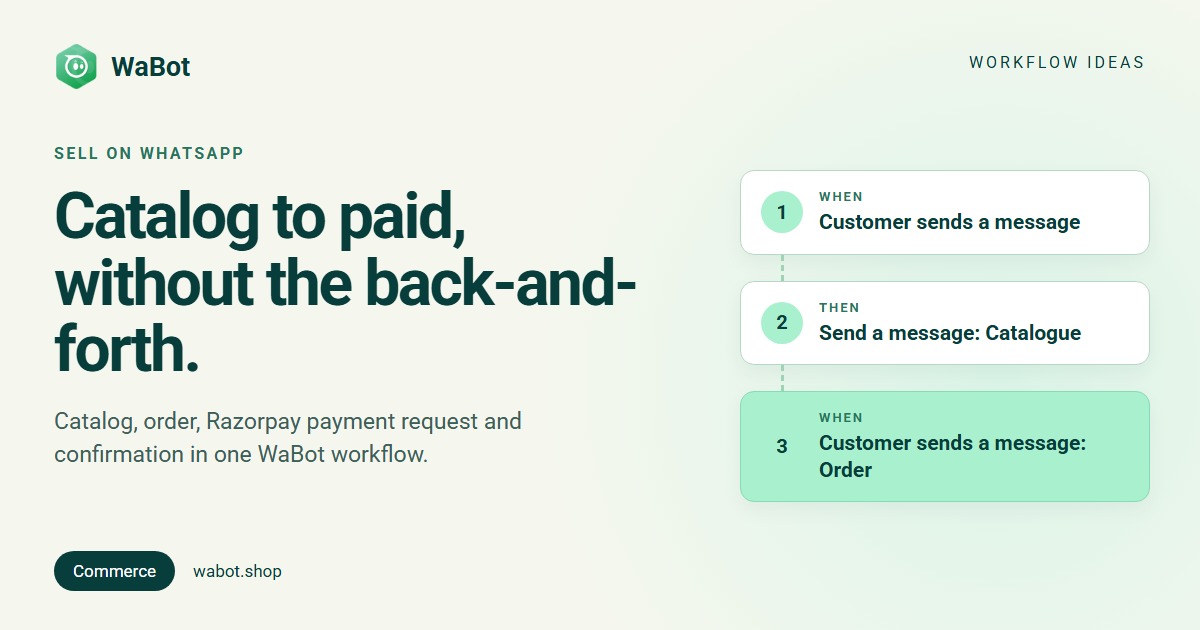
This post shows a WhatsApp catalog order payment automation in WaBot. The customer types “catalog”, gets your Meta catalog inside the chat, orders from it, and receives a payment request with a Review and Pay button (Razorpay). A successful payment gets a thank-you and the tag paid; a failed one goes to a teammate.
Customer orders from the catalog and pays, WaBot handles every step
What this workflow does
- Sends your WhatsApp catalog (or a chosen set of products) the moment a customer asks for it.
- When they order from that catalog message, sends a payment request for exactly those items with a Review and Pay button, paid through Razorpay in rupees.
- When the payment succeeds, sends a thank-you and tags the contact paid, so you can filter paid orders and send shipping updates later.
- When the payment fails, assigns the chat to a teammate and tells the customer that nothing was charged.
- Every order also shows up under Commerce → Orders in WaBot, with its payment status.
Why it works
Orders on WhatsApp die at three moments: when the customer can’t find the product, when nobody has said the total yet, and when paying means copying a UPI ID and sending a screenshot. The catalog puts the products in the chat, the order message carries the items, and the payment request turns paying into one tap.
Nothing leaves WhatsApp: no website to load on a slow connection, no login to remember. On a festival night a customer can browse, order and pay from the sofa.
The payment result comes back into the workflow, so “paid” is a fact in your inbox, not a screenshot to trust. The tag separates paid from unpaid for packing, and the failed branch brings a person in while the customer is still interested.
Build this catalog-to-payment workflow in Wabot, free
Create your free account here. Connect your WhatsApp number and you get 15 days of the Base Plan, workflows included, no card needed.
The full logic, including the paid / failed branch
Build it in WaBot, step by step
Workflows are on the Base Plan (₹9,240/year + GST). The Starter plan (₹840/month + GST) includes the shared inbox and campaigns but not workflows. You can sign up and connect your number on the Free plan first; connecting a number starts a 15-day trial of the Base Plan.
Before you start: connect your catalog and Razorpay
- In the left menu open Commerce → Products. Pick the WhatsApp number at the top; the setup checklist for that number is shown below it.
- Connect Meta business: click Connect with Facebook and choose the business portfolio that owns your catalog.
- Select a catalog: click Select catalog and pick the Meta catalog customers will browse on this number (create one in Meta Commerce Manager if you have none). Add products lets you add products from WaBot, one by one or by CSV, and sync them to the catalog.
- Configure payments: click Configure. Enter the Configuration name exactly as it appears in WhatsApp Manager (Account tools → Payment configurations) and choose Razorpay as the Payment provider. The workflow’s payment request works with Razorpay only, in INR.
More on this setup in the commerce guide.
Step 1: send the catalog when someone asks
- Open Automation → Workflows and click Add workflow. Enter a Workflow name such as Catalog to payment. Under How should it run? choose Automatic, under Start from choose Blank, and pick the Form editor.
- Click Choose a trigger and pick Customer sends a message. Complete the sentence: When a customer sends a WhatsApp Text message that contains catalog. “Send me your catalog” and “catalog please” both match.
- Under Actions, click Choose an action → Send a message. Under Message type pick Catalogue. Click Catalogue to send your whole catalog, or Multi Product to pick a set, such as your Diwali collection. Write the Message Content and Footer. For the full catalogue choose a Thumbnail Product; for Multi Product add a Header.
- Click Save.
Step 2: when they order, request the payment
- Click Add step. Trigger: Customer sends a message, channel WhatsApp, message type Order. There is no text to match: this step runs whenever a customer places an order from the catalog.
- Action: Send a message, Message type → Payment. Under Payment Mode choose Catalog Payment. Set Payment type to Payment Gateway (the Payment Link and Intent options don’t work for catalog payments in a workflow) and Payment gateway to Razorpay. For the products choose Customer Orders, so the request covers exactly what they ordered.
- Save. The customer gets an order summary with a Review and Pay button and pays without leaving WhatsApp.
Step 3: paid, so thank them and tag the chat
- Add step. Trigger: Customer sends a message, WhatsApp, message type Payment. It fires when the payment result comes back and adds a variable called
status. - Open Conditions → Add a condition group → Add rule. Under Choose what to check pick Variable, choose
{{status}}, set the condition to is and the value to success. - Actions: Send a message → Text only, with the thank-you text below. Then Add to groups or tags → Select Tags → paid. Create the tag under Contact → Tags first if you don’t have it.
Step 4: failed, so bring in a person
- Add step with the same trigger (message type Payment) and the condition Variable
{{status}}is failed. - Actions: Assign to team member → How to choose: A specific teammate → the person who handles payments. Then Send a message → Text only with the “payment didn’t go through” text below.
- Leave pending alone. It usually becomes success or failed a moment later, and one of the two steps above handles it.
Test and switch on
Send a test sends a step’s messages to your own WhatsApp straight away. For the real thing, message “catalog” to your business number from your own phone, order the cheapest product and pay; each step’s Runs list shows who it ran for and why it skipped anyone. Then check every step’s Step on switch and click Turn on workflow (more in the workflows guide).
What this workflow does not do. Payments run through Razorpay only, in INR. The Payment trigger fires for catalog orders only: if you send a Custom Payment request (an amount you type in), its result doesn’t come back to a workflow, so Steps 3 and 4 won’t confirm it. The Order step doesn’t give you the items or total as variables, so leave {{order}} out of your messages; the payment request carries the order summary anyway. And you can’t branch on the order value (say, free shipping above ₹2,000), so put such offers in the catalog text.
Messages you can copy
All of these go out while the customer has just written to you, so normal messages are fine. A shipping update sent days later must be a Meta-approved template, and marketing messages only go to customers who agreed to hear from you.
Here's our Diwali collection 🪔 Tap the catalog below, add what you like to the cart and send the order. The payment link comes right here in the chat.
Payment received, thank you! 🙏 Your order is confirmed. We'll pack it today and send the tracking number here within 2 days.
The payment didn't go through, and nothing was charged. Reply RETRY to get a fresh payment link, or tell us if you'd prefer UPI or bank transfer and our team will help.
Variations and tips
Button instead of keyword. Put a Quick Reply button See catalog in your welcome message and add a step triggered by Interactive quick reply buttons where the title is See catalog, with the same Catalogue action.
Using Pipelines? In the success step add Mark deal won or lost → Won, so the sale moves across your board by itself.
Related reading: automatic WhatsApp follow-ups, Diwali WhatsApp messages for business, menu buttons for WhatsApp Business and, a week after “paid”, a review request.
Start taking paid orders on WhatsApp, free
Create your free account here. Connect your WhatsApp number and you get 15 days of the Base Plan, workflows included, no card needed.
Frequently asked questions
Can customers pay inside WhatsApp in India?
Yes. With a Meta catalog linked to your number and a Razorpay payment configuration in WhatsApp Manager, a customer who orders from your catalog gets an order summary with a Review and Pay button and pays in the chat. WaBot’s workflow sends that request automatically when the order arrives.
Which payment gateways work with this workflow?
Razorpay only, and the currency is INR. The Payment type must be Payment Gateway; the Payment Link and Intent options don’t work for catalog payments in a workflow. Payment links you send by hand (Custom Payment) don’t report back to the workflow either.
Can I send the catalog to people who haven’t messaged me?
The Catalogue message is a normal message, so it only goes out within 24 hours of the customer’s last message. For everyone else, send an approved template inviting them to reply “catalog”; the workflow takes over from there.
Which plan includes this?
Workflows are on the WaBot Base Plan (₹9,240/year + GST). Meta’s own message charges are billed by Meta directly, with no WaBot markup.
Final thoughts
Selling on WhatsApp works because it’s personal, and stops working when every order needs ten messages from you. Let the catalog, order and payment request run on their own and spend the evening packing, not checking screenshots.
Connect your catalog and Razorpay first, build the four steps, and test with the cheapest product in your catalog before the festival rush.