People who search how to manage multiple WhatsApp Business accounts usually mean one of two things. Some run two small businesses and want both on one phone. Others run an agency, or a group of brands, and look after WhatsApp for 5, 20 or 50 businesses.
The first has a short answer. The second needs a setup that keeps each client’s number, data and Meta bill apart while you work from one place. This guide covers both.
Can you have two WhatsApp Business accounts on one phone?
Not in the WhatsApp Business app. Regular WhatsApp lets you keep two accounts on one phone and switch between them, but WhatsApp’s Help Center says “account switching isn’t currently available on the WhatsApp Business app” (How to switch accounts). Here’s what WhatsApp allows, as its Help Center described it on 16 November 2026:
| What you want | What WhatsApp allows |
|---|---|
| Two Business app accounts on one phone | Not available: account switching isn’t in the Business app |
| A business and a personal account on one phone | Yes: “You can use WhatsApp Business and WhatsApp Messenger simultaneously, but the accounts must be linked to different phone numbers” (Help Center) |
| Two accounts in regular WhatsApp | Yes, each with its own number: the multiple account feature “allows you to have two different accounts on a single mobile device” (Help Center) |
| One account with two numbers | No: “Your WhatsApp account can only be verified with one registered phone number” (Help Center) |
So a second business on the app means a second phone, or moving a number to the WhatsApp Business API, where the number isn’t tied to a handset and your team works from a browser (app vs API explained). Several people on one number is a different question: see WhatsApp Business multiple users. For one business with several numbers in one inbox, see our shared inbox for multiple numbers guide.
Many client brands: the setup that scales
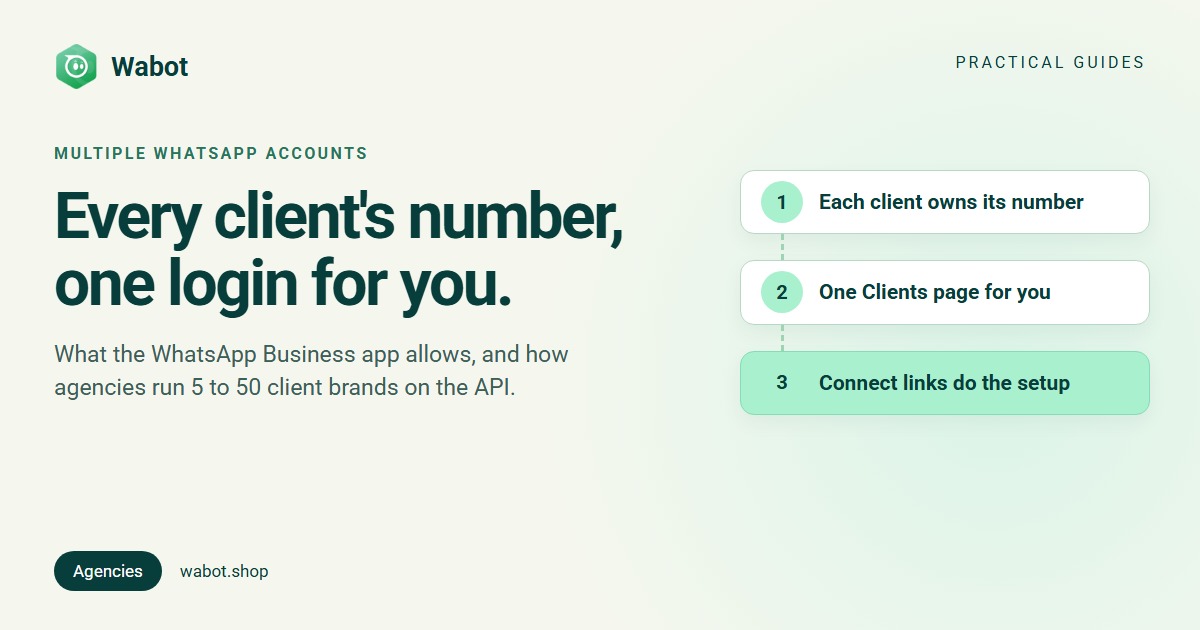
An agency’s problem is different. You don’t run one business with several numbers; you work for many separate businesses. Each needs its own Meta business portfolio, WhatsApp account, number and payment method for Meta’s charges. Then you need one place to work from. Two Meta rules settle where the numbers belong:
- The client owns the account. Under Meta’s account model, generally available since 23 September 2026 and rolled out in stages, the WhatsApp account that holds the number “is always owned by the client or direct developer”. Clients connected through Embedded Signup “own all of their WhatsApp assets” and keep full access to WhatsApp Manager: “you cannot restrict this access in any way.”
- The client pays Meta. With a Tech Provider, clients “must provide their own payment method after onboarding is complete” and Meta bills them (Meta solution providers). Meta’s charges land on the client’s account, not yours.
Meta’s limits to plan around
Meta sets its caps per business portfolio. That’s the other reason never to park client numbers in your agency’s portfolio:
| Limit | Meta’s rule | What it means for an agency |
|---|---|---|
| Numbers per portfolio | “New business portfolios are initially capped at two registered business phone numbers”, raised to 20 after verification or a 2,000 messaging limit (Meta) | One shared agency portfolio would run out at 20; each client’s own portfolio has its own cap |
| Messaging limit | Set “at the business portfolio level” and “shared by all business phone numbers within a portfolio”; “Newly created business portfolios have a messaging limit of 250” customers in 24 hours, outside customer service windows (Meta) | In a shared portfolio one client’s campaign eats another’s limit. Plan a new client’s first campaigns around 250 (how limits grow) |
| Sharing | A WhatsApp account with “up to five Solution Partners”, a Messaging account with “up to two partners” (Meta) | A client can work with you and another provider at once |
| Templates | Stay in the Messaging account where they were created | A client who changes platform recreates them |
Each number also has its own quality rating, so check every client’s (quality rating low?).
How to manage multiple WhatsApp Business accounts in Wabot
Wabot is a Meta Tech Provider. Its agency mode, live since 16 November 2026, gives one login a Clients page with every client account on it. It’s free and works on any plan. Full steps: the Account types guide.
1. Switch on client management
When you sign up, tick I manage WhatsApp for my clients on the setup form. Already on Wabot? Click your profile picture, choose Edit Profile, open Account type, pick I manage WhatsApp for my clients and click Save. Only the owner login can do this. Clients then appears at the top of the menu.
2. Add each client
Click Add client and fill in one form: business name, business type, country, currency, time zone and an optional contact. The account is ready in about a minute. It starts on the Free plan with an empty wallet, and welcome credits arrive when its first number connects. You can have up to 10 clients without a connected number at a time; connected clients are unlimited.
3. Get the number connected
Connect it yourself with Connect WhatsApp if your Facebook login can manage the client’s business in Meta, choosing the client’s portfolio, not your agency’s. Or let the client do it with Send connect link:
How a connect link gets a client's number onto Wabot
- The link works for 7 days and is shown only once. A new link cancels the old one.
- Share it with Copy or Send on WhatsApp. If you added the client’s email, tick Also email it to …: Wabot sends an English email from “your agency via Wabot”.
- The client needs a Facebook login, not a Wabot login, and chooses Yes, keep using my WhatsApp Business app (Recommended; see coexistence) or No, use a new number.
- The page shows the Wabot name and logo, and picks English, French, Spanish or Portuguese from the browser.
- When the client connects, the row shows Connected, you get an email and welcome credits land in the client’s wallet.
The WhatsApp column while one client connects
4. Work across all your clients
- The top of the page counts Clients, WhatsApp connected, Need attention and Messages sent (30 days).
- Each row flags No number yet, Low number quality, Plan ending soon, Plan ended or Wallet empty. Filter by Needs attention to see only those.
- Row actions: Open, Connect WhatsApp, Send connect link, Invite their team, Choose a plan, Send payment link and Top up wallet.
- Keep clients open in different tabs: if one tab switches client, the others ask whether to continue or stay, so nothing is saved into the wrong account.
- In the Claude connector,
list_workspacesandselect_workspacecover every client account.
5. Keep billing and staff per client
Each client account has its own plan, wallet and invoices; there’s no combined agency bill. Pay in the row with Choose a plan, or use Send payment link: a Razorpay link for a paid plan at Wabot’s price, which covers 30 days once paid in full and doesn’t renew by itself. Plans are $9, $25 or $59 a month per client account (rupee prices on our pricing page). Meta bills message charges to the client’s own WhatsApp account, with no markup from us; the wallet pays only for AI.
Once a number connects, Invite their team adds the client’s staff as User or Agent, seeing that one account only. Building client software? The Platform API creates clients and connect links from your code.
Example: an agency with 15 clinic clients
Illustration with fictional names. Brightline Media runs Click-to-WhatsApp ads and lead follow-up for 15 dental and skin clinics. Each clinic owns its portfolio and number, and gets a connect link on WhatsApp. Most keep their WhatsApp Business app, so the front desk still answers from the phone.
- Per clinic: its own templates, ad leads and an AI agent taught that clinic’s treatments, fees and timings (ads for clinics, following up clinic leads).
- Monday check: filter Needs attention. A No number yet client whose link shows Link expired gets a new link, Low number quality gets a template review, and Plan ending soon gets a payment link or a plan choice.
- Clinic staff join as Agents, so each receptionist sees only the chats assigned to them.
The same setup works for a real-estate or travel portfolio. If your clients’ funnels run on GoHighLevel, see GoHighLevel and WhatsApp.
When a client leaves
The client owns the WhatsApp account, so moving on is their call. Two Meta rules shape the handover (account model):
- Sharing is additive. The client can add their next agency or platform to the same number. Whether they keep or remove the previous partner “is their decision”.
- Templates don’t move. They “belong to the Messaging account in which they were created and are not shared across Messaging accounts”, so the new platform submits them again.
Write the exit into your contract on day one: what you hand over (template wording, the bot’s knowledge, ad accounts you set up, contact lists), and when your access ends. Our WhatsApp automation agency playbook covers what to agree when a contract ends.
Run every client's WhatsApp from one login
Create your free Wabot account, switch on client management and send your first connect link. No card needed.
Frequently asked questions
Can I have two WhatsApp Business accounts on one phone?
Not in the WhatsApp Business app: WhatsApp’s Help Center says account switching isn’t available there. Run the Business app and regular WhatsApp with different numbers, or move one business to the API.
How many WhatsApp Business accounts can I have?
One number per WhatsApp account. On the API, a new business portfolio can register two numbers, and 20 once it’s verified or reaches a 2,000 messaging limit.
Should client numbers sit in my agency’s business portfolio?
No. Your clients would share one number cap and one messaging limit, and Meta says the WhatsApp account belongs to the client anyway.
What do my clients see when they connect?
A connect page with the Wabot name and logo and your agency’s name in the text, then Meta’s window, which also shows the Wabot name. They need a Facebook login, not a Wabot login.
Who pays for each client’s Wabot plan?
Either you pay in the client’s row with Choose a plan and invoice the client yourself, or the client pays Wabot’s plan price through a payment link you send.
The short version
Two businesses on the WhatsApp Business app means two phones or a move to the API. For many client brands, give each client its own Meta business portfolio, so caps, limits and Meta’s bill stay theirs.
Then work from one login: add the client, send a connect link and watch who needs attention. Questions about your setup? Message us on WhatsApp.