A clinic with three branches, a shop with a wholesale and a retail line, a company with one number for sales and another for support: plenty of businesses run more than one WhatsApp number. Then the questions start. Who answers which number? Who sees what came in overnight?
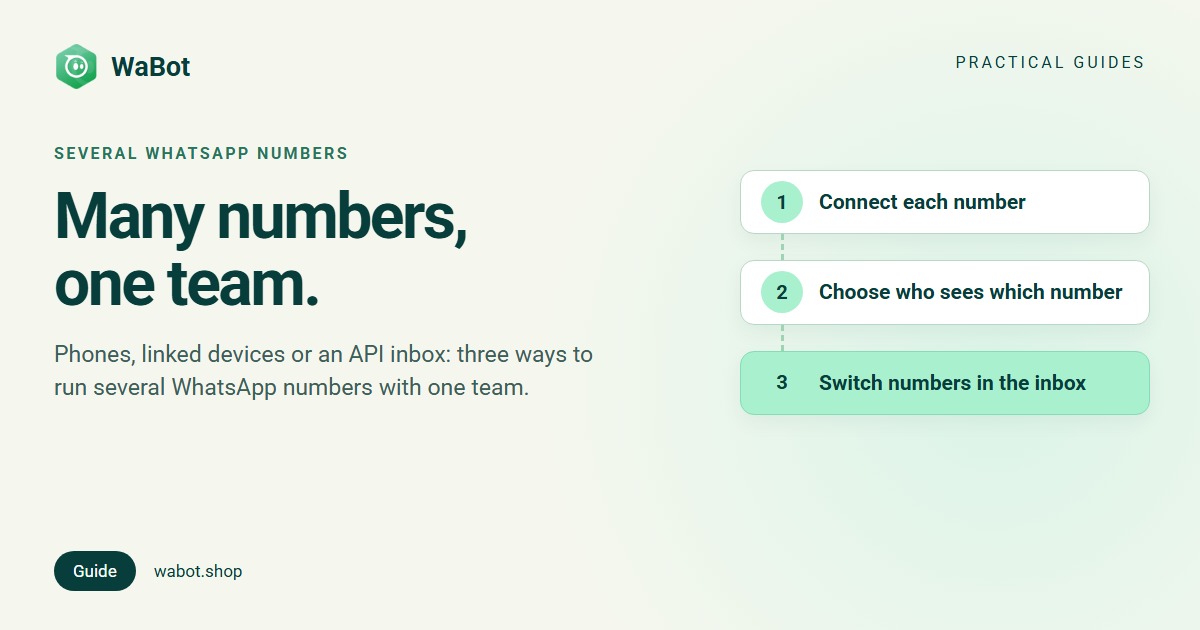
There are three ways to run a WhatsApp shared inbox for multiple numbers: a phone for each number, the WhatsApp Business app’s linked devices and multi-agent feature, or an API inbox with every number in one account. This guide compares them using Meta’s own rules, then shows how it works in Wabot, including what Wabot doesn’t do.
Why businesses run more than one number
- Branches: each location has its own number on its signboard and receipts.
- Brands: each brand keeps its own name in the customer’s chat list.
- Sales and support: new enquiries and existing customers go to different people.
- Countries: a local number per market, answered in the local language.
- Old and new: the original number stays on the app, and a second one is added for campaigns or automation.
The goal is the same: each chat reaches the right people, and nothing waits unseen.
What Meta sets per number, and what’s shared
Some rules apply to each number, others to your whole business. On the WhatsApp Business Platform (the API), Meta’s developer pages say:
| Rule | Per number or shared? | What it means for you |
|---|---|---|
| Display name | Per number | Meta asks for display name details “when registering a business phone number” (phone numbers), so each number shows its own name. Refused? See display name rejected. |
| Quality rating | Per number | Each number has a status that “reflects its quality rating” (what a low rating means). |
| Free replies | Per number | The first 1,000 service messages a month are free for each business phone number (Meta pricing). |
| Messaging limit | Shared | Limits “are calculated and set at the business portfolio level” and “shared by all business phone numbers within a portfolio” (messaging limits), so one number can use up all of it. See how to increase your messaging limit. |
| How many numbers | Per business portfolio | “New business portfolios are initially capped at two registered business phone numbers.” Meta raises the cap to 20 automatically once your business is verified or reaches a messaging limit of 2,000. |
Option 1: a phone for each number
The simplest setup is one phone per number, each running the free WhatsApp Business app. It costs nothing beyond the phones, and each branch or team keeps its own handset.
It’s also the setup most businesses outgrow first. WhatsApp’s Help Center says plainly that “account switching isn’t currently available on the WhatsApp Business app” (How to switch accounts), so in practice each business number lives on its own phone. Chats are spread across handsets, and a manager has to pick up each phone to see what’s waiting.
Option 2: linked devices and multi-agent in the Business app
Each Business app number can be used on more than one device. Meta’s page About linked devices on the WhatsApp Business app says you can use the app on the web, desktop and other devices “by linking them to your phone”: up to four linked devices, which “enables more employees to respond to customer messages”. Linking steps: WhatsApp Business with multiple users.
Meta’s About multi-agent page goes further for businesses with a Meta Verified or Meta One subscription:
- Up to 10 devices instead of four, depending on your subscription’s benefits. Meta notes: “The premium version of this feature may not be available to you yet.”
- Assigning chats by hand: press and hold a chat, choose to assign it and pick an agent. Devices can be named after the agent using them.
- Private to customers: “Customers won’t be able to see which agent or which device a message was sent from.”
The limits to plan around, from the same pages:
- The main phone still registers the account and links new devices, and “if you don’t use your primary device for over 14 days, your linked devices will become disconnected.”
- If the subscription ends, “only your four most recently active devices will remain linked.”
- Linked devices can’t create broadcast lists, share live location or post a status.
With several numbers, each number is its own account, with its own devices, subscription and chat list. Someone who covers two branches needs a device linked to each number.
Option 3: an API inbox with every number in one account
With the WhatsApp Business API, your numbers connect to Meta’s Cloud API through a provider, and your team works in the provider’s inbox instead of on phones. You add people, not devices: each person signs in with their own login, you decide which numbers they can open, and chats can be assigned by rules that differ from number to number. Campaigns go out from the number customers know (marketing needs the customer’s opt-in first).
You don’t have to take a number off the app to do this. With coexistence, a Business app number connects to the API and keeps working on the phone: Meta’s Business app onboarding page says “messages sent and received are mirrored between the Cloud API and WhatsApp Business app” for one-to-one chats. Linked devices are unlinked when you connect and can be linked again (except WhatsApp for Windows and WearOS), and the number sends at a fixed 20 messages per second.
Ask any provider whether its inbox shows all numbers’ chats together or one number at a time. Our guide to choosing a WhatsApp API provider lists more questions, and WhatsApp Business app vs API compares the two products.
Which setup fits your business
| A phone per number | Business app + linked devices | API inbox | |
|---|---|---|---|
| Cost | Free app; one phone per number | Free for 4 linked devices; up to 10 with Meta Verified or Meta One | Provider plan plus Meta’s per-message charges |
| Who can reply | Whoever holds the phone | Main phone plus linked devices | Everyone you give a login |
| Who sees which number | Whoever has that phone | Whoever has a device linked to it | Set per person |
| Assigning chats | Pass the phone | By hand, with multi-agent | By hand or by automation rules |
| When someone leaves | Hand back the phone | Unlink their device | Remove their login |
One number and a small team? See our shared inbox for teams guide. Several numbers, shifts or branches usually point to the API.
How Wabot handles several numbers
Wabot is the API-inbox option. Here’s what it does with several numbers, and what it doesn’t.
- Every number in one account. You connect each number under Settings → Meta Platforms.
- Switch with the Channels picker. At the top of the chat list, the Channels picker lists your numbers (and any Instagram accounts or Facebook Pages you’ve connected). Pick one and the list shows that number’s chats.
- No combined view. There’s no single list with every number’s chats: Wabot has no merged view, so you work on one number at a time.
- A default number. An admin can star one number with Make this the default number, and the inbox opens on it. Next to it you see the number’s quality rating and today’s chat count.
- Channel Access per person. When you invite someone, Channel Access sets which numbers they can open, and they see only those.
- Two roles: User and Agent. Agents see only chats assigned to them.
- Filters for each number’s list: All, Unread, My chats, Unassigned and Mentions.
- Teamwork in the chat: Assign to a teammate, internal notes only your team can see (type @ to mention someone), and saved replies you insert by typing / in the message box.
- Automation per number. A workflow step can check which number a message came in on (the Channel condition), so each number can have its own rules, such as Assign to team member with Round-robin or Least busy between that branch’s staff. Each number can also have its own AI agent.
- Campaigns: each campaign has a Channel field, so it goes out from the number your customers know.
Set it up in Wabot
- Connect your first number. Go to Settings → Meta Platforms and choose Connect your WhatsApp Business app to keep using the app on that number, or Use a new number for a number that isn’t on WhatsApp yet. Both use Meta’s Embedded Signup.
- Repeat for each number. Each one then shows up in the Channels picker. Meta’s cap applies: two numbers at first, 20 once your business is verified or reaches the 2,000 messaging limit.
- Pick a default. In the chat list, select your main number and click the star (Make this the default number).
- Invite your team. In Settings → Users, click Invite user, fill in their details, choose User or Agent and click Continue to Permissions.
- Set Channel Access. Tick the numbers this person handles (at least one), choose their permissions and click Send Invitation.
- Add rules per number. In Automation → Workflows, start from Reply to every message, add a Channel condition for the number, and add Assign to team member with Only if the chat isn’t assigned yet.
Roles and permissions are covered in the team guide, and inbox controls in the inbox guide.
Signing up and connecting numbers is free; chatting and campaigns need a paid plan: Starter $9, Silver $25 or Gold $59 a month. In India: ₹840, ₹2,160 or ₹5,749 a month, or the Base Plan at ₹9,240/year (adds workflows), all + 18% GST. Meta bills messages to your own Meta account, with no markup from us. See plans.
Bring all your WhatsApp numbers into one Wabot account
Create your free Wabot account and connect your WhatsApp numbers. No card needed.
Frequently asked questions
Can the WhatsApp Business app handle two numbers?
Not in one app. WhatsApp’s Help Center says account switching isn’t currently available on the WhatsApp Business app, so in practice each number runs on its own phone, with its own linked devices.
Can I see the chats of all my numbers in one list in Wabot?
No. Wabot shows one number at a time: you switch with the Channels picker, and an admin can make one number the default so the inbox opens on it.
How many WhatsApp numbers can one business put on the API?
Meta caps new business portfolios at two registered business phone numbers, and raises the cap to 20 automatically once the business is verified or reaches a messaging limit of 2,000.
Do my numbers share Meta’s free messages and messaging limit?
The free replies are per number: the first 1,000 service messages each month are free for each business phone number. The messaging limit is shared across your business portfolio, so a large campaign on one number can use it up for the others.
Can one teammate answer two numbers?
Yes. Tick both numbers in their Channel Access and they switch between them with the Channels picker. Give them the Agent role if they should see only the chats assigned to them.
The short version
A phone per number is free but scatters your chats. The Business app adds linked devices to each number. An API inbox puts every number in one account, with access set per person.
In Wabot, you switch numbers with the Channels picker rather than reading one combined list, and Channel Access keeps each teammate on the numbers they handle.