Your customers had a great trip, or loved the order. They told your driver, or said so on the phone. But your Google profile still shows 40 reviews, the newest from March, while the agency down the road has 400.
Happy customers rarely leave reviews on their own. They do it when someone asks at the right moment, with a link that opens the review box in one tap. This post shows how to send a Google review request on WhatsApp automatically, when a trip is marked completed or an order is fulfilled, and how to catch unhappy customers before they post.
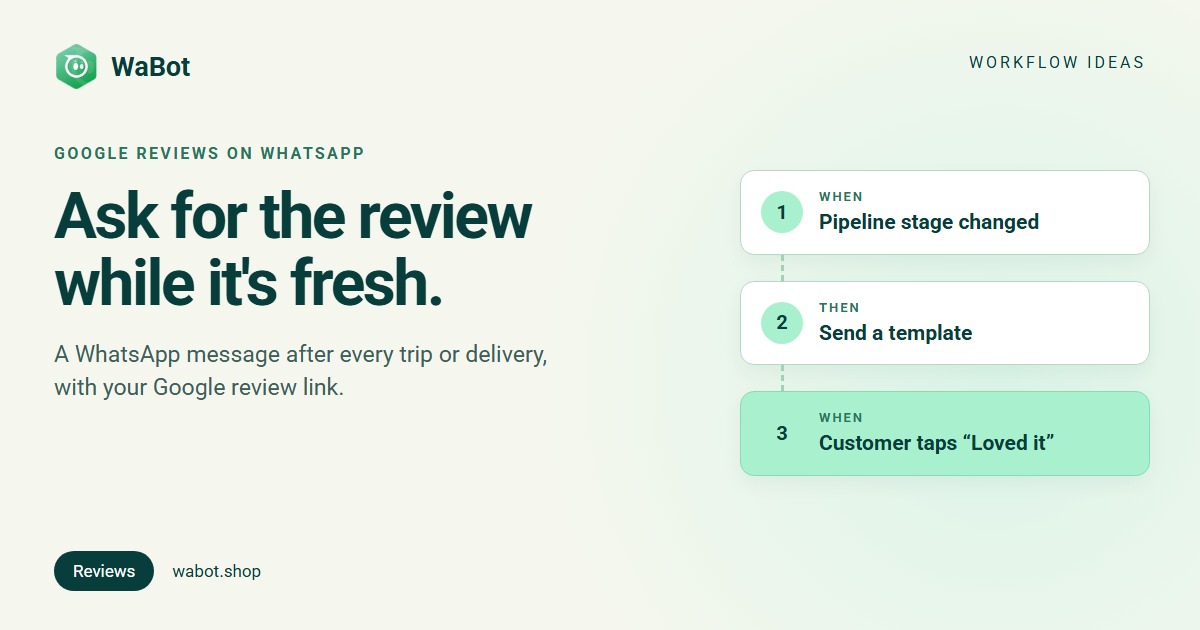
Trip completed → “Happy?” → review link or manager
What this workflow does
- Sends a thank-you template as soon as a booking card moves to Trip completed on your pipeline (or, for online stores, after a Shopify order is fulfilled).
- Asks one question with two buttons: “Loved it” or “Not happy”.
- “Loved it” gets a message with a Write a review button that opens your Google review page.
- “Not happy” gets an apology, the chat is assigned to your manager, and a follow-up task is created to call them. They also get the review link, so they can still share their experience.
Why it works
- Timing. The day a trip ends or a parcel arrives, the experience is fresh and the customer is still on WhatsApp with you.
- One tap. A button that opens the review box removes the hardest step: finding your business on Google.
- Problems reach a person first. An unhappy customer who gets a call from the manager the same day has a reason to feel heard.
- Fair to Google’s rules. Google doesn’t allow review gating, which means asking only happy customers for reviews. Everyone in this workflow gets the link; the question only decides who also gets a call.
Before you start
- Turn on Pipelines. An admin goes to Settings → Pipelines and switches on Use pipelines in this account, then creates a pipeline. The Travel template gives you Enquiry, Itinerary sent, Quote, Advance paid, Booked and Lost. Add a stage called Trip completed (or Delivered for orders) after Booked. Until Pipelines is on, the pipeline trigger shows as “Enable Pipelines in Settings to use this”.
- Get your Google review link. In your Google Business Profile, use the option to ask for reviews and copy the short link.
- Create the template. Submit a template with two quick reply buttons, “Loved it” and “Not happy”, and wait for Meta’s approval.
- Plan. Workflows are on the Base Plan (₹9,240/year + GST). Starter (₹840/month + GST) has the shared inbox and campaigns but not workflows.
Build it in WaBot, step by step
Step 1: thank the customer when the trip is completed
- Open Workflows in the left menu and click Add workflow. Name it Review request, choose Automatic, start from Blank, and build with the Flowchart editor.
- Add a trigger: Pipeline stage changed. Choose your Pipeline (e.g. Bookings), From stage: Any stage, To stage: Trip completed.
- Action: Send a template, Send to: The customer. Pick your review template. You can use card details such as
{{deal_title}}in template variables. Set Wait before sending if you’d rather send a few hours later, e.g. 7200 seconds for two hours.
Step 2: “Loved it” → review link
- Click + under the action and choose New step. Trigger: Customer sends a message, WhatsApp Interactive quick reply buttons where the title is exactly Loved it.
- Action: Send a message → Message type Call to Action. Write the text, set the button to “Write a review”, and paste your Google review link. The customer has just replied, so a normal message is fine here.
- Optional: Add to groups or tags → tag Happy customer, useful for referral offers later.
Step 3: “Not happy” → manager
- Add another New step under step 1, with the button title Not happy.
- Action: Send a message with an apology, a promise of a call, and the review link.
- Action: Assign to team member → A specific teammate (your manager).
- Action: Create follow-up: “Call {{senderName}} about their trip”, due in 2 hours.
Step 4: test and switch on
- Click Save and clear the Set up panel. Turn on Step on for each step and the switch on the workflow card.
- Create a test card for your own number on the board and drag it to Trip completed. Tap each button to check both paths.
Pipeline-triggered messages go out from your account’s default WhatsApp number. Moving a card manually on the board counts, so your team only has to keep the board up to date.
Build this review request workflow in WaBot.
Online store? Use the Shopify version
If you sell online and have connected your Shopify store, you don’t need a pipeline:
- Trigger: the Shopify order fulfilled trigger (in the trigger list under Shopify).
- Action: Send a template with Wait before sending set to the usual delivery time, e.g. 259200 seconds for three days. “Fulfilled” means the order has shipped, not that it has arrived.
- Add the same two button steps as above.
Orders without a customer phone number are skipped, because there’s nobody to message. Make the phone field required at checkout if you can.
Messages you can copy
Review template (buttons: “Loved it”, “Not happy”):
Hi {{1}}, welcome home! 🌴 Thank you for travelling with us. How was your trip?
Hi {{1}}, your order should have reached you by now. Is everything as you expected?
“Loved it” reply (Call to Action button: “Write a review”):
That's lovely to hear! 😊 Could you share your experience on Google? It takes a minute and helps other families choose with confidence.
“Not happy” reply:
We're sorry to hear that. Our manager will call you today to understand what went wrong. If you'd like to share your experience publicly, you can do so here: [review link]
The first message usually goes out more than 24 hours after the customer last wrote to you, so it must be a Meta-approved template. Promotional messages only go to customers who agreed to hear from you. Meta’s message charges are billed by Meta directly, with no WaBot markup.
Variations and tips
- Clinics, salons, coaching. Use a Visit completed or Course completed stage instead of Trip completed.
- Don’t ask twice. Ask once per trip or order. Repeated review requests annoy people.
- Use the feedback. Read the “Not happy” chats every month; they tell you what to fix.
- Start earlier in the journey. To win the booking in the first place, see auto-reply to travel enquiries and WhatsApp for travel agencies in Kerala.
Ask every customer for a review, automatically.
Frequently asked questions
Can WaBot send a review request on a date, like three days after checkout?
There’s no date trigger. Use a pipeline stage (e.g. Trip completed) as the trigger, or a Shopify order fulfilled trigger with a delay on the template, set in seconds.
Do I need Pipelines for this?
For the travel version, yes: an admin switches on Pipelines in Settings → Pipelines. Online stores can use the Shopify order fulfilled trigger instead.
Is it OK to send the review link only to happy customers?
Google doesn’t allow review gating. In this workflow everyone gets the link; unhappy customers also get a call from your manager.
Does the review message need to be a template?
The first message does, because it’s usually sent outside WhatsApp’s 24-hour window. Replies after the customer taps a button can be normal messages.
Final thoughts
Reviews come from asking at the right moment, every time. Let the pipeline or your Shopify store tell WaBot when that moment is, and make leaving a review a single tap.
Add the Trip completed stage, get the template approved, and test it with your own number before switching it on.