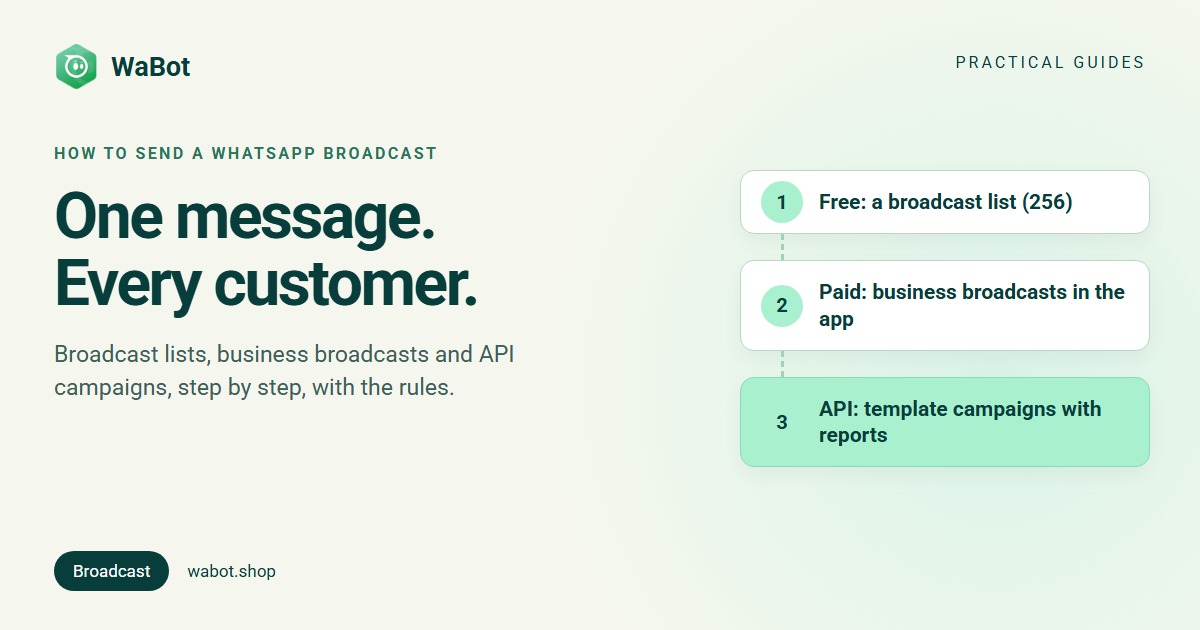
In the WhatsApp Business app, the free way to send a WhatsApp broadcast message is a broadcast list: up to 256 contacts per list, delivered only to people who have saved your number. In some countries the app also offers paid business broadcasts, which reach customers even if they haven’t saved you. On the WhatsApp Business API, you send a Meta-approved template to opted-in customers as a campaign, with per-contact delivery reports and a sending limit that grows with good quality.
Every recipient gets the message as a private one-to-one chat; nobody sees who else received it. Here is each route step by step, and how to choose. (New to WhatsApp marketing? Start with the complete guide.)
The three ways at a glance
| Broadcast list (app) | Business broadcasts (app) | Campaign (API) | |
|---|---|---|---|
| Reaches people who haven’t saved your number | No | Yes | Yes, if they opted in |
| Availability | Any WhatsApp Business app | Eligible users in select countries | Any number connected to the API |
| Cost | Free | Paid; pricing varies by country | Per delivered message (India): ₹0.8631 marketing, ₹0.115 utility, + 18% GST |
| Schedule for later | No | Yes | Yes |
| Reports | Ticks in each chat | Read and reply rates | Sent, delivered, read, failed with reason, per contact |
| Workflows and integrations | No | No | Yes, through your provider |
Sources: WhatsApp’s help pages on broadcast lists and broadcast lists in the Business app, its business broadcasts page, and Meta’s messaging limits documentation. Weighing the two products overall? Read WhatsApp Business app vs API.
Way 1: a broadcast list in the WhatsApp Business app (free)
- Open the broadcast tool on your phone. On Android, go to the Chats tab, tap the ⋮ menu and choose New broadcast. On iPhone, look for Broadcast lists from the Chats screen, then New list; its exact place has moved between app versions.
- Pick the recipients, up to 256. They must be in your phone’s contacts.
- Create the list, then type and send. The message goes out as a separate one-to-one chat to each person; replies come back privately.
- Send to the same list next time. The list is saved, and you can add or remove recipients later.
Broadcast lists work only on the phone app: not on WhatsApp Web, Windows or Mac, and linked devices can’t create or view them.
Now the two catches. First, the 256 cap is per list: you can make more lists, but each send is manual. Second, and bigger: only contacts who have saved your number receive the broadcast. A customer who messaged you once but never added you to their address book gets nothing, and you get no error telling you so. WhatsApp’s own advice when someone isn’t receiving your broadcasts is to ask them to add your number, one message at a time:
Hi Divya, this is Rahul from Pearl Opticals. Save this number to get our offers and new-frame updates on WhatsApp. Reply STOP if you'd rather not.
WhatsApp also notes that some users in some countries may have a monthly broadcast cap on top of the 256 per list, rolling out gradually. Why broadcast lists stop scaling, in full: the WhatsApp broadcast list limit explained.
A broadcast list is not a group. In a list, each person gets the message as a private chat from you. In a group, everyone sees everyone’s number and messages. Never use a group as a broadcast substitute.
Way 2: business broadcasts in the Business app (paid, where available)
WhatsApp has added business broadcasts to the Business app, available to eligible users in select countries. If your account has them:
- Open Tools in the Business app and select business broadcasts.
- Choose the customers and write the message. Business broadcasts reach people even if they haven’t saved your number.
- Send immediately or schedule for later, then check the read and reply rates.
They’re paid, and availability, limits and pricing vary by country, so check WhatsApp's help page for yours. They live inside the app, so there are no workflows, no integrations with your shop or CRM and no API access. And as with any broadcast, message only customers who agreed to hear from you.
Way 3: a broadcast campaign on the WhatsApp Business API
On the API (Meta’s WhatsApp Business Platform), a broadcast is a template campaign: one approved message sent to a chosen audience, with a report per contact. Meta’s Business Messaging Policy sets the condition: every recipient must have given you their number and agreed to hear from you, and every opt-out must be honoured (how to collect opt-in). Here is the route end to end, using WaBot as the example dashboard:
- Get your number on the API. Sign up with a provider and connect a number: a new one, or your existing WhatsApp number. Full steps: how to get the WhatsApp Business API in India.
- Write the template. A broadcast that starts conversations must be a Meta-approved template, usually Marketing category, with an opt-out line. Meta says review can take up to 24 hours, so submit early. Category rules: Marketing vs Utility vs Authentication; wording to copy: 30+ template examples.
- Import and tag your contacts. In WaBot, Contacts → Import contacts takes an .xlsx, .xls, .csv or .vcf file through Upload → Map columns → Tags & groups → Review → Import.
- Pick the audience. Choose individual contacts, whole groups or tags; blocked contacts are excluded automatically, and nobody gets the message twice. (Campaigns guide)
- Send or schedule. Launch Options offers Send Now or Schedule for Later with a date and time (more on scheduling), and Maximum messages per second controls the sending speed.
- Read the report. Campaign results show sent, delivered, read and failed per contact, with the reason in plain words, for example “Contact stopped marketing messages” when someone opted out at Meta’s end.
A template broadcast looks like this, placeholders filled per contact:
Hi {{1}}, our Pongal collection is in store from Friday. Show this message for 10% off until 20 January. Reply STOP to opt out of offers.
Mind the messaging limit
Meta’s messaging limit counts the unique customers you message outside a 24-hour service window, per rolling 24 hours: 250 for a new business portfolio, 2,000 after business verification, then 10,000, 100,000 and beyond as quality stays high. Replies to customers who messaged you don’t count. If your list is bigger than your limit, split it by tag and send across days; how to increase your WhatsApp messaging limit covers the tiers.
What not to do
- Don’t use bulk-sender apps, browser extensions or GB WhatsApp. They automate the normal app, and WhatsApp’s Terms of Service name bulk messaging and auto-messaging as impermissible. The usual result is a banned number (how to send bulk messages without getting banned).
- Don’t turn a group into a broadcast. Customers see each other’s numbers and leave.
- Don’t message bought lists. No opt-in means blocks and reports, and Meta’s policy says businesses can be limited based on user feedback.
- Don’t skip the opt-out line. A customer who can’t find “STOP” presses “Block”, and blocks hurt the quality rating that your sending limit depends on.
- Don’t send your whole list on day one. Start with recent, warm customers, watch the report, then widen.
How WaBot handles this
- Audience without the saved-number rule. Campaigns go to contacts, groups or tags you pick, as approved templates, whether or not the customer saved you.
- Send now or schedule, with the sending speed under your control, and a per-contact report when it’s done.
- Know your limit before you send. The inbox shows your current tier (for example “Tier 250” or “Tier 2K”) and a quality dot, and the Updates feed records limit and quality changes Meta sends.
- Replies land in a shared inbox, so the team answers the “Is COD available?” messages a good broadcast brings in.
Campaigns are on the Starter plan (₹840/month + GST) and above; the Free plan lets you sign up and connect your number. Meta’s per-message charges are billed by Meta directly, with no WaBot markup; the rates and worked examples are in WhatsApp Business API pricing in India.
Send your first broadcast the official way
Create your free WaBot account, connect your WhatsApp number to the official API and broadcast an approved template to opted-in customers, with per-contact delivery reports. Connecting a number starts a 15-day Base Plan trial, no card needed.
Frequently asked questions
How do I send a broadcast message on WhatsApp Business?
For a free broadcast list on Android, open Chats, tap the ⋮ menu and choose New broadcast; on iPhone, open Broadcast lists and tap New list. Pick up to 256 contacts and send; only people who saved your number receive it. Where WhatsApp offers them, paid business broadcasts (Tools → business broadcasts) also reach people who haven’t saved you. For bigger, measurable sends, use the API and send an approved template as a campaign.
Why didn’t some contacts receive my broadcast message?
Broadcast lists only deliver to people who have saved your number in their phone’s address book. Anyone else on the list silently gets nothing. Ask them to save your number, or use a route without that rule: business broadcasts where available, or template campaigns on the API.
Can I send a WhatsApp broadcast to numbers that haven’t saved me?
Not from a broadcast list. Paid business broadcasts in the Business app can, for eligible users in select countries. On the WhatsApp Business API, a Meta-approved template reaches the customer whether or not they saved you, as long as they opted in.
How many people can I broadcast to at once?
A broadcast list takes 256 contacts, with as many lists as you like, each sent manually. On the API, your Meta messaging limit applies per rolling 24 hours: 250 unique customers for a new business portfolio, 2,000 after business verification, then 10,000, 100,000 and beyond.
Is a WhatsApp broadcast free?
Broadcast lists are free. Business broadcasts in the Business app are paid, with pricing that varies by country. On the API, Meta charges per delivered message: in India ₹0.8631 for marketing and ₹0.115 for utility templates, plus 18% GST, billed by Meta directly.
The bottom line
If your audience is a couple of hundred regulars who already saved your number, a broadcast list does the job for free, and paid business broadcasts stretch the app further where WhatsApp offers them. For a growing opted-in list with per-contact delivery reports, scheduling, workflows and integrations, send template campaigns on the API, with an opt-out line in every offer.