A WhatsApp Odoo integration lets your Odoo database message customers on WhatsApp when something happens to their order. There are two main routes: Odoo’s own WhatsApp app, which is part of Odoo Enterprise, and a connector such as Wabot’s, which sends order confirmations, shipping updates, cancellations and abandoned-cart reminders from Odoo eCommerce through your own WhatsApp number.
This guide compares the two, explains what Wabot’s connector for Odoo 17, 18 and 19 does, what you need before installing it, what each message costs with Meta, and how to set it up.
Two ways to connect WhatsApp to Odoo
Odoo’s WhatsApp documentation describes its own app. It’s an Enterprise-only application, it connects a WhatsApp Business Account through an app you set up in Meta’s developer console, and it sends approved templates from Odoo records, such as quotations from Sales, receipts from Point of Sale and tickets from Events. Chats appear in Odoo’s Discuss app.
Wabot’s connector works differently. It’s an Odoo addon that watches your eCommerce orders and passes each event to Wabot. Wabot sends the WhatsApp message from your number and keeps the conversation in its shared inbox.
| Odoo’s WhatsApp app | Wabot connector for Odoo | |
|---|---|---|
| Odoo edition | Enterprise only, per Odoo’s documentation | Needs only Odoo’s eCommerce app, which Community includes |
| Versions | Part of Odoo Enterprise | Odoo 17, 18 and 19 |
| WhatsApp setup | Your own app in Meta’s developer console | Connect your number in Wabot through Meta’s Embedded Signup |
| What it sends | Templates from Odoo records, such as quotations, receipts and event tickets | Order and COD confirmation, shipping update, order cancelled, abandoned-cart reminders |
| Where replies go | Odoo’s Discuss app | Wabot’s shared team inbox |
Which suits you? On Enterprise, sending templates from many Odoo apps, Odoo’s own app is a natural fit. For an Odoo eCommerce shop that wants ready-made order updates and cart reminders with a team inbox, the connector is built for that.
What the Wabot connector does
| When this happens in Odoo | WhatsApp message | Type |
|---|---|---|
| A sales order is confirmed | Order confirmation, or a COD confirmation for cash-on-delivery orders | Order update |
| A confirmed order is cancelled | Order cancelled | Order update |
| A delivery for the order is validated | Shipping update, with the carrier tracking number or link when there is one | Order update |
| A website cart isn’t turned into an order | Up to 3 abandoned-cart reminders | Marketing: opted-in customers with a phone only |
- Which orders. Under Order messages you choose Website orders or All sales orders, so orders your sales team enters by hand can get updates too.
- COD orders. With COD confirmation on, cash-on-delivery orders get the COD message instead of the normal confirmation. Use a template with Confirm and Cancel quick-reply buttons.
- Shipping updates come from validated deliveries, so they need Odoo’s Inventory app.
- Who gets them. Order updates go to the phone number of the customer, the delivery address or the invoice address. Each message is sent once, even if Odoo sends the same event again.
- Uninstalling the addon tells Wabot to stop sending.
Behind the scenes, the addon saves each event in a queue inside Odoo, in the same step as the order change, and sends it to Wabot straight away. If Wabot can’t be reached for a while, Odoo keeps trying, so a short outage doesn’t lose an event. Every event is signed with a secret key created when you install the addon, and database copies that Odoo neutralizes, such as staging copies, are disconnected so a test copy doesn’t message real customers.
What you need before you start
- Odoo 17, 18 or 19 with the eCommerce app.
- An Odoo where you can install your own modules. Odoo’s pricing page says Odoo Online hosts databases without custom modules, so you’ll need Odoo.sh or your own server.
- Your Odoo reachable over https from the internet, with its web address set in the
web.base.urlsystem parameter. - At least 2 workers, or the threaded server. During Connect, Wabot calls back into your Odoo to confirm the connection really comes from it.
- A database filter (
dbfilter) that picks the database from the host name, if your server runs several databases. - A WhatsApp number connected to Wabot. In Settings → Meta Platforms, choose Connect your WhatsApp Business app to keep using the app on the same number (how coexistence works), or Use a new number.
- Approved message templates for each message you turn on.
Abandoned carts and consent
Abandoned-cart reminders are marketing messages, and WhatsApp marketing needs the customer’s opt-in (how to collect WhatsApp opt-in). The connector builds that in:
- Reminders only go to customers whose Odoo contact has WhatsApp marketing opt-in ticked, and who have a phone number.
- They stop as soon as the cart becomes an order.
- Customers who opted out or are blocked in Wabot are never messaged.
- If you’d rather not send marketing at all, choose Order updates only in the connector’s settings in Wabot.
Tick the opt-in box only for customers who agreed to marketing messages from you, and keep a record of how they agreed. Order updates don’t need that box, but Meta’s pricing page still says you can only message WhatsApp users who have opted in to receiving messages from you, so tell customers at checkout that order updates come on WhatsApp.
Messages you can copy
Each automation fills template variables from the order: the customer’s first name, order number, order total, an items summary, the order status link, the tracking number and link, the cart recovery link or your store name.
Order confirmed (utility template)
Hi {{1}}, thank you for your order! Order {{2}} for {{3}} is confirmed. We'll message you here when it ships.
COD confirmation (utility template, buttons: Confirm, Cancel)
Hi {{1}}, please confirm your cash-on-delivery order {{2}} for {{3}}. Tap Confirm and we'll ship it, or Cancel if you no longer need it.
Shipping update (utility template)
Good news, {{1}}! Your order {{2}} is on its way.
Tracking number: {{3}}
Track it here: {{4}}
Cart reminder (marketing template, opted-in customers only)
Hi {{1}}, you left something in your cart at {{2}}. It's saved for you here: {{3}}
Reply STOP to opt out.
More wording: 30+ template message examples.
What each message costs
Meta charges for each delivered template message, at the rate for the customer’s country and the message category. Order confirmations, shipping and cancellation updates are normally utility; cart reminders are marketing, which costs more (template categories explained). Meta bills these charges to your own Meta account, with no markup from Wabot.
| Customer’s country | Utility (order updates) | Marketing (cart reminders) |
|---|---|---|
| United States (North America rate) | $0.0034 | $0.025 |
| United Kingdom | $0.022 | $0.0635 |
| Germany | $0.055 | $0.1365 |
| United Arab Emirates | $0.0157 | $0.0576 |
| Saudi Arabia | $0.0107 | $0.0576 |
| India | ₹0.115 | ₹0.8631 |
Meta’s list rates per delivered message, effective 1 October 2026, before tax and volume discounts.
Illustration, with stated assumptions: a shop with 500 orders a month sends a confirmation and a shipping update for each (1,000 utility messages) and 200 cart reminders, all to customers in one country, at list rates and before tax. In the UK that’s 1,000 × $0.022 + 200 × $0.0635 = $34.70 a month. In India it’s 1,000 × ₹0.115 + 200 × ₹0.8631 = ₹287.62, plus 18% GST.
Replies inside the 24-hour customer service window are service messages, and the first 1,000 a month per number are free. Since 1 October 2026, utility templates sent while a chat is open are charged too. Every country’s rates: our WhatsApp API pricing guide; India in detail: WhatsApp Business API pricing in India.
Your customers’ data
The connector’s settings page in Wabot spells this out: Wabot uses order, delivery and cart data from Odoo (customer name, phone, email, items, totals, links) only to send the WhatsApp messages you turn on. Message logs keep IDs only and are deleted after 90 days. Abandoned-cart data is encrypted and deleted after 30 days, and uninstalling the addon deletes the stored carts.
Set it up in Wabot
The addon isn’t on the Odoo Apps Store yet. To get the connector, message us on WhatsApp.
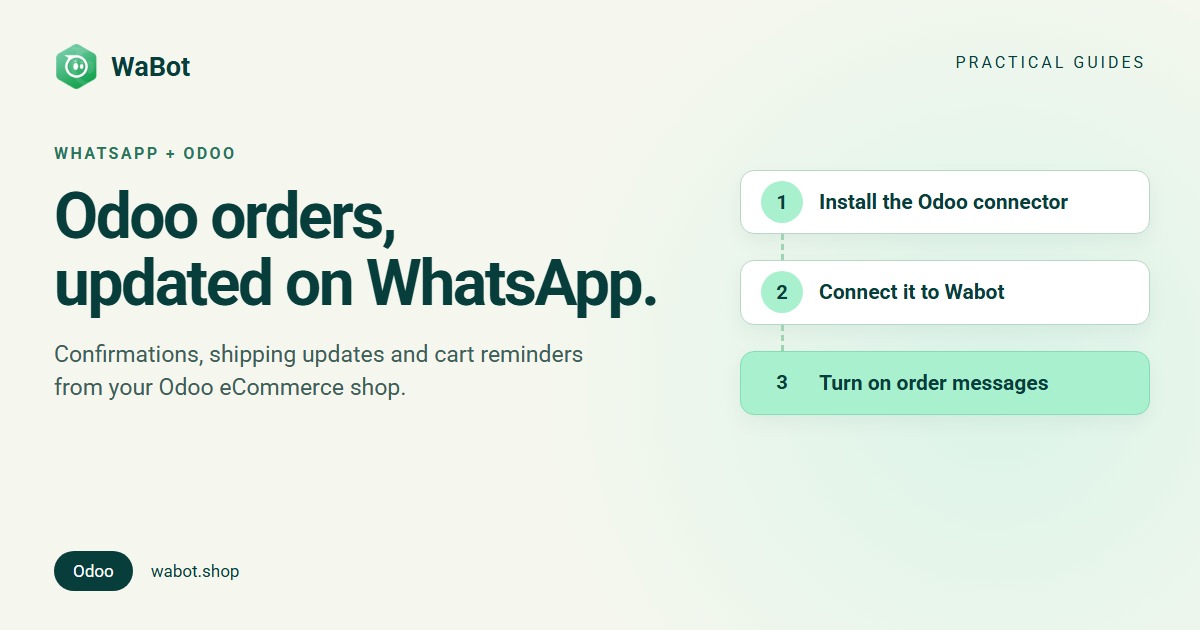
1. Install and connect
- Install the Wabot: WhatsApp for eCommerce module in your Odoo, like any other addon.
- Go to Settings → Wabot and click Connect to Wabot.
- Click Open Wabot. It signs you in with a one-time link. Create a new Wabot account for the store, or link the one you already use.
2. Turn on order confirmations
- Connect a WhatsApp number in Wabot, if you haven’t yet.
- In the setup step Turn on order confirmations, pick your WhatsApp number and an approved Message template, send yourself a test and click Turn on. No approved template yet? Create an order confirmation template in Wabot and wait for WhatsApp’s approval.
3. Add the other messages
- Open Automations to switch on COD confirmation, shipping update, order cancelled and abandoned cart. Each one needs a WhatsApp number and an approved template, and you can send a test with sample order data.
- For abandoned carts, add up to 3 reminders. Each is sent between 15 minutes and 7 days after the customer’s last change to the cart, and each must come later than the one before.
- Back in Odoo, under Settings → Wabot, choose Website orders or All sales orders, switch Abandoned cart reminders on or off, and click Test connection to check the link.
Customer replies land in Wabot’s shared inbox, where your team can assign chats, add internal notes with @mentions and use saved replies, and an AI agent can answer everyday questions from information you teach it. For the rest of the online-store journey, read WhatsApp for ecommerce.
Send your Odoo orders to WhatsApp
Create your free Wabot account and connect your WhatsApp number. No card needed.
Frequently asked questions
Does Odoo have WhatsApp built in?
Odoo’s documentation describes a WhatsApp app that is part of Odoo Enterprise and doesn’t work in Community. It connects through an app you set up in Meta’s developer console. Wabot’s connector is another route, built for Odoo eCommerce shops.
Which Odoo versions does the Wabot connector support?
Odoo 17, 18 and 19, with the eCommerce app installed. Shipping updates also need the Inventory app.
Is the connector on the Odoo Apps Store?
Not yet. To get the connector, message us on WhatsApp.
Can it send abandoned-cart reminders to every customer?
No. Cart reminders are marketing messages, so they only go to customers whose Odoo contact has WhatsApp marketing opt-in ticked and who have a phone number. They stop as soon as the cart becomes an order.
Does it work on Odoo Online?
The connector is an Odoo addon, and Odoo’s pricing page says Odoo Online hosts databases without custom modules. You need Odoo.sh or your own server, reachable over https.
Where do customer replies go?
To Wabot’s shared inbox, where your team can assign chats, add internal notes and use saved replies.
The short version
If you run an Odoo eCommerce shop, a WhatsApp Odoo integration turns order events into messages customers read: a confirmation when they order, a tracking link when it ships, a note if it’s cancelled and, for customers who agreed, a reminder about the cart they left.
Check that your Odoo can take custom modules and is reachable over https, connect your WhatsApp number, and start with order confirmations.