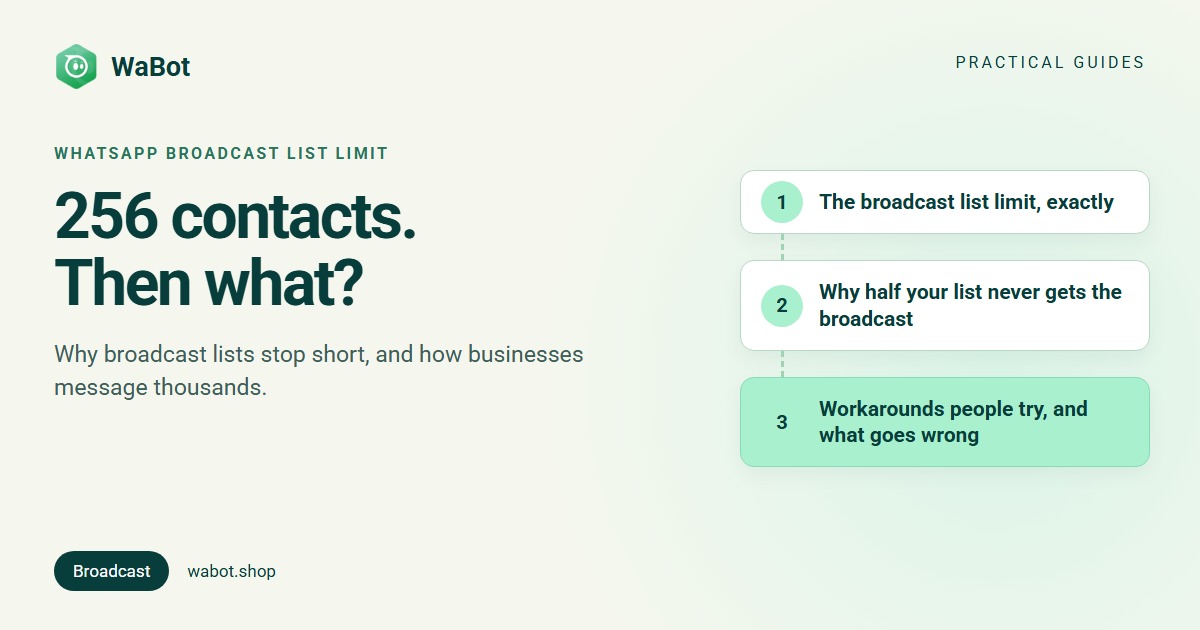
You built a broadcast list in the WhatsApp Business app, and it stopped letting you add people at 256. Then half of the ones you did add never got the message.
The WhatsApp broadcast list limit is 256 contacts per list, and a broadcast only reaches people who have saved your number in their phone. You can create more lists, but each one is sent by hand, and the saved-number rule doesn’t go away. Businesses that message thousands of customers use the WhatsApp Business API, where approved templates go to opted-in customers whether or not they saved you, with delivery reports and a limit that grows with good quality.
Here is exactly how the limit works, why so many broadcasts go nowhere, and what the official route to a bigger audience looks like in India in 2026.
The broadcast list limit, exactly
These rules come from WhatsApp’s help pages on broadcast lists and on broadcast lists in the WhatsApp Business app.
| Rule | Detail |
|---|---|
| Recipients per list | Up to 256 contacts |
| Number of lists | As many as you like; each one is sent separately |
| Who receives it | Only contacts who have added your number to their phone’s address book |
| Replies | Arrive as normal one-to-one chats; other recipients don’t see them |
| Where it works | On the phone app. Broadcast lists don’t work on WhatsApp Web, Windows or Mac, and linked devices can’t create or view them |
| Reports | None beyond the usual ticks in each chat |
WhatsApp also notes that some users in some countries may have a monthly broadcast cap on top of the 256 per list, and that it is rolling out gradually. So the ceiling can be lower than the list size suggests.
A broadcast list is not a group. In a list, each person gets the message as a private chat from you. In a group, everyone sees everyone’s number and messages. For customer messaging, lists are the right shape; the problem is only the size and the saved-number rule.
Why half your list never gets the broadcast
This is the part most people miss. WhatsApp states it plainly: only contacts who have added your number to their phone’s address book will receive your broadcast message. A customer who messaged you once but never saved your number is on your list, counts towards the 256, and receives nothing. You get no error, so you don’t know.
If a contact isn’t receiving your broadcasts, WhatsApp’s own advice is to ask them to add you to their address book. In practice that means a one-to-one message such as:
Hi Arun, this is Meera from Lotus Boutique. Save this number to get our new-arrival updates on WhatsApp. Reply STOP if you'd rather not.
That works for a few dozen regulars. It doesn’t work for a shop with 3,000 customers, which is why the broadcast list is the wrong tool once you grow.
Workarounds people try, and what goes wrong
- Twelve lists of 256. Each send is manual, the saved-number rule still applies, and there is no report of who received what.
- Big groups. Customers see each other’s numbers, anyone can reply to everyone, and people leave. Groups are for communities, not customer updates.
- Bulk-sender apps, browser extensions, GB WhatsApp. They automate the normal app, which breaks WhatsApp’s terms, and the usual result is a banned number. Read how to send bulk messages without getting banned and what to do if your account is banned.
- Forwarding the same message chat by chat. Slow, and WhatsApp limits forwarding of frequently forwarded messages.
WhatsApp has also started offering paid business broadcasts inside the Business app in some countries. Availability, limits and pricing vary by country, so check that help page for yours before relying on it.
How businesses message thousands: the WhatsApp Business API
The WhatsApp Business API (Meta’s WhatsApp Business Platform) is the same WhatsApp, but your number connects to Meta’s servers instead of a phone and you send from a provider’s dashboard. Three things change:
- No saved-number rule. An approved template message reaches the customer whether or not they saved you. The customer sees your business name and profile.
- Templates, not free text. Any message that starts a conversation must be a template approved by Meta, in the Marketing, Utility or Authentication category. Approval usually takes up to 24 hours. See template categories explained.
- A messaging limit that grows. Meta’s messaging limit starts at 250 unique customers per rolling 24 hours for a new business portfolio, moves to 2,000 after business verification, and then scales automatically to 10,000, 100,000 and beyond when quality stays high. Replies to customers who messaged you don’t count. Details: how to increase the messaging limit.
| Broadcast list (Business app) | Campaign (Business API) | |
|---|---|---|
| Recipients per send | 256 per list | Up to your messaging limit per 24 hours: 250 to start, 2,000 after verification, then higher |
| Must have saved your number | Yes | No |
| Who you may message | Your saved contacts | Customers who opted in |
| Message approval | None | Templates approved by Meta |
| Reports | Ticks in each chat | Sent, delivered, read, failed with reason, per contact |
| Cost (India) | Free | Per delivered message: ₹0.8631 marketing, ₹0.115 utility, plus 18% GST |
| Automation | No | Scheduling, segments, auto-replies, workflows |
Meta charges per delivered message, billed to your Meta business account. For a 2,000-customer offer that’s 2,000 × ₹0.8631 = ₹1,726.20 plus GST. Order updates and reminders as Utility cost ₹0.115 each. Full rates and worked examples: WhatsApp Business API pricing in India. Still deciding? WhatsApp Business app vs API.
Opt-in: the rule that makes a big audience possible
The API removes the saved-number rule but adds a stricter one. Meta’s Business Messaging Policy allows messages only to people who gave you their number and opted in, and requires you to honour requests to stop. Meta recommends separate opt-ins for offers and for order updates.
Opt-in that holds up:
- A WhatsApp tick-box on your website or booking form, with your business name next to it
- A customer messaging you first, including from a Click-to-WhatsApp ad or a QR code in the shop
- A “Reply YES to get offers on WhatsApp” message, and the YES
- A line on the bill or invoice the customer signs
Opt-in that doesn’t: a bought list, numbers copied from a group, “they called us once in 2023”. Those bring blocks, blocks bring low quality, and low quality stops your limit growing. Keep an opt-out line in marketing messages:
Hi {{1}}, our Pongal collection is in store from Friday. Show this message for 10% off until 20 January. Reply STOP to opt out of offers.
Order updates, appointment reminders and payment receipts are Utility templates: non-promotional, about that customer’s own transaction. Don’t add an offer to them. Meta re-categorises mixed templates as Marketing, and repeated misuse leads to restrictions.
What NOT to do
- Don’t import a group’s members as a “list”. Being in a group is not opt-in.
- Don’t send the same offer to everyone, every day. Meta holds back marketing messages to people who get too many (error 131049), and read rates fall.
- Don’t skip the opt-out. A customer who can’t find “STOP” presses “Block”.
- Don’t start with your whole list on day one. The limit starts at 250 unique customers per 24 hours anyway. Begin with recent buyers, watch quality, then widen.
How WaBot handles this
- Import your contacts. Contacts → Import contacts takes an .xlsx, .xls, .csv or .vcf file through Upload → Map columns → Tags & groups → Review → Import, so your existing customer list arrives already tagged. Contacts guide.
- Pick the audience by contacts, groups or tags. When creating a campaign you choose individual contacts, whole groups or tags, and can refine by tag or group before sending. Blocked contacts are excluded automatically, and nobody gets the message twice. Campaigns guide.
- Send now or schedule. Launch Options offers Send Now or Schedule for Later with a date and time, and Maximum messages per second controls the sending speed. Split a large list by tag and schedule each part on a different day to stay inside your limit. Step by step: schedule a WhatsApp campaign.
- See what happened to each message. Campaign results show sent, delivered, read and failed per contact, with the reason in plain words, for example “Contact stopped marketing messages” when a customer opted out at Meta’s end.
- Know your limit. The inbox shows your current tier (for example “Tier 250” or “Tier 2K”) and a quality dot, and the Updates feed records limit and quality changes Meta sends.
Campaigns are on the Starter plan (₹840/month + GST) and above. The Free plan lets you sign up and connect your number. Meta’s per-message charges are billed by Meta directly, with no WaBot markup.
Send to thousands without a broadcast list
Create your free WaBot account, connect your WhatsApp number to the official API and run your first campaign to opted-in customers, with per-contact delivery reports. Connecting a number starts a 15-day Base Plan trial, no card needed.
Frequently asked questions
How many contacts can I add to a WhatsApp broadcast list?
Up to 256 contacts per list. You can create more lists, but each one must be sent separately, and only recipients who have saved your number receive the message.
Why are some contacts not receiving my broadcast message?
Because they haven’t saved your number. WhatsApp only delivers broadcasts to contacts who have added your number to their phone’s address book. Ask them to save you, or move to the WhatsApp Business API, where approved templates reach opted-in customers without that rule.
Can I send a broadcast to people who haven’t saved my number?
Not with a broadcast list. On the WhatsApp Business API, a Meta-approved template message reaches the customer whether or not they saved you, as long as they opted in to hear from you.
Is there a limit on the WhatsApp Business API too?
Yes, but a different kind. Meta’s messaging limit counts unique customers you message outside a 24-hour service window: 250 per rolling 24 hours for a new business portfolio, 2,000 after business verification, and higher tiers automatically when quality stays high. Replies to customers who messaged you don’t count.
Is a WhatsApp broadcast list free?
Yes. Broadcast lists in the WhatsApp Business app are free. On the API, Meta charges per delivered message: in India ₹0.8631 for marketing and ₹0.115 for utility, plus 18% GST.
Final thoughts
The 256 limit is the smaller problem. The saved-number rule is why broadcasts quietly miss most of your customers. If your list is bigger than a few hundred people, the official API with approved templates and real opt-in is the route that scales, and the one Meta doesn’t ban you for.