A guest checks out, a parcel is delivered, a car leaves the service centre. If something went wrong, you hear about it a week later as a one-star review, long after you could have fixed it. If everything went well, you hear nothing at all.
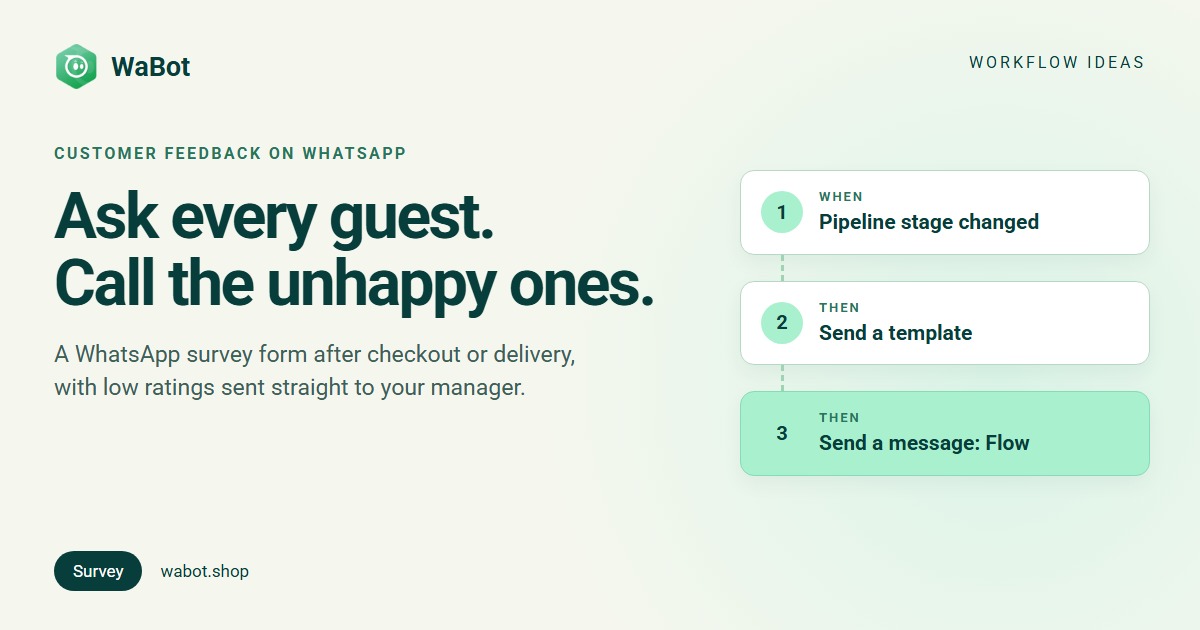
This post builds a WhatsApp customer feedback survey automation in WaBot. The customer gets a short form on WhatsApp: a star rating and a “what could we do better?” box. One or two stars tag the chat unhappy, assign it to your manager and create a call task due in two hours. Four or five stars get a thank-you, a happy tag and, if you want, your Google review link. The example is a hotel; clinics, delivery businesses and service centres change the stage name and the wording.
Checked out → feedback form → manager call or thank-you
What this workflow does
- Sends a thank-you template with a Share feedback button when a booking card moves to Checked out on your pipeline (or when a customer sends the keyword FEEDBACK from a QR code).
- One tap opens a WhatsApp Flow form inside the chat: a star rating with fixed options and a comments box. No link, no app, no login.
- One or two stars tag the contact unhappy, assign the chat to your manager, create a follow-up Call {{name}} about their feedback due in 2 hours, and tell the customer that someone will call.
- Four or five stars get a thank-you, a happy tag and, optionally, a button to your Google review page.
Why it works
People answer a two-question form on WhatsApp because it costs them twenty seconds and they are already in the chat. And because the form has fixed options, the answer is a value your workflow can act on, not a sentence somebody has to read and sort.
The escalation is the point. A complaint that reaches a manager within two hours, while the guest is still on the train home, is a problem you can fix and a review you can prevent. One that sits in a shared inbox until Monday is just a bad review with extra steps.
Build this feedback survey in Wabot, free
Create your free account here. Connect your WhatsApp number and you get 15 days of the Base Plan, workflows included, no card needed.
Before you start
- A pipeline with a completion stage. An admin switches on Use pipelines in this account under Settings → Pipelines and adds a stage such as Checked out, Delivered or Job closed.
- An approved template with one quick reply button, Share feedback. The stage usually changes more than 24 hours after the customer last wrote to you, so the first message must be a template (templates guide). The tap re-opens the 24-hour window, and the form can then go out as a normal message.
- Plan. Workflows are on the Base Plan (₹9,240/year + GST). Starter (₹840/month + GST) has the shared inbox and campaigns but not workflows. Connecting your number on the Free plan starts a 15-day Base Plan trial.
Build the form (5 minutes)
- Open Automation → WhatsApp flows and click Add Whatsapp Flow. Flow Name: Guest feedback. Category: SURVEY. Pick your number under Select Channel.
- Click Manage fields. Start from the Feedback Survey template or add a Radio Buttons field and a Text Area.
- Radio Buttons: Label How was your stay?, Field Name
rating. Under Options, give each option a label and a value: ⭐⭐⭐⭐⭐ Excellent =good_5, ⭐⭐⭐⭐ Very good =good_4, ⭐⭐⭐ OK =ok_3, ⭐⭐ Fair =bad_2, ⭐ Poor =bad_1. The workflow compares these values, so type them exactly. - Text Area: Label What could we do better?, Field Name
comments, not required. - Click Upload to WhatsApp, then Publish Flow. Only published flows can be picked in a workflow.
Why “good_5” and not just “5”? Conditions compare text (is, is not, contains, starts with); there is no “greater than”. With the word in the value, one rule, starts with “bad”, catches both low ratings.
The full logic: four steps, one form, two outcomes
Build it in WaBot, step by step
Step 1: ask when the card moves
- Open Automation → Workflows and click Add workflow. Workflow name: Guest feedback. Under How should it run? choose Automatic, under Start from choose Blank, and use the Form editor.
- Click Choose a trigger → Pipeline stage changed. Pipeline: Bookings. From stage: Any stage. To stage: Checked out. This step takes no conditions; it runs for every card reaching the stage.
- Click Choose an action → Send a template and pick your Share feedback template. Set Wait before sending to 3600 seconds to ask an hour after checkout.
Step 2: the tap opens the form
- Click Add step. Trigger: Customer sends a message, WhatsApp Interactive quick reply buttons where the title is exactly Share feedback.
- Action: Send a message, Message type Flow. Body: Two quick questions, it takes 20 seconds. Select Flow: Guest feedback. Flow CTA: Rate your stay. The customer has just tapped a button, so a normal message is allowed here.
Step 3: low rating → manager
- Add step. Trigger: Customer sends a message, WhatsApp Flow, then Select a flow: Guest feedback. The form’s fields appear under Variables as
ratingandcomments, next tosenderName. - Under Conditions click Add a condition group. What to check: Variable. Choose a variable:
rating. Condition: starts with. Value:bad. - Action: Send a message, Text only: We’re sorry, {{senderName}}. Our manager will call you within 2 hours. You wrote: “{{comments}}”.
- Action: Add to groups or tags → Select Tags: unhappy (create it first under Contacts → Tags → New tag).
- Action: Assign to team member, How to choose: A specific teammate → your manager. Assigning switches the AI bot off for that chat.
- Action: Create follow-up. Follow-up: Call {{name}} about their feedback. Rating and comments are in the chat. Due in: 2 hours. For: A specific teammate → the manager. Follow-up text can’t carry form answers, hence the pointer to the chat.
Step 4: high rating → thank-you
- Add step with the same trigger and flow. Condition: Variable
ratingstarts withgood. - Action: Send a message, Call to Action: a thank-you with a button that opens your Google review page (see WhatsApp Google review request for the link). Or Text only if you’d rather not ask.
- Action: Add to groups or tags → Select Tags: happy.
Test and switch on
- Click Save. On step 2, Send a test sends the form to your own WhatsApp. Answer with two stars and check step 3’s Runs list, the manager’s inbox and the Follow-ups page; then answer with five stars for step 4.
- Clear the Set up panel, make sure every step shows Step on, and click Turn on workflow. Then drag a test card to Checked out to see the whole chain (workflows guide).
Three stars runs nothing. ok_3 starts with neither word. Add a fifth step with rating is ok_3 for a plain thank-you, or name that option bad_3 if three stars deserves a call.
Don’t put the form in step 1. A Flow goes out with Send a message, which only works inside the 24-hour window. That’s why the template with a button comes first.
Google’s rules. Google doesn’t allow asking only happy customers for reviews. If you add the review button, put the link in the step 3 message too; the rating decides who also gets a call.
Messages you can copy
Template (button: “Share feedback”):
Thank you for staying with us, {{1}}! 🌴 We'd love to know how your stay was. It takes 20 seconds.
Low rating reply (step 3):
We're sorry, {{senderName}}. 🙏 That's not the stay we wanted you to have. Our manager will call you within 2 hours. You wrote: “{{comments}}”
High rating reply (step 4, Call to Action button: “Write a review”):
Thank you, {{senderName}}! 😊 That made our day. If you have a minute, a Google review helps other families find us.
The first message goes out more than 24 hours after the customer’s last message, so it must be a Meta-approved template, and marketing templates only go to customers who agreed to hear from you. Meta’s message charges are billed by Meta directly, with no WaBot markup.
Variations and tips
Clinics. Stage Visit completed, question How was your visit today?, manager = clinic coordinator. See WhatsApp for clinics and hospitals.
Delivery businesses. Stage Delivered, or the Shopify order fulfilled trigger with a two-day wait (172800 seconds) if you’ve connected your Shopify store.
Service centres. Stage Job closed; add a Was the problem fixed? Yes / No option with field name fixed, and escalate when fixed is no.
Walk-in, no pipeline. Skip step 1. Make step 2’s trigger Text is exactly FEEDBACK and print a wa.me link with ?text=FEEDBACK as a QR code on the bill. The customer’s message opens the window, so the form goes out at once.
Related reading: WhatsApp for hotels and homestays and support SLA escalation.
Hear from every customer, and call the unhappy ones. Start free
Create your free account here. Connect your WhatsApp number and you get 15 days of the Base Plan, workflows included, no card needed.
Frequently asked questions
Can the workflow check for a rating of 4 or more?
Not as a number. Conditions compare text: is, is not, contains, starts with. Give each option a value with the outcome in it, such as good_5 and bad_1, and use one “starts with” rule per branch.
Why send a template first instead of the form?
The form is a normal WhatsApp message, allowed only within 24 hours of the customer’s last message. A checkout or delivery is usually later than that, so a template with a button goes first and the tap re-opens the window.
Where does the manager see the comments?
In the chat in the WaBot inbox, where the form submission appears, and in the sorry message, which quotes them. The follow-up task carries the contact’s name but not the form answers.
Which plan includes this?
Workflows and WhatsApp Flows are on the WaBot Base Plan (₹9,240/year + GST). Connecting your number starts a 15-day Base Plan trial. Meta’s message charges are billed by Meta directly.
Final thoughts
Feedback you hear two hours after checkout is a problem you can fix. Feedback you read a week later on Google is not. A two-question form and one condition tell them apart.
Build the form, get the template approved, test with two stars and five stars from your own phone, then switch it on.