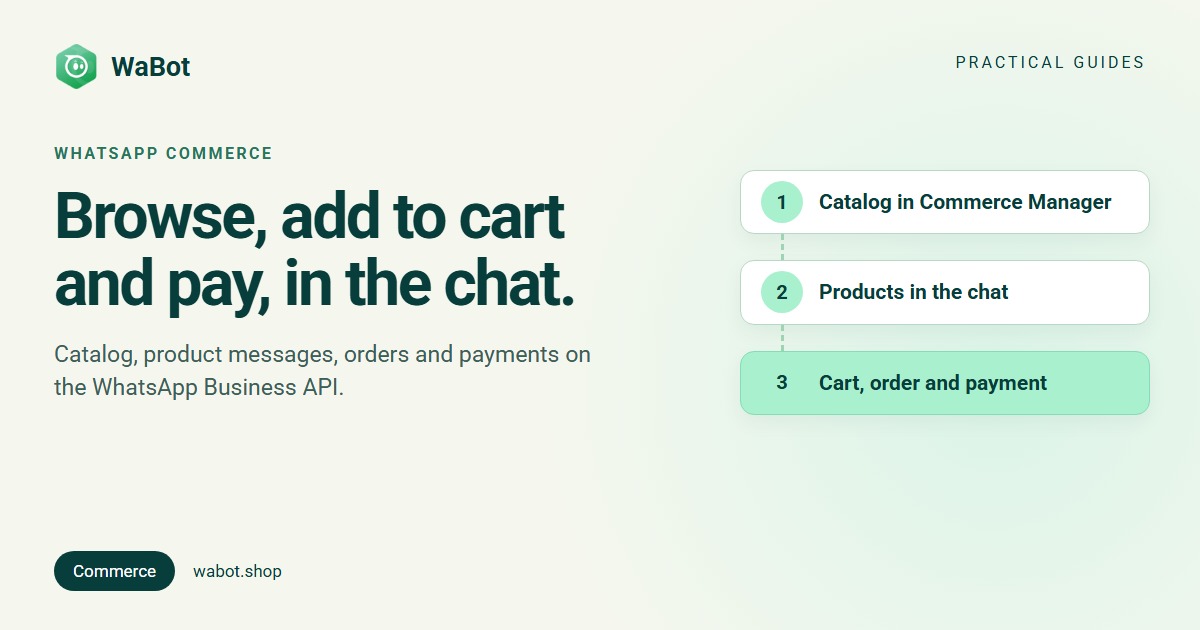
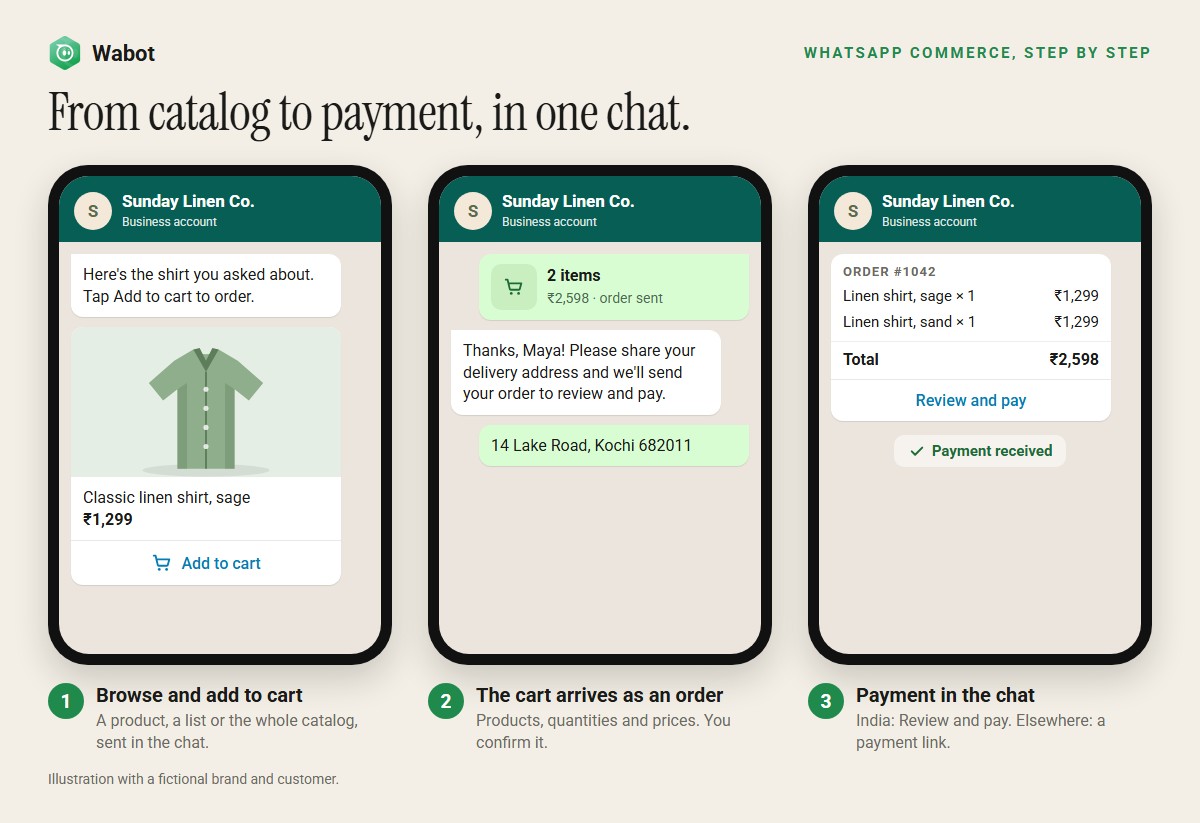
WhatsApp commerce means selling inside the chat: customers browse your catalog, add products to a cart, send you the order and, in India, pay inside WhatsApp. On the WhatsApp Business API it rests on four pieces: a catalog in Meta Commerce Manager, product messages, the order you receive, and a way to take payment.
This guide covers each piece: how the catalog connects, every product message, what an order contains, how payment configuration works by country, what it costs and what you can’t sell. For a click-by-click catalog setup, see how to create a WhatsApp catalog.
How WhatsApp commerce works
| Stage | What happens | Where |
|---|---|---|
| 1. Catalog | Your products, with images, prices and IDs | Meta Commerce Manager |
| 2. Connect | The catalog is linked to your WhatsApp Business Account | WhatsApp Manager |
| 3. Show products | You send a product, a list, a carousel or the whole catalog | Your WhatsApp platform |
| 4. Cart and order | The customer adds items and sends the cart to you | Inside WhatsApp |
| 5. Payment and delivery | You collect payment and deliver; Meta doesn’t process orders | Your gateway and your team |
Meta-commissioned Kantar research found 72.4% of consumers across 22 markets are more likely to buy from a brand that offers messaging. Meta’s developer docs give one figure for product messages: during testing, businesses averaged a 7% conversion from multi-product messages sent to carts received.
Step 1: build the catalog in Commerce Manager
You need a Meta business portfolio you fully control. In Commerce Manager, create a catalog for online products, then add products in one of these ways:
- Manually, one product at a time.
- A data feed: a spreadsheet (CSV, TSV, Excel or Google Sheets) or XML file, with uploads scheduled hourly, daily or weekly.
- A partner platform with a Meta integration, such as Shopify or WooCommerce.
- The Meta Pixel on your website, or the catalog batch API for developers.
Each product needs an ID (use your SKU), title, description, availability, condition, price, link, image and brand. Images must be JPEG or PNG, at least 500 × 500 pixels and under 8 MB. Use the item group ID for sizes and colours.
WhatsApp reviews every item automatically; anything that breaks the Commerce Policies is flagged, and you appeal in Commerce Manager. Selling in India? Meta requires extra fields, such as country of origin (and importer details for imported goods), plus business details including a legal name, address and grievance officer, which are submitted through the WhatsApp Business API rather than Commerce Manager. Without them, products are removed from your messages, and without the business details you can’t send single- or multi-product messages.
Step 2: connect the catalog and set up the cart
In WhatsApp Manager, open Catalog, click Choose a catalog, then Connect catalog (Meta help). The catalog must be owned by or shared with your business, and you need Manage catalog permission. If an agency runs your account, Meta recommends that you own the catalog and add the agency as a partner.
Two rules catch people out. A WhatsApp Business Account holds one catalog, and every number in it shares that catalog. And the commerce settings are per number: the cart is on by default, but the catalog (storefront) icon in the chat and on your business profile is hidden by default. While it’s hidden, wa.me/c/ catalog links show an invalid catalog link message, so turn catalog visibility on before you share them. Developers change both with the whatsapp_commerce_settings endpoint.
Step 3: show products in a chat
There are two families of product messages. Interactive messages need no approval but only work within 24 hours of the customer’s last message. Templates need Meta’s approval, can be sent any time to opted-in customers, and are all marketing templates.
| Message | What the customer sees | When you can send it |
|---|---|---|
| Catalog message | A thumbnail and a View catalog button that opens your whole catalog | Within 24 hours |
| Single product | One product with its image, price and description | Within 24 hours |
| Multi-product | Up to 30 products in titled sections, with a text header | Within 24 hours |
| Product carousel | 2 to 10 swipeable product cards | Within 24 hours |
| Catalog, single-product and multi-product templates | The same formats, approved in advance; multi-product templates take 30 products in up to 10 sections | Any time (marketing) |
| Product card carousel template | Up to 10 product cards | Any time (marketing) |
Marketing templates need the customer’s opt-in (WhatsApp opt-in and consent). Categories explained: marketing, utility and authentication templates.
Step 4: add to cart and the order
Customers add up to 99 units of each item, with no limit on how many different items. There’s one cart per chat on each device; it never expires, and once sent it can’t be edited. If an item goes out of stock, it drops out of carts.
A sent cart reaches you as an order message: the catalog ID, each product’s ID, quantity, price and currency, and the customer’s note. That’s where WhatsApp stops. WhatsApp’s Business Messaging Policy says Meta isn’t responsible for processing, paying for or fulfilling sales, so you confirm the order, ask for delivery details, collect payment and ship.
Step 5: payments and payment configuration
How customers can pay depends on your country:
| Market | Payment options | Currency |
|---|---|---|
| India | Review and pay. With a linked Razorpay, PayU, BillDesk or Zaakpay account: UPI apps, cards, NetBanking and wallets, with payment status reported by WhatsApp. With any other gateway: UPI intent, and the status comes from your gateway | INR |
| Brazil | An order message with a Pix code (copied into the bank app, or Pix with redirect opens it), a payment link or a Boleto; payment completes outside WhatsApp, through your bank or payment provider | BRL |
| Everywhere else | A payment link to your own checkout, in a website button | Your choice |
Payment configuration in India: in WhatsApp Manager, open Payment configurations, create one under India, link it to your gateway and test it until it shows as active. Your platform sends a Review and pay message that names that configuration exactly. The customer sees the items and total, and pays in WhatsApp or any UPI app; UPI payments are capped at ₹5,00,000 (Meta payments docs). Meta then reports the payment status, and Meta requires order updates as order status messages (processing, partially shipped, shipped, completed or canceled) rather than plain text.
Singapore’s in-chat payments ended on 31 March 2025. Meta’s docs don’t say whether it charges a fee on payments; your gateway’s fees follow your contract with it. Never ask customers to type card numbers in a chat: WhatsApp’s policy forbids it.
What WhatsApp commerce costs
| Message | Meta category | India (₹ card, $ card) | Brazil ($ card) |
|---|---|---|---|
| Product or catalog message within 24 hours | Service: first 1,000 per number each month free | ₹0.115 ($0.0014) | $0.0068 |
| Catalog or product template | Marketing | ₹0.8631 ($0.0118) | $0.0625 |
| Order confirmation template | Utility | ₹0.115 ($0.0014) | $0.0068 |
Rates are Meta’s list rates per delivered message from 1 October 2026, before tax (Meta pricing). Since that date, service messages beyond the free 1,000 are charged at the utility rate. Abandoned-cart reminders count as marketing. When someone messages you from a click-to-WhatsApp ad in the WhatsApp app on Android or iOS and you reply within 24 hours, Meta opens a free entry point window of up to 7 days in which your messages are free. Every country: WhatsApp API pricing.
What you can’t sell
Catalogs on WhatsApp follow Meta’s Commerce Policies and the commerce rules in the WhatsApp Business Messaging Policy. Prohibited items include alcohol, tobacco, drugs, prescription and medical products (including supplements), weapons, adult products, gambling, animals and real, virtual or fake currency. Digital subscriptions, downloadable digital content and digital accounts are prohibited too, and Meta allows selling services only on the WhatsApp Business app or through Appointments on Facebook or Instagram. Local licences don’t override these rules, and breaking them can cost you access to WhatsApp for Business. You’re also responsible for your sales terms and taxes.
How Wabot handles WhatsApp commerce
- Go to Commerce, pick the WhatsApp number and follow the checklist: Connect Meta business, Select a catalog (Link catalog), Configure payments (recommended, not required) and Add products. Wabot connects a catalog you made in Commerce Manager; it doesn’t create one.
- Add products in Wabot with Add product (published to your Meta catalog when you save) or Import from CSV or Excel (then Publish to Meta). Sync with Meta catalog pulls in products added in Commerce Manager.
- Send products in a chat from Attach → Catalog / product / product list: a single product, the whole catalog or a product carousel. From Commerce → Products, use Send in message or Send whole catalog. A workflow can send your catalog automatically, for example when someone types “catalog”.
- Every cart arrives as an order on Commerce → Orders, marked Awaiting payment, and in the contact’s panel. A workflow step for messages of type Order runs on each cart.
- India payments: enter your WhatsApp Manager configuration name under Configure payments and choose Razorpay. In the Order step, send a Payment message (Catalog Payment → Payment gateway → Razorpay → Customer orders). The customer gets Review and pay for exactly what they ordered, and the order changes to Paid or Failed when Meta reports the payment.
Payments in Wabot currently run through Razorpay in India; elsewhere, send a link to your own checkout in a message. Revenue collected on the Orders page counts payments confirmed by Meta, not estimates. Catalog visibility and the cart are set outside Wabot, and Wabot doesn’t send Meta’s order status updates yet, so tell customers about dispatch and delivery in the chat. In India, Meta also needs your business details (Step 1) before single- and multi-product messages work; Wabot has no form for them yet, so message us on WhatsApp.
Plans: Starter $9, Silver $25 and Gold $59 a month. In India, Starter ₹840/month, Silver ₹2,160/month, Gold ₹5,749/month and the Base Plan ₹9,240/year (adds workflows), all + 18% GST. The Order step and payment requests run in workflows. You can create a free account and connect your number before choosing a plan. Meta bills you directly, with no markup from us. See plans. More on selling: WhatsApp for ecommerce.
Start selling on WhatsApp with Wabot
Create your free Wabot account and connect your WhatsApp number. No card needed, and Meta bills messages directly, with no markup from us.
Frequently asked questions
How do I add a catalog to the WhatsApp Business API?
Create the catalog in Meta Commerce Manager, add your products, then connect it in WhatsApp Manager under Catalog, Choose a catalog, Connect catalog. A WhatsApp Business Account can have one catalog, and every phone number in that account shares it.
Can customers pay inside WhatsApp?
In India, yes: a Review and pay message lets customers pay with UPI apps, cards, NetBanking or wallets, through a payment configuration you link to a gateway in WhatsApp Manager. Brazil has Pix, payment links and Boleto. In other countries, send a payment link to your own checkout.
Does Meta process WhatsApp orders?
No. A cart arrives at your business as an order message with the products, quantities and prices. You confirm it, collect payment and deliver. WhatsApp’s policy says Meta isn’t responsible for processing, paying for or fulfilling sales.
What does it cost to send product messages?
Product and catalog messages sent within 24 hours of the customer’s last message are service messages: the first 1,000 per number each month are free, then Meta charges the utility rate. Catalog and product templates are marketing messages. Order confirmations sent as templates are utility.
What can’t I sell on WhatsApp?
Meta’s Commerce Policies and WhatsApp’s Business Messaging Policy prohibit items such as alcohol, tobacco, drugs, prescription and medical products, weapons, adult products, gambling, animals and digital subscriptions, and restrict selling services. Check both policies before you build a catalog.
The short version
WhatsApp commerce runs on a catalog in Commerce Manager, connected to your WhatsApp Business Account. You show products with interactive messages inside the 24-hour window or with marketing templates any time, customers send carts as orders, and you collect payment and deliver.
Customers can pay inside WhatsApp in India; Brazil has Pix, payment links and Boleto through your own provider; elsewhere, send a link to your checkout. Check the Commerce Policies before you upload.