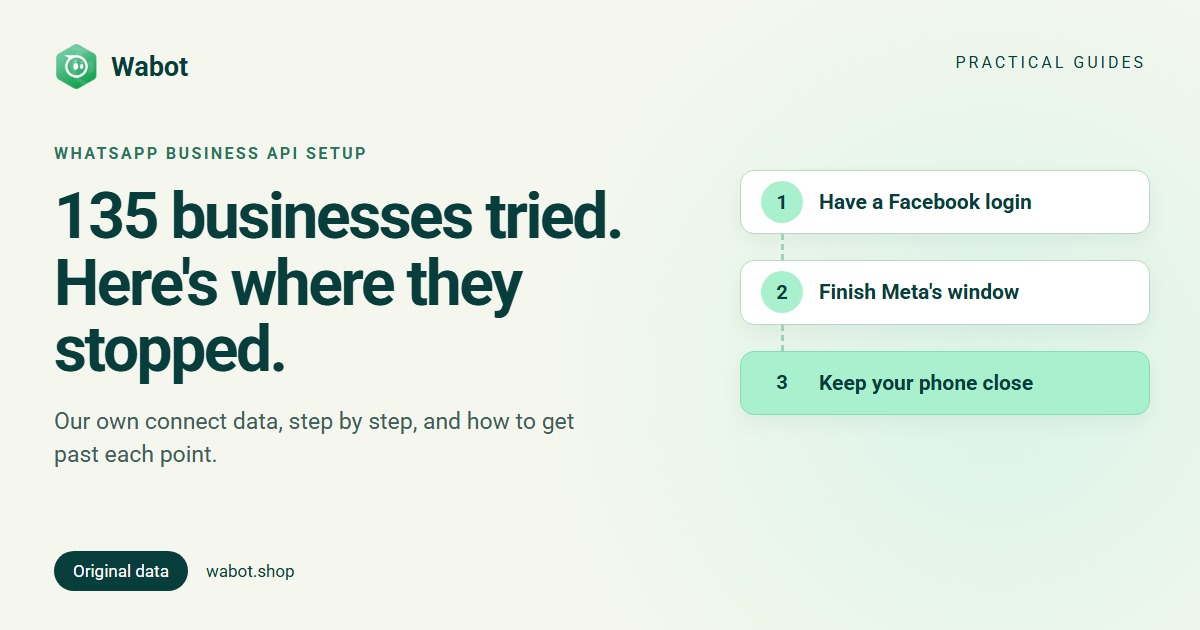
WhatsApp Business API setup should take a few minutes, and for some people it does. For many it doesn’t. We looked at what happened when businesses signed up for Wabot and reached the step where they connect their WhatsApp number, over about six days in November 2026.
135 businesses reached that step. 30 finished. This article shows exactly where the other 105 stopped, in plain words, and what gets you past each point. The numbers are anonymous counts from our own app: no names, no phone numbers.
135 businesses, one step: connecting WhatsApp
What setting up the WhatsApp Business API actually involves
You don’t install anything. A platform like Wabot opens Meta’s own sign-up window (Meta calls it Embedded Signup; developers can read our Embedded Signup guide). In that window you:
- Log in with Facebook.
- Choose or create your business and a WhatsApp account inside Meta.
- Enter a display name: the name customers will see.
- Connect the number: either verify a new number with a code, or, if the number is on the WhatsApp Business app, confirm it from the app on your phone.
- Give the platform permission to send and receive messages for you.
Meta owns every one of these screens. A platform can explain them, but it can’t change them. That’s why the same few points trip people up everywhere.
Where people stopped, step by step
135 reached it
87 said no
83 closed it early
13 cancelled here
4 cancelled here
30 finished
Stop 1: “Do you have a Facebook account?”
Before Meta’s window opens, Wabot asks Do you have a Facebook account? 87 people answered No, I don’t at least once. It was the most common place to stop by far, and it was also the top answer to our “What stopped you?” question.
Meta needs a Facebook login because your business, your WhatsApp account and your number are all created inside Meta’s systems, and the login is how Meta knows who owns them. Three things people worry about, and the facts:
- A personal account is enough. You don’t need a company Facebook Page.
- Nothing is posted to your profile, and you don’t need friends or activity.
- You own what you create. The WhatsApp account belongs to your business, not to the platform.
No Facebook account? Create a free one, come back, and choose I have one now, continue. Use the owner’s own account, not a staff member’s who might leave.
Stop 2: closing Meta’s window before the end
110 people opened Meta’s window. 83 had it close without a number connected at least once. Some came back and finished; many didn’t.
When we asked “What stopped you?”, the reasons were mostly about not having something ready:
| What they told us | People |
|---|---|
| I don’t have a Facebook account | 14 |
| I don’t have a registered business, or I’m not sure what to enter | 7 |
| I’m just looking around for now | 6 |
| My number is on regular WhatsApp, not WhatsApp Business | 5 |
| My number is already on WhatsApp | 3 |
| My phone with WhatsApp Business isn’t with me | 2 |
| I’m worried about losing my WhatsApp Business app or chats | 1 |
| I got an error, or the window closed by itself | 1 |
23 people answered, and some picked more than one reason. None of these is a real blocker: each one has a short fix, below.
Stop 3: choosing or creating your business inside Meta
Meta tells us the screen where someone cancels. The single most common one was the screen for choosing your business and accounts (9 cancels), and the screen for creating them came next (4).
Part of this was our doing. Until 16 November 2026, Wabot’s version of Meta’s window also asked people to pick a Facebook Page, an ad account, an Instagram account, a catalog and a dataset. That’s a lot to face when you only came to connect WhatsApp. On 16 November we cut it down: the window now asks only for WhatsApp. Most of the data in this article is from before that change.
If you don’t have a registered company, you can still continue. Create a business with a name (your own or your shop’s), your country, and a website or social media page. Business verification can come later, when you want higher sending limits. Pick the display name with care, because Meta reviews it: our display name guide lists what gets rejected.
Stop 4: the WhatsApp Business app step
Almost everyone wanted to keep their WhatsApp Business app and connect the same number: 127 of the 130 people who picked an option chose that at least once. That’s possible with coexistence: you keep the app and your chats, and messages show in both places.
It has one catch: Meta confirms the number through the WhatsApp Business app on your phone during the sign-up. Meta’s window shows a verification code, and a message from Facebook’s official business account arrives in the app. You tap Connect, then Connect to the Business Platform, then Confirm (where you can choose whether to share your chat history), and paste the code back into Meta’s window. 4 cancels happened on that screen, and 2 people told us their phone wasn’t with them.
- Have the phone with the WhatsApp Business app in your hand before you start.
- Update the app first. Meta needs version 2.24.17 or newer.
- Do the sign-up on a computer, so the phone is free.
Stop 5: the number is on regular WhatsApp
Meta connects only numbers that are on the WhatsApp Business app, or not on WhatsApp at all. A number on the everyday WhatsApp app (the plain green icon, no B) has to move first. Our warning for this showed 19 times.
The move is free and takes a few minutes: install the WhatsApp Business app on that phone, register the same number, and accept when it offers to move your account and chats across. Then connect. If you’d rather use a different number, it must not be on WhatsApp at all (our guide on using an existing number explains the options).
The smaller problems: blocked pop-ups and errors
- Blocked pop-ups (6 times, all on phones). Meta’s window is a pop-up. If nothing opens, look for the blocked pop-up icon in the address bar, allow it, and press the button again.
- Errors from Meta (18 times). Most were on computers. Trying again in Chrome usually works. If it keeps failing, our team can finish it with you on WhatsApp.
Your 2-minute checklist before you start
- A Facebook login (personal is fine).
- Your business name, country, and a website or social media page.
- The display name you want customers to see.
- The phone with the number: on the WhatsApp Business app (updated), or a new number that isn’t on WhatsApp and can receive a code.
- A computer with Chrome, and pop-ups allowed.
Setting this up for clients? Agencies can send each client a connect link instead, so the client does these steps on their own Facebook login. See managing multiple WhatsApp Business accounts.
How Wabot helps you through it
In Wabot, go to Settings → Meta Platforms and choose Connect your WhatsApp Business app to keep the app, or Use a new number. Before Meta’s window opens, Wabot checks the two things that stop people most: whether you have a Facebook login, and whether your number is on the right app.
If you close the window without finishing, Wabot asks What stopped you? and shows the fix for the reason you pick, with a link to the step-by-step connect guide. If you’re still stuck, message our team on WhatsApp and we’ll help you finish. The data in this article comes from exactly these screens, and we use it to make them simpler.
Connect your WhatsApp number in Wabot
Create your free account, keep your WhatsApp Business app or use a new number, and get help at every step. No card needed.
Frequently asked questions
Do I need a Facebook account to set up the WhatsApp Business API?
Yes. Meta uses a Facebook login to create or choose your business, so the person setting it up needs one. A personal account is enough, and nothing is posted to it. If you don’t have one, create a free account first.
Do I need a registered company?
Not to get started. In Meta’s window you can create a business with just a name (your own or your shop’s), your country, and a website or social media page. Verifying your business with Meta later raises your sending limits.
Will I lose my chats if I connect my WhatsApp Business app number?
No. With coexistence you keep the number, the app and your chats, and messages show in both the app and Wabot. You need the phone with the app nearby while you connect. More in our coexistence guide.
Why did Meta’s window close by itself?
Usually a pop-up blocker, or a browser inside another app (such as Facebook’s or Instagram’s own browser). Allow pop-ups for the page, or open it in Chrome on a computer, and try again.
Can I set it up on my phone?
It can work, but a computer is easier: Meta’s window is large, pop-up blockers are less of a problem, and your phone stays free for the verification code or the WhatsApp Business app. In our data every blocked pop-up happened on a phone.
About this data
Anonymous event counts from the Wabot app’s connect screens, about 11 to 17 November 2026: how many businesses reached each screen, the screen Meta reported when someone cancelled, and the answers to “What stopped you?”. Each business is counted once per event; the same business can appear at several steps. It’s a small sample from one platform, so treat the numbers as a guide to where problems happen, not as an industry rate.
The short version
Most WhatsApp Business API setups don’t fail on anything technical. They stop at a Facebook login nobody had ready, a business question that looks harder than it is, or a phone that wasn’t nearby.
Get the checklist ready, use a computer, keep your phone close, and the whole setup is a few screens long.