Can you create a WhatsApp chatbot without coding? Yes. On the WhatsApp Business API, you build one in a visual editor: a welcome menu whose buttons route each choice, an AI bot that answers questions from your own website and documents, and a rule that hands the chat to a person.
The WhatsApp Business app now has an AI agent of its own (more below), but button menus that route each tap, and rules you control, run on the API. Below: what a bot can and can’t do, menus versus AI, a step-by-step build, the human handover and the 24-hour window.
What a WhatsApp chatbot can and can’t do
It can
- Reply the moment a customer messages you, with text, images, PDFs or forms.
- Show a tap-to-choose menu: up to three reply buttons (titles up to 20 characters) or a list with up to 10 options.
- Answer everyday questions with AI, using your own website, documents and FAQs as the source.
- Sort and route: tag the contact, mark them as a lead, assign the chat to the right teammate.
It can’t
- Start conversations with strangers. Meta’s Business Messaging Policy requires opt-in first, and under Meta’s messaging rules anything sent more than 24 hours after the customer’s last message must be a pre-approved template.
- Replace people entirely. The same policy says automated chats “must also have available prompt, clear, and direct escalation paths”, such as handover to a person in the chat, a phone number or email.
- Know what you haven’t taught it. AI answers only from your content; a menu only matches the options you built. Both need a fallback.
What about the WhatsApp Business app’s own AI?
Meta’s overview of the app lists greeting and away messages, quick replies, labels and customer notes, and in 2026 Meta added an AI agent: Business AI for eligible small businesses in India (May, in Indian languages), then Meta Business Agent globally (June). According to Meta’s product page, you set it up from the app’s Tools tab, it learns from your Facebook Page, past chats and website, and you can step in on any chat. It’s for eligible businesses in select markets, and Meta’s paid Meta One plans sell more agent capacity.
What the app doesn’t give you is a button menu you design that routes each tap, or workflow rules you control. Those run on the WhatsApp Business API, which the rest of this guide builds. Rule of thumb: if one person answers on one phone, try the app’s agent if your app offers it; if you need menus, routing or a larger team, use the API (see WhatsApp Business app vs API).
Rule-based menus vs AI answers
No-code WhatsApp chatbots come in two kinds, and the best setups use both.
| Rule-based menu bot | AI answer bot | |
|---|---|---|
| How it works | Buttons and keywords with fixed replies: tap Fees, get the fee PDF | Reads the question, answers from your website, documents and FAQs |
| Best at | Routing: pricing, location, timings, “talk to sales” | The long tail: questions phrased a hundred ways |
| Weak at | Typed questions that don’t match a button | Questions outside its knowledge; needs a fallback message |
| Running cost | Replies inside the 24-hour window are service messages | Pay-as-you-go per AI reply, plus the same message charges |
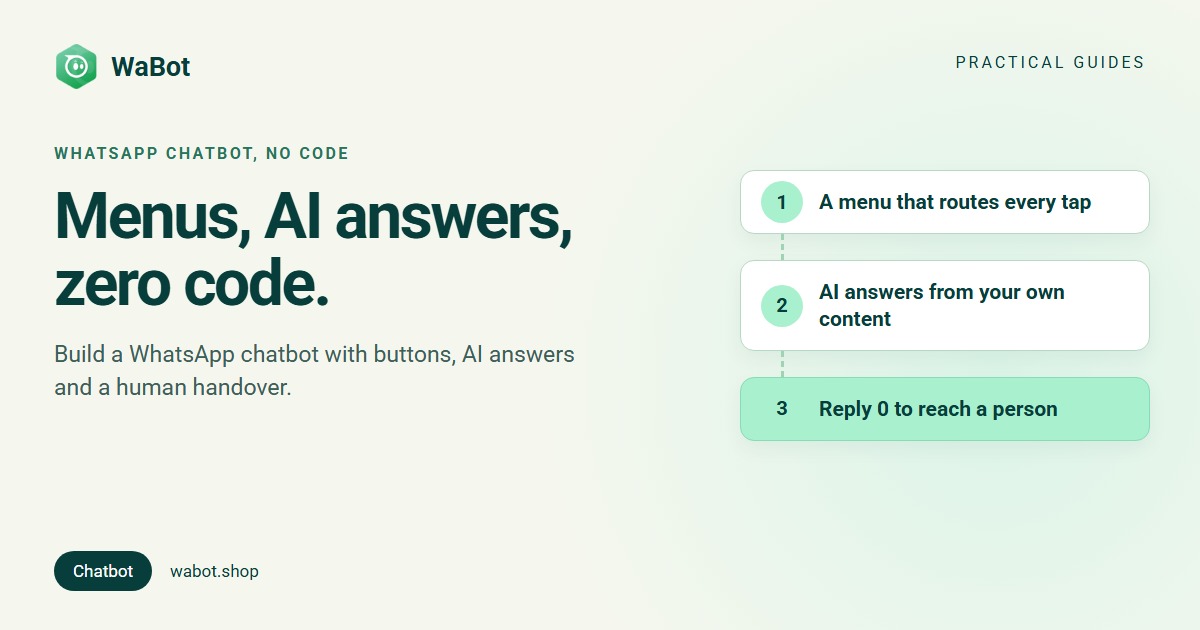
A good order to build: menu first, so the common choices take one tap. Then an AI bot for typed questions. Then a one-character exit (“reply 0”) to a person.
Step 1: build the menu bot (no code)
These steps use WaBot’s visual workflow editor (plans and costs are further down); the full version is in WhatsApp Business menu buttons.
- Open Automation → Workflows, click Add workflow, name it Welcome menu, choose Automatic and Blank, and pick the Flowchart editor.
- Trigger: Customer sends a message, WhatsApp Text that starts with Hi. Matching is case-sensitive, so add OR rules under Advanced → Conditions for hi, Hello and hello.
- Action: Send a message, Message type Quick Reply, with up to three buttons such as Prices, Talk to us and Ask a question (or Interactive List for more options).
- Click + under the menu and add one step per button, triggered by Interactive quick reply buttons where the title is exactly the button text. Prices sends the details or a Media based message with your PDF; Talk to us sends a short message, then Assign to team member (A specific teammate, Round-robin or Least busy).
- Send “Hi” from your phone, then use Send a test (test messages that aren’t templates only arrive within 24 hours of your own message). Save, clear the Set up list and click Turn on workflow.
Shortcut: if your Library tab (Workflows → Library) shows Welcome menu with buttons, click Use template; that version sends an approved template with quick-reply buttons. Either way, button titles must match their steps exactly, including capitals.
Step 2: add AI answers for typed questions
The menu handles taps. For “do you deliver to Kochi?” typed at 11 pm, add an AI bot (full walkthrough: WhatsApp FAQ bot for business).
- Under AI Agents → Agent Knowledge, add what the bot should know: Add via website, Add via sitemap (up to 10 pages) or Add info manually. Wait until each item shows Indexed.
- Under AI Agents → AI bots, click Create AI Bot, select its documents under Data Configuration, and write the Instructions (example below) and a Fallback Message. Start in Test mode with your own number, then switch to Live.
- In the workflow, add a step: WhatsApp Text that is not 0 → Hand off to an AI bot. Set the Idle Time (how long the bot stays in charge after its last reply, say 30 Minutes) and the required Exit Message.
- Check Bot Response is on for your number under Settings → Meta Platforms, and the AI switch is on for the conversation.
Prefer your own OpenAI, Anthropic Claude or Azure key? Add it under AI Agents → AI Providers. Each screen is in the AI agents guide.
Step 3: the human handover (Meta requires one)
Meta’s policy requires a clear way to reach a person, and the simplest pattern is one character:
- Tell customers, in the welcome text and the bot’s instructions, that they can reply 0 to talk to a person.
- Add a workflow step with the trigger Customer sends a message, WhatsApp Text that is exactly 0.
- Actions: Send a message (“Connecting you to our team…”), then Assign to team member with Least busy and Only if the chat isn’t assigned yet on.
When a teammate takes over, they should switch off the AI switch in the chat header. Assigning a chat doesn’t stop the bot by itself, and while the switch is on the bot keeps answering the customer’s text messages.
The 24-hour window, in plain words
One rule from Meta's messaging documentation shapes every bot: when a customer messages or calls you, a 24-hour “customer service window” opens. Inside it, your bot’s normal (free-form) replies can go out; once it closes, only pre-approved templates can. So a bot never needs templates to reply, but it can’t start a conversation without an approved template and the customer’s opt-in.
Messages you can copy
Welcome menu (sent as a reply, so no template needed):
Welcome to [Business]! 👋 How can we help you today?
[Prices] [Talk to us] [Ask a question]

Reply 0 any time to talk to a person.
AI bot instructions (paste into the bot’s Instructions and adjust):
You are the WhatsApp assistant for [Business]. Answer only from the provided documents, in 2-3 short sentences. Use simple English. If you don't know the answer, if the customer is upset, or if they ask for a person, say: "Reply 0 and a person from our team will help you." Never make up prices or dates.
Handover confirmation:
Connecting you to our team. Someone will reply here within 15 minutes during working hours (Mon–Sat, 9 AM–7 PM).
Chatbot examples by industry
- Clinics: Book appointment, Reports and Talk to staff buttons; booking can open a WhatsApp Flow form (see lead qualification with a form).
- Coaching institutes: Fees & batches sends the brochure PDF, the AI bot answers syllabus questions, counsellors get the rest round-robin.
- Real estate: a list with one row per project, each assigning its own salesperson.
- D2C stores: a See catalog button that sends your catalog (catalog to payment workflow), and the AI bot answering delivery and return questions.
- Only need one after-hours reply? A simple WhatsApp auto reply does it without a bot.
What a WhatsApp chatbot costs
Signing up and connecting a number to WaBot is free, and connecting starts a 15-day Base Plan trial. After that, the menu bot and handover need the Base Plan (₹9,240/year + GST) (Starter, ₹840/month + GST, has the shared inbox and campaigns but not workflows), and AI replies are pay-as-you-go from your WaBot wallet. Meta’s message charges are billed by Meta directly, with no WaBot markup: bot replies inside the 24-hour window are service messages, with the first 1,000 a month free per number, then ₹0.115 each plus 18% GST (all India rates). Questions? WhatsApp +91 91889 12767 or hello@wabot.shop.
Put a chatbot on your WhatsApp number today
Create your free WaBot account, connect your number and build the welcome menu above in the visual editor. Connecting starts a 15-day Base Plan trial, workflows included, no card needed.
Frequently asked questions
Can I create a WhatsApp chatbot without coding?
Yes. On the WhatsApp Business API, platforms like WaBot have a visual workflow editor: you pick a trigger (customer sends a message), add actions (send a menu, hand off to an AI bot, assign a teammate) and switch it on. No code is involved.
Does the WhatsApp Business app have a chatbot?
Eligible businesses now get an AI agent in the app: Meta Business Agent (launched in India as Business AI in May 2026), set up from the Tools tab, and you can step in on any chat. Button menus that route each tap, and workflow rules you design, run on the WhatsApp Business API.
Can a WhatsApp chatbot message people first?
No. Meta requires the person’s opt-in before you message them, and anything sent more than 24 hours after the customer’s last message must be a pre-approved template. A bot replies; campaigns to opted-in customers are a separate feature.
How do customers reach a human?
Meta’s policy requires a clear escalation path. The common pattern: the bot tells customers to reply 0, and a workflow step assigns that chat to a teammate, who turns off the AI switch in the chat header.
How much does a WhatsApp chatbot cost?
In WaBot, workflows are on the Base Plan (₹9,240/year + GST) and AI replies are pay-as-you-go from your wallet. Meta bills message charges directly: bot replies within the 24-hour window are free for the first 1,000 a month per number, then ₹0.115 each plus GST.
The bottom line
A WhatsApp chatbot without coding is three building blocks: a menu that routes the common choices, an AI bot that answers typed questions from your own content, and a one-character exit to a person. Build them in that order.
Start with your three most common questions, test from your own phone, and turn every question the bot misses in week one into a new FAQ entry.