“Hi” is the most common first message on any business WhatsApp. Then someone on your team has to ask “How can I help?”, wait, read the answer and pass the chat to the right person. A fees question goes to the front desk, a site visit goes to sales, a report question goes to the clinic coordinator. Each handover adds minutes, and the customer waits.
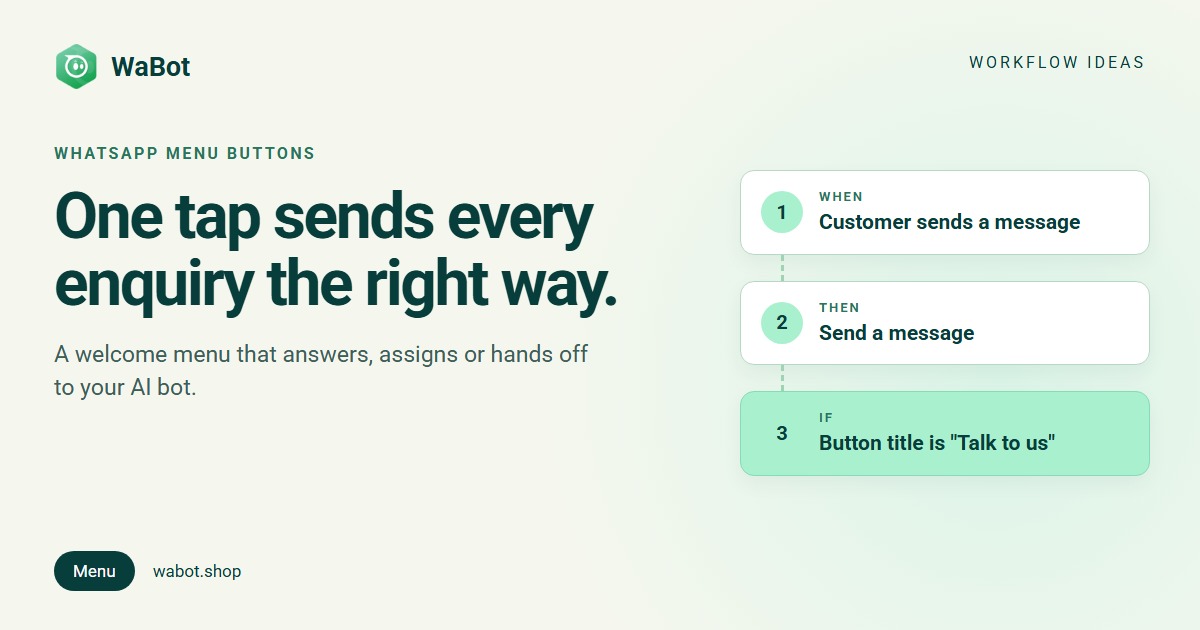
A welcome menu with WhatsApp business menu buttons does that sorting in one tap. The customer says hi, gets three buttons (or a list), and each choice goes straight to its answer: instant information, the right teammate, or your AI bot.
Hi → menu → each tap goes to the right place
What this workflow does
- Replies to a greeting with a short welcome and up to three reply buttons, or a list when you have more options.
- Information choices (fees, timings, location, price list) get an instant answer with text, a PDF or an image.
- “Talk to us” assigns the chat to the right teammate, who gets a notification.
- “Ask a question” hands the chat to your AI bot, trained on your own information.
- Each tap is tracked, so you can see in each step’s Runs list what customers choose most.
Why it works
Tapping is easier than typing, especially on a phone. A menu also shows people what you can help with, so they don’t have to guess how to ask. And because the choice says what they want, the chat lands with the right person or answer at once, with no back-and-forth.
It’s also cheap to run. The menu goes out as a reply to the customer’s own message, inside WhatsApp’s 24-hour window, so it’s a normal message rather than a template. Meta’s charges for service replies are billed by Meta directly, with no WaBot markup.
Build your WhatsApp welcome menu in WaBot.
Build it in WaBot, step by step
Workflows are on the Base Plan (₹9,240/year + GST). Starter (₹840/month + GST) has the shared inbox and campaigns but not workflows. AI bot replies are pay-as-you-go from your WaBot wallet.
Step 1: send the menu
- In the left menu open Automation → Workflows, click Add workflow, name it Welcome menu, choose Automatic and Blank. The Flowchart editor makes the branches easy to see.
- Trigger: Customer sends a message. Fill in the sentence: When a customer sends a WhatsApp Text message that starts with Hi.
- Matching is case-sensitive, so “hi” and “Hello” won’t match “Hi”. Open Advanced → Conditions and add more rules joined with OR: starts with hi, starts with Hello, starts with hello.
- Action: Send a message, Message type Quick Reply. Write the welcome text and add up to three buttons, for example Fees & batches, Talk to us and Ask a question. Button titles can be up to 20 characters. For more than three options choose Interactive List instead.
Step 2: one next step per button
- In the flowchart, click + under the menu action and choose New step. (In the form editor, click Add step and pick the menu step under Advanced → Conditions → Preceding Workflow.) This link means the step runs only after the menu step has run for that customer.
- Set its trigger to Customer sends a message, WhatsApp, message type Interactive quick reply buttons, where the title is exactly Fees & batches. For a list, use Interactive list message and the row title.
- Fees step action: Send a message with the details, or a Media based message with your brochure PDF.
- Add a second step for Talk to us: Send a message (“Connecting you with a counsellor…”), then Assign to team member. Pick A specific teammate, or Round-robin or Least busy across several.
- Add a third step for Ask a question: Hand off to an AI bot and choose your bot. Create the bot first under Automation → AI Agents → AI bots (see the AI agents guide).
- Use Send a test on the menu step. Test messages that aren’t templates only arrive if your number messaged the business number in the last 24 hours, so send “Hi” first.
- Save, clear anything in the Set up list and click Turn on workflow. Then send “Hi” from your phone and tap each button.
Shortcut: if your Library tab (Workflows → Library) shows Welcome menu with buttons, click Use template. That version sends an approved template with quick-reply buttons when a message contains “hi”. Templates also work outside the 24-hour window. Add the button steps above to route each tap.
Button titles must match exactly, including capitals and symbols. If you rename a button, update its next step too.
Messages you can copy
These are replies within 24 hours of the customer’s message, so they can be normal messages. If you reuse the menu in a broadcast, it must be an approved template, and only sent to customers who agreed to hear from you.
Welcome to [Business]! 👋 How can we help you today?
[Fees & batches] [Talk to us] [Ask a question]
Namaste 🙏 Thanks for contacting [Clinic]. Please choose:
[Book appointment] [Reports] [Talk to staff]
Hi! Looking for a home? Tap an option 👇
[2 BHK prices] [Book site visit] [Talk to sales]
Connecting you with our team now. [Name] will reply here in a few minutes. Meanwhile, here's our brochure: [link]
Variations and tips
Clinics: “Book appointment” can send a WhatsApp Flow form with the date and doctor, “Reports” assigns the chat to the front desk.
Real estate: use a list with one row per project, and assign each project to its own sales person with A specific teammate.
Agencies: route “New project” to sales and “Existing client” to account managers.
Put “Hi” in your links. Use a wa.me link or QR code with “Hi” already typed, so visitors from your website start the menu with one tap.
Want to qualify leads before assigning them? See WhatsApp lead qualification with a form. For simple instant replies, see WhatsApp auto reply messages, and for team handovers, the shared WhatsApp inbox. Full details are in the workflows guide.
Route every WhatsApp enquiry with one tap.
Frequently asked questions
How do I add menu buttons to WhatsApp Business?
The WhatsApp Business app only has a greeting and an away message, with no buttons that route a chat. On the WhatsApp Business API with WaBot, a workflow replies to a greeting with a Quick Reply message of up to three buttons, or an Interactive List for more options.
How many buttons can a WhatsApp menu have?
A quick reply message has up to three buttons. Use an interactive list when you need more choices.
Can each button go to a different person?
Yes. Give each button its own next step with an Assign to team member action. You can assign to a specific teammate, take turns (round-robin) or pick the least busy.
Do I need a template for the menu?
Not when the menu replies to the customer’s own message, because that’s inside the 24-hour window. You need an approved template only to send the menu to someone who hasn’t messaged you in the last 24 hours.
Can the AI bot answer instead of my team?
Yes. The Hand off to an AI bot action passes the chat to your WaBot AI bot. AI replies are pay-as-you-go from your WaBot wallet.
Final thoughts
A welcome menu is the simplest workflow to start with and one of the most useful. Customers get an answer straight away, and your team only gets the chats that need a person.
Start with three buttons based on the questions you get most often. After a few weeks, check which ones people tap and change the menu.