Fifty enquiries came in this week. Some want to join this month, some are “just checking”, and a few messaged by mistake. Your sales team reads every chat, asks the same three questions, and the hot leads wait in the queue with everyone else.
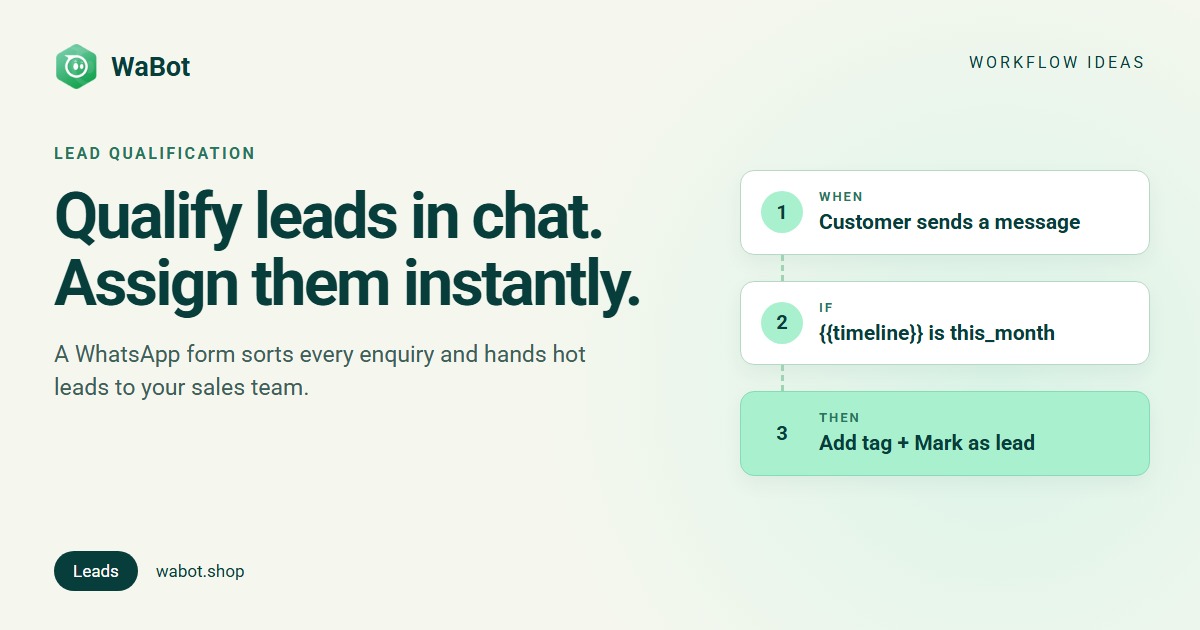
A WhatsApp lead qualification bot asks those questions for you. In WaBot, the customer fills a short form inside WhatsApp. A workflow reads the answers, tags and marks the lead, assigns hot leads to the next salesperson in turn and creates a call task. Your team only has to make the call.
Form answers decide who gets the lead and how fast
What this workflow does
- Sends interested people a WhatsApp Flow, a short form that opens inside the chat (course, budget range, start date, preferred call time).
- When the form comes back, reads the answers as variables and checks them.
- Hot leads get a tag, are marked as leads, are assigned round-robin to your sales team and get a follow-up task due in an hour.
- Everyone else is tagged for nurturing and gets a slower follow-up, so nobody is dropped.
- Every lead gets an instant thank-you reply.
Why it works
A form with tap-to-choose answers is easier than typing replies to three questions, so more people finish it. Your team also gets clean answers instead of “pls send details”.
Speed matters most for the people ready to buy now. Sorting by the answer means a “this month” lead goes straight to a salesperson with a call task, while someone “just exploring” doesn’t take a hot slot. Round-robin shares the leads fairly, and the task keeps the call from being forgotten.
Build your lead qualification workflow in WaBot.
Build it in WaBot, step by step
Workflows are on the Base Plan (₹9,240/year + GST). Starter (₹840/month + GST) has the shared inbox and campaigns but not workflows. WhatsApp Flows and the free sign-up let you prepare everything before you upgrade.
1. Create the form (WhatsApp Flow)
- Open Automation → WhatsApp flows and click Add Whatsapp Flow. Name it, for example Free consultation, and choose the Lead Generation category.
- Add the fields: a Text Input for the name, a Dropdown for the course or property type, and Radio Buttons for When do you want to start? with the options This month, In 2-3 months and Just exploring.
- Give each field a clear Field name (lowercase letters and underscores), for example
courseandtimeline. These become the variable names in your workflow. - For each choice, set the Option value, for example
this_month,laterandexploring. If you leave it empty, WaBot makes one from the label (This month becomesthis_month). The workflow compares the answer with this value, not with the label. - Save, upload and Publish the flow. Only published flows can be used in workflows. See the WhatsApp Flows guide.
2. Send the form when someone asks
- Go to Automation → Workflows, click Add workflow, name it Qualify leads, choose Automatic and Blank.
- Step 1 trigger: Customer sends a message. Fill in the sentence: When a customer sends a WhatsApp Text message that contains consultation. Matching is case-sensitive, so use the exact words from your website button or QR code link.
- Action: Send a message, Message type Flow, and choose your Free consultation flow. Because the customer just messaged you, you’re inside the 24-hour window and a normal message works.
3. Qualify and assign when the form comes back
- Click Add step. Trigger: Customer sends a message, WhatsApp, message type Flow. Under Select a flow, pick Free consultation. Its form fields now appear as variables.
- Open Advanced → Conditions, click Add a condition group, choose Variable, pick
timeline, choose is and enterthis_month. - Add the actions in this order: Send a message (a thank-you), Add to groups or tags (tag Hot lead), Mark as lead, then Assign to team member with How to choose set to Round-robin and your counsellors or agents as Teammates.
- Last, Create follow-up: Call {{name}}, wants to start this month, Due in 1 hour, For The chat’s assignee. Because the assignment runs first, the task goes to the person who just got the lead.
- Add a third step with the same Flow trigger and the condition
timelineis notthis_month. Give it a thank-you message, a Nurture tag, Mark as lead and a follow-up due in 3 days for Nobody (anyone can pick it up). - Click Send a test on each step to check the messages, then submit the form yourself from another phone. Save, check the Set up list is empty, and click Turn on workflow.
Match exact answers, not numbers. Conditions on form answers support is, is not, starts with, contains and does not contain. They can’t compare numbers, so a rule like “budget greater than 50,000” won’t work. Ask for a budget range as a choice (under_5l, 5l_to_10l, above_10l) and match the value with is.
For checkbox questions, where the customer can tick several options, use contains.
Messages you can copy
The first two go out right after the customer messages you, so they don’t need to be templates. If you send the form to people who haven’t written to you in the last 24 hours, for example from a campaign, put it in a Meta-approved template with a Flow button, and only send it to people who agreed to hear from you.
Happy to help! 😊 Please fill this short form (30 seconds) so we can suggest the right course for you 👇
Thanks for sharing your details! Our counsellor will call you within the hour. Save this number so you don't miss the call 📞
Thank you! We've noted your interest. We'll send you the brochure and upcoming batch dates, and you can reply here any time with questions.
Hi! Thanks for your interest in [Project]. Tell us your budget range and preferred location in this quick form, and we'll share matching options 🏠
Variations and tips
Real estate: ask property type, budget range and possession timeline. Hot leads go round-robin to your site-visit team.
Clinics: ask the treatment and the preferred day. Use A specific teammate to send each treatment to the right coordinator.
Agencies: ask service and monthly budget range. Use Least busy instead of round-robin if some salespeople have a full queue.
Using Pipelines? Add Create deal so each hot lead also appears on your sales board.
Leads from Facebook lead forms? That works differently: see sending Facebook Lead Ads to WhatsApp.
Pair this with an automatic reminder for people who never finish the form: WhatsApp follow-up when a customer goes quiet. For industry ideas, see coaching institutes, real estate and clinics.
Qualify and assign every WhatsApp lead automatically.
Frequently asked questions
What is a WhatsApp lead qualification bot?
It’s an automation that asks a new enquiry a few questions on WhatsApp and decides what happens next based on the answers. In WaBot you build it with a WhatsApp Flow form and a workflow that tags, marks and assigns the lead.
Can WaBot use the form answers in a workflow?
Yes. When you pick the Flow in the workflow trigger, each form field becomes a variable named after the field. You can check those variables in conditions with is, is not, starts with, contains or does not contain.
Can I route leads by budget amount?
Not with number comparisons. Ask for a budget range as a choice in the form and match the chosen value exactly.
How are leads shared among the sales team?
The Assign to team member action can use a specific teammate, round-robin (taking turns) or least busy. With “Only if the chat isn’t assigned yet”, it won’t take chats away from someone already handling them.
Final thoughts
Qualifying leads is mostly asking the same questions again and again. Let a WhatsApp form ask them, let the workflow sort the answers, and send your team to the hot leads first.
Start with one question that separates “ready now” from “just looking”. You can add more questions once you see how leads come in.