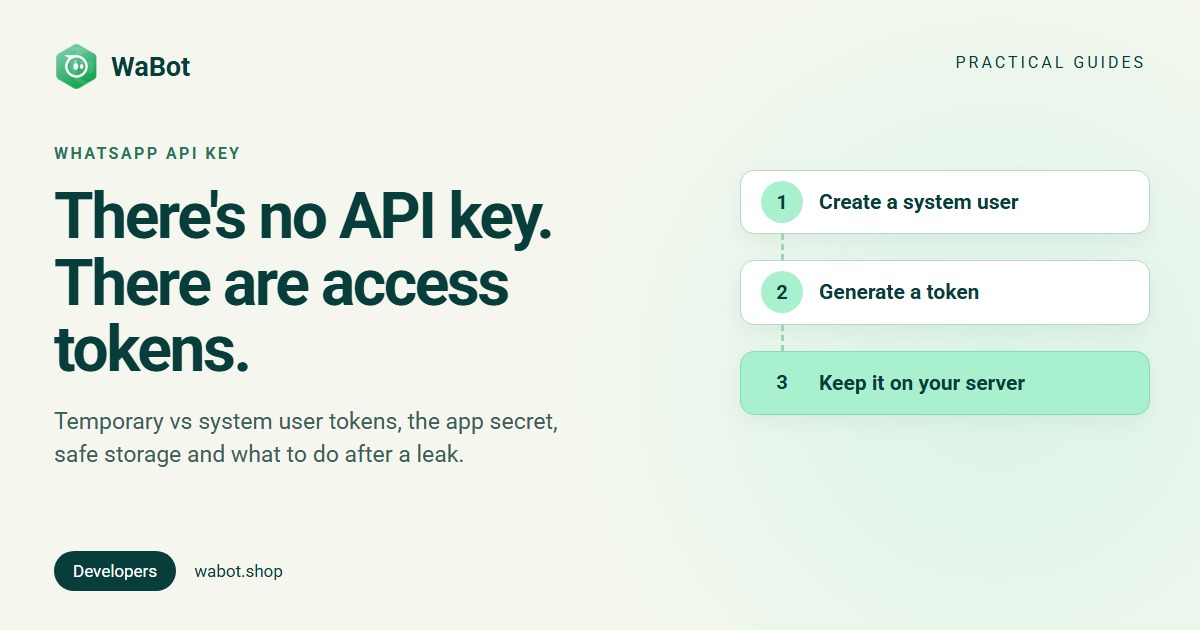
Looking for your WhatsApp API key? There isn’t one. Meta’s WhatsApp Cloud API authenticates every request with an access token, sent in the header Authorization: Bearer <token>. The token you see first in the App Dashboard is temporary. For a server you need a system user access token, which you can set never to expire.
Here’s every credential you’ll meet, how to get the permanent token step by step, how to store it and what to do if it leaks. At the end: how Wabot’s own API credentials work, if you connect through Wabot instead of building on Meta directly.
The credentials you’ll meet
| Credential | What it’s for | Where you get it | Secret? |
|---|---|---|---|
| Temporary access token | Your first test messages | App Dashboard → WhatsApp → API Setup | Yes, expires within hours |
| System user access token | Your server’s API calls | Business settings → System users | Yes |
| Business integration system user token | Providers acting for customers they onboard | Embedded Signup | Yes |
| App secret | Webhook signatures, token calls | App Dashboard → App settings → Basic | Yes |
| Verify token | The webhook handshake only | You choose it | Yes |
| App ID, phone number ID, WABA ID | Identifying your app, number and account | App Dashboard | No, they’re IDs |
Meta’s access token guide is clear about which to use: a business building for itself uses a system user token; a tech provider uses business integration system user tokens, one per onboarded customer. All tokens are opaque strings, so don’t parse them, and store them in a field with no fixed maximum length.
The temporary token: fine for a test, not for a server
The Generate access token button in API Setup gives you a user access token. Meta says the panel makes a new one each time you open it, and that user tokens expire quickly, so you’d have to generate a new one every few hours. Use it to send your first hello_world template (WhatsApp Cloud API setup), then replace it before you write any code that runs unattended.
How to get a permanent access token
- Open Business settings → System users, click Add, name the system user and choose a role. An Admin system user reaches every WhatsApp account and Messaging account in the portfolio; an Employee reaches only what you assign, which Meta says is enough for an app that needs a few accounts you own. An employee needs both the WhatsApp account (the number) and the Messaging account (templates and billing).
- Click Assign assets. Give the system user your app with Manage app, and your WhatsApp account with Manage WhatsApp Business accounts, both under Full control. If the app doesn’t show yet, reload the page: Meta says it can take a few minutes.
- Click Generate token, select the app, choose an expiry, and add
whatsapp_business_messaging(send messages, receive message and status webhooks) andwhatsapp_business_management(templates, numbers, account data). Meta’s guides also addbusiness_management; its permissions page says that one is only needed for programmatic access to your business portfolio. - Copy the token as soon as it appears and put it straight into your secret store.
Expiry. Meta’s system user guide offers tokens that never expire and tokens valid for 60 days “from generated or refreshed date”, and calls expiring tokens a security best practice. If you pick 60 days, automate the refresh well before day 60.
Every Graph API call then carries the token. For example, listing your templates (the WABA ID is what Meta now calls the Messaging account ID):
curl 'https://graph.facebook.com/v27.0/<WABA_ID>/message_templates' \
  -H 'Authorization: Bearer <ACCESS_TOKEN>'
To see what a token can do, call debug_token or paste it into Meta’s Access Token Debugger. Both return the app, the token type, its expiry and the granted scopes:
curl 'https://graph.facebook.com/v27.0/debug_token?input_token=<TOKEN_TO_CHECK>' \
  -H 'Authorization: Bearer <ACCESS_TOKEN>'
App secret vs access token
They’re different secrets. The access token travels with every API call and carries the system user’s permissions. The app secret belongs to your Meta app (App settings → Basic). Meta signs webhook payloads with it in the X-Hub-Signature-256 header (webhook docs), and token calls such as refreshing or revoking a system user token need it. You never send it on normal message calls.
Meta’s app settings docs say the app secret must be stored securely and kept out of code anyone else can see. If it’s compromised, reset it immediately in the app’s Basic settings; there is no API to change it. After a reset, give your webhook handler the new secret, or every signature check fails.
How to store tokens safely
- Server only. Keep tokens in environment variables or a secret manager. Never in browser JavaScript, a mobile app or a repository: anyone holding the token can message customers as your business.
- Out of logs. Mask tokens in logs, error reports, screenshots and support chats.
- Least access. One employee system user per integration, assigned only the accounts it needs and only the two WhatsApp permissions.
- HTTPS everywhere, including between your own services.
In code, read the token from the environment instead of writing it into the file (Node.js 18 or later, as an ES module):
const res = await fetch(
  `https://graph.facebook.com/v27.0/${process.env.WA_PHONE_NUMBER_ID}/messages`,
  {
    method: 'POST',
    headers: {
      Authorization: `Bearer ${process.env.WA_ACCESS_TOKEN}`,
      'Content-Type': 'application/json',
    },
    body: JSON.stringify({
      messaging_product: 'whatsapp',
      recipient_type: 'individual',
      to: '+15551234567',
      type: 'text',
      text: { body: 'Hello!' },
    }),
  }
);
console.log(res.status, await res.json());
What to do if a token leaks
First, revoke it. Meta’s system user guide documents an oauth/revoke call for compromised system users, and the token stops working immediately. The app ID and app secret must belong to the app the token was issued for:
curl -G 'https://graph.facebook.com/v27.0/oauth/revoke' \
  -d 'client_id=<APP_ID>' \
  -d 'client_secret=<APP_SECRET>' \
  -d 'revoke_token=<LEAKED_TOKEN>' \
  -d 'access_token=<ACCESS_TOKEN>'
Then:
- Generate a new token for the system user, deploy it, and confirm with
debug_tokenthat it’s valid. - Reset the app secret too if it was exposed in the same place, and update your webhook signature check.
- Check for misuse in WhatsApp Manager: messages you didn’t send, templates you didn’t create.
- Close the gap it leaked through, such as a committed .env file, a log line or a frontend bundle.
Using Wabot? Your credentials are a Client ID and Client Secret
When you connect a number with Wabot’s guided setup (Meta’s Embedded Signup), you don’t create a system user or paste a Meta token. For your own code, every Wabot account gets API credentials automatically: open Settings → Developer → Client Settings (the Developer credentials page) for your Client ID and Client Secret. The page’s warning applies: keep the Client Secret on your server.
- Send both to
POST https://api.wabot.shop/v1/authenticatein the headersclientidandclientsecret. You get atokenvalid for 1 hour and arefreshTokenvalid for 7 days. - Send the token in the
Authorizationheader as it is, with noBearerprefix. With the prefix, the request fails with 401. - When the token expires, exchange the refresh token at
POST /v1/refreshToken. You get a new pair: store the new refresh token each time. Only the latest refresh token works, and authenticating again replaces it.
import os
import requests

API = "https://api.wabot.shop"

auth = requests.post(
    f"{API}/v1/authenticate",
    headers={
        "clientid": os.environ["WABOT_CLIENT_ID"],
        "clientsecret": os.environ["WABOT_CLIENT_SECRET"],
    },
    timeout=10,
)
auth.raise_for_status()
token = auth.json()["token"]  # valid for 1 hour

account = requests.get(f"{API}/account/get", headers={"Authorization": token}, timeout=10)
print(account.json()["data"]["phone_numbers"])
curl -X POST https://api.wabot.shop/v1/refreshToken \
-H 'Content-Type: application/json' \
-d '{"refreshToken": "<REFRESH_TOKEN>"}'The REST API allows 105 requests a minute, so reuse the token for its hour instead of authenticating before every call. The same Client ID and Secret connect AI tools to Wabot’s MCP server at https://api.wabot.shop/mcp. Full reference: Wabot authentication guide; sending templates and session messages: WhatsApp API send message.
Each account has one Client ID and Secret. The secret doesn’t expire, and the app has no button to replace it: if you think it has leaked, email hello@wabot.shop, as the credentials page says. Sign up and connect free; chatting and campaigns need a paid plan, from $9 a month (₹840/month + 18% GST in India). Meta bills messages to your own Meta account, with no markup from us.
Get your Wabot API credentials
Create your free Wabot account and connect your WhatsApp number. Your Client ID and Client Secret are created for you. No card needed.
Frequently asked questions
Where do I find my WhatsApp API key?
There isn’t one. The WhatsApp Cloud API uses access tokens. A temporary one is under App Dashboard → WhatsApp → API Setup → Generate access token; a permanent one comes from a system user in Business settings → System users.
Does a WhatsApp access token expire?
The temporary user access token from the App Dashboard expires within hours. A system user token never expires or lasts 60 days, depending on the expiry you choose when you generate it; an expiring one can be refreshed.
Which permissions does a WhatsApp system user token need?
whatsapp_business_messaging to send messages and receive message webhooks, and whatsapp_business_management for templates, phone numbers and account data. Meta’s setup guides also add business_management, which its permissions page says is only needed for programmatic access to your business portfolio.
Is the app secret the same as the access token?
No. The access token goes with every API call. The app secret belongs to your Meta app: Meta signs webhooks with it, and token calls such as revoking need it. Keep both on your server.
Can I put the access token in my website or mobile app?
No. Anyone who can read the page source or unpack the app could send messages as your business. Call the API from your server and keep the token there.
Tokens, not keys
The “WhatsApp API key” is an access token. Use the temporary one for a test, a system user token on your server, and treat both it and the app secret like passwords: server-side, out of logs, revoked the moment they leak. More on the platform itself: WhatsApp Cloud API explained.