A campaign is more than a message and a send button. The right template, the right recipients and a team ready for replies matter just as much as the launch time.
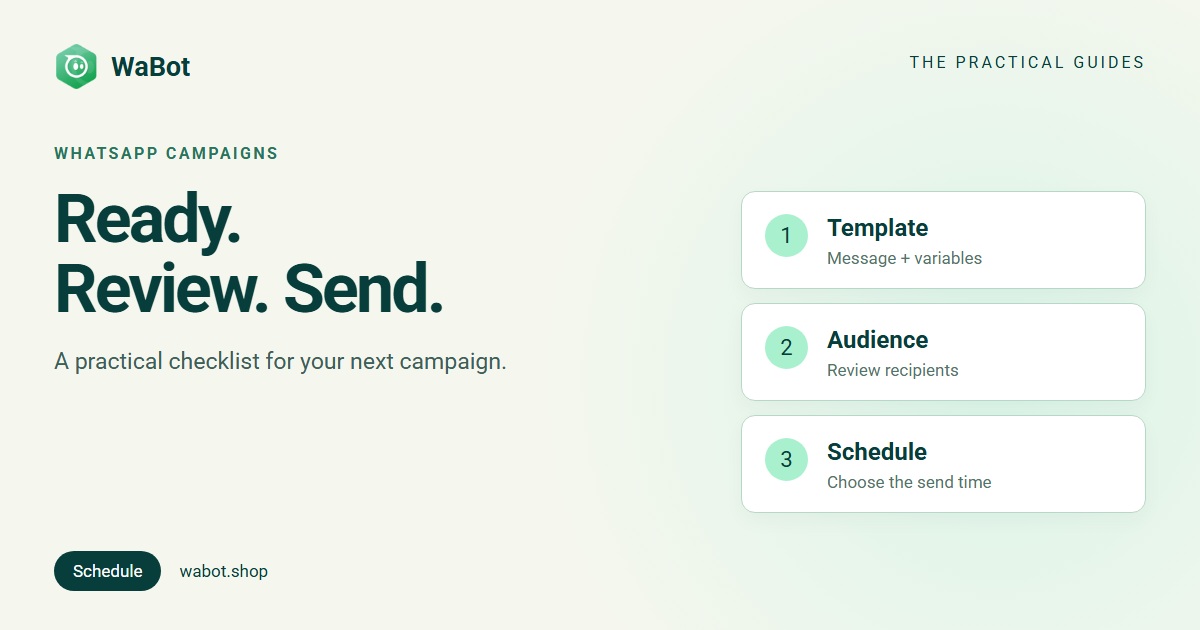
WaBot’s Quick Campaign flow brings the setup into three steps: template and variables, contacts, and launch options. Use this checklist when preparing a seasonal offer, a product update or another message your customers have agreed to receive.
Prepare the message and the audience first
Start with one purpose. For example, a travel agency might tell opted-in subscribers that its Christmas and New Year packages are ready, then invite them to ask for details. Keep the next action obvious.
- Use the correct connected business number and a plan with campaign access.
- Have an approved WhatsApp template suitable for the message you intend to send.
- Check customer permission and remove opt-outs from the intended audience.
- Have the final image, document, links and variable values ready.
- Arrange who will answer when people reply.
An approved template does not guarantee delivery. Recipients, account limits and the template’s current availability can affect a send. Avoid promising a fixed reach before the campaign has run.
Step 1: Select the template and fill its variables
Open Campaigns → Quick Campaign. In Template & Variables, choose the approved template you want to use. Fill in the required values and media, then read the preview as a customer would.
Check that the customer name, package details, dates and links make sense together. A template can be approved while a particular campaign still contains an incorrect link or an outdated offer.
Before sending to customers, use a small internal test audience whose members have agreed to receive the test. Check the actual message on a phone, including its image, buttons and destination links.
Step 2: Review the selected contacts
In Select Contacts, use the contact picker to find and add the WhatsApp contacts for this campaign. Inspect the selected recipients before continuing. Be careful with an “add all” option: the resulting list still needs your review.
If you need a group- or tag-based audience, use WaBot’s full campaign builder and its contact selection options. Our guide to groups and tags explains how to organise those lists.
A past purchase or an old enquiry is not a substitute for permission to receive the proposed marketing. Follow the WhatsApp Business Messaging Policy and respect requests to stop receiving messages.
Step 3: Choose the launch time
In Launch Options, choose Send Now or Schedule for Later, then set a future date and time. Check the date, time and time zone on the device you are using, then review the launch-time summary. This matters especially when your customers or teammates are in another region.
Pick a time when your team can handle responses. A convenient time for sending is not always a useful time for the customer. For a first campaign, choose a manageable audience and review the result before repeating it.
After clicking Launch Campaign, return to the campaign list and confirm that the campaign is shown as scheduled with the expected details. Do not create a second copy simply because you are unsure whether the first one saved.
Run this final pre-send check
- Identity: the intended business number and recognisable business name.
- Content: accurate details, working links, correct variables and suitable media.
- Audience: only intended recipients with relevant permission; opt-outs excluded.
- Timing: the intended date, time zone and staff coverage.
- Cost: review applicable plan limits and Meta messaging charges.
- Replies: a clear owner for responding in the shared inbox.
Scheduling is a launch instruction. It does not extend WhatsApp’s customer-service window or remove the need to use approved templates for messages outside it.
Read the result before sending the next campaign
Open the campaign’s analytics after it runs. Review sent, delivered, opened and failed messages, then inspect recipient-level details where needed. A message marked as sent is not the same as a delivered message, and an opened message is not proof of a sale.
For failures, read the status and reason before retrying. For replies, continue the conversation in the shared inbox. Record the customer’s actual next step instead of judging the campaign only by opens.
Keep a short note of the audience, message, send time and what you learned. Change one meaningful thing in the next campaign so the comparison is useful.
Prepare your next WhatsApp campaign with WaBot.
Campaign access requires an eligible plan. Meta messaging fees apply separately. Check WaBot plans and the charges applicable to your WhatsApp account before sending.