Your lead ads are working: 80 leads a week from Facebook and Instagram. Half are tyre-kickers, a few are ready to visit this weekend, and your sales team can’t tell which is which until they’ve called everyone. By the time they reach the serious ones, two other builders already have.
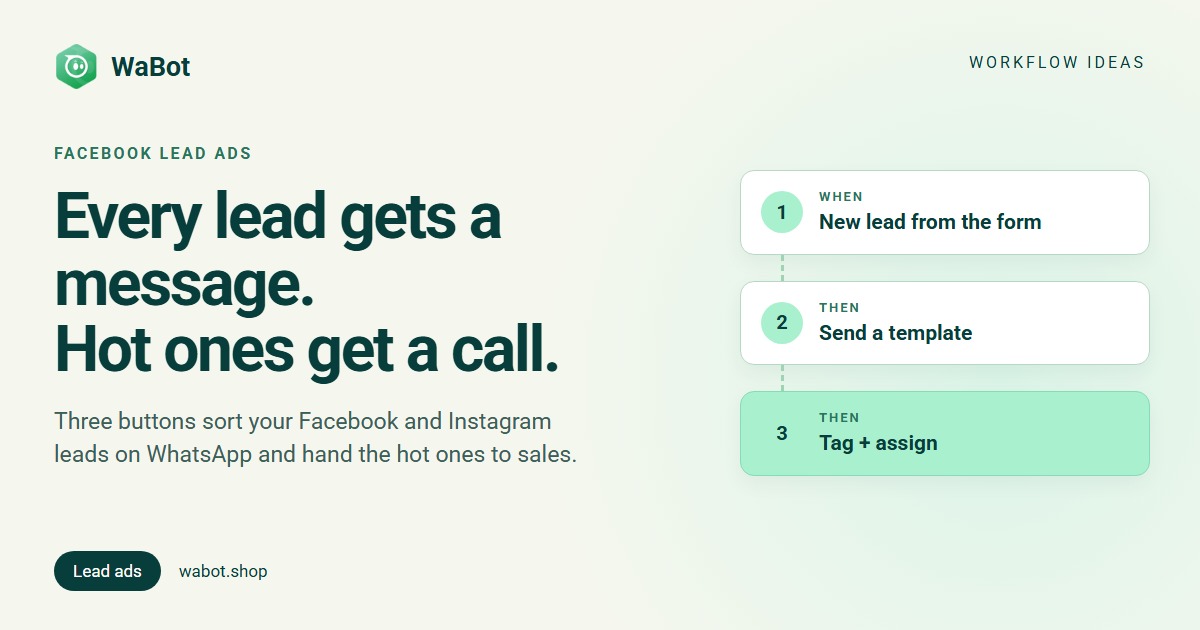
If you followed sending Facebook lead ads to WhatsApp, every lead already gets a message. This post is the next step: qualify Facebook leads on WhatsApp with one tap. A template with three buttons goes out the moment the lead arrives, and the chat is tagged with its form and assigned round-robin. Call me today tags the lead hot with a 30-minute call task; Send details gets the brochure; Not now gets a polite close and nothing more.
New lead → template with buttons → one tap sorts it
What this workflow does
- Runs for every new lead of a chosen Facebook or Instagram lead form, the moment WaBot imports it.
- Sends an approved template with three quick-reply buttons: Call me today, Send details, Not now.
- Tags the contact with its form (form:harbour-view) and assigns the chat round-robin, so every lead has an owner from the first second.
- Call me today: tags hot, marks the contact as a lead, replies, and creates a call task due in 30 minutes for the owner.
- Send details: tags warm and sends the brochure. Not now: tags not now and sends a polite close; nothing else goes out.
Why it works
Speed and sorting are the whole game with lead ads. The template reaches the lead within a minute of the form, while they still remember what they clicked. Three buttons are easier than a question: the lead doesn’t have to type, and your team doesn’t have to interpret “ok send”.
The buttons do the qualifying for you. A Call me today tap is intent you’d otherwise discover after three calls, and it becomes a tag, a lead mark and a task with a deadline in one go. Round-robin from the start means the owner already sees the chat when the tap arrives, and tagging by form tells you later which ad brings the hot leads.
Qualify your Facebook leads on WhatsApp with Wabot, free
Create your free account here. Connect your WhatsApp number and you get 15 days of the Base Plan, workflows included, no card needed.
Two workflows: the manual one the form starts, and the automatic one for the taps
Build it in WaBot, step by step
Workflows are on the Base Plan (₹9,240/year + GST); Starter (₹840/month + GST) has the inbox and campaigns but not workflows, and connecting your number on the Free plan starts a 15-day Base Plan trial. You need Meta Ads connected and the form imported as in the setup post, an approved template with three Quick Reply buttons (Settings → Templates: under Quick Reply click Add Button three times; titles up to 25 characters; a Name variable is filled from the lead’s name), and sales logins (Settings → Users) with app notifications on; assignments arrive as a push, not an email.
Workflow A: the first message, tag and owner
- Open Automation → Workflows and click Add workflow. Name it Lead ads: Harbour View. Under How should it run? choose Manual, and under Build with pick the Form editor.
- Click Choose a trigger → Started manually; the lead form will start it for each new lead.
- Click Choose an action → Send a template, pick your three-button template, and under Variables set Name to Customer Name. Leave Wait before sending at 0.
- Action: Add to groups or tags → under Select Tags add form:harbour-view.
- Action: Assign to team member, How to choose: Round-robin, and pick your salespeople under Teammates.
- Click Save, make sure the step shows Step on, and click Turn on workflow.
Keep every wait at 0. In a manually started run, Send a template applies its delay twice and Send a message ignores its delay.
Template, not a normal message. The lead has never written to you, so there is no 24-hour window; only an approved template is delivered, and a normal message with variables fails in a manual run.
Lead answers aren’t available here. The run gets the contact’s name, phone and email only. If the first message must quote a form answer, use the form’s Send WhatsApp template follow-up from the setup post instead; it can’t tag or assign. One form, one mode.
Connect the form to Workflow A
- Open Settings → Meta Ads → Lead forms. On the form’s card make sure Auto-import is on (no import, no follow-up), then click Follow-up.
- Choose Run workflow, pick your WhatsApp channel, and pick Lead ads: Harbour View under Workflow (only manually started workflows are listed).
- Click Save. Only leads that arrive after you turn this on get the follow-up.
Three lead forms? Make three copies of Workflow A with three tags (form:harbour-view, form:lakeside, form:villas) and connect each form to its copy. Workflow B below serves all of them.
Workflow B: what each button does
- Click Add workflow again. Name it Lead ads: button replies, How should it run? Automatic, Start from Blank, Form editor.
- Step 1, trigger: Customer sends a message. When a customer sends a WhatsApp Interactive quick reply buttons message where the title is exactly Call me today.
- Actions, in this order: Add to groups or tags → tag hot; Mark as lead; Send a message, Text only (“Great! Your advisor will call you within 30 minutes”); Create follow-up: Call {{name}} today, Harbour View ad, Due in 30 minutes, For: The chat’s assignee, the owner Workflow A picked.
- Click Add step. Same trigger, title Send details. Actions: tag warm, then Send a message, Media based, with your brochure PDF and a caption. The tap opened the 24-hour window, so a normal message is fine.
- Click Add step. Same trigger, title Not now. Actions: tag not now, then Send a message, Text only: “No problem, we won’t message again. Reply any time if that changes.”
- Click Save, switch each step to Step on, clear the Set up panel and click Turn on workflow.
Test it
On Workflow A, click Send a test: the template goes to your own WhatsApp at once. Tap each button and watch Workflow B tag the chat; each step’s Runs list shows who it ran for and why anything failed. Then submit your own lead form from Facebook’s form preview and check it under Settings → Meta Ads → Leads, where the follow-up shows Sent, Pending or Failed (workflows guide).
Button titles are matched by text, across all your templates. A step for Call me today fires for any message with a button of that exact title, from any workflow or campaign. Handy (one Workflow B serves every form), but give a campaign that needs different handling different titles.
Assigning a chat turns AI replies off for it, which is what you want for a lead who asked for a call.
Messages you can copy
First message (approved template, Quick Reply buttons Call me today / Send details / Not now; marketing category):
Hi {{1}}, thanks for your interest in Harbour View 2 & 3 BHK homes near the metro 🏡 Prices start at ₹68 L with possession in 2027. How can we help you next?
Hot reply (Workflow B, normal message):
Great! Your advisor will call you within 30 minutes from this number. Save it so you don't miss the call 📞
The first message goes to someone who hasn’t written to you, so it must be a Meta-approved template, and it should only go to leads whose form told them to expect a WhatsApp message. Replies within 24 hours of the tap can be normal messages. Meta’s message charges are billed by Meta directly, with no WaBot markup.
Variations and tips
Only hot leads need an owner? Move Assign to team member (Round-robin) from Workflow A to the Call me today step, before the follow-up.
Using Pipelines? Add Create deal on the Call me today step so hot leads appear on your sales board (WhatsApp sales pipeline automation).
Need more than three answers? Send a WhatsApp Flow form after the tap; its answers work as variables in your messages.
Related reading: WhatsApp for real estate, following up when a lead goes quiet and the Click-to-WhatsApp ads guide for ads where the lead messages you first.
Sort every Facebook lead on WhatsApp in one tap. Start free
Create your free account here. Connect your WhatsApp number and you get 15 days of the Base Plan, workflows included, no card needed.
Frequently asked questions
Why does the first message have to be a template?
A lead from a Facebook or Instagram form has never messaged you on WhatsApp, so there is no 24-hour window and only approved templates are delivered. The tap on a button opens the window; replies after it can be normal messages.
Can the workflow use the lead’s form answers, like budget or project?
No. A manually started run gets the contact’s name, phone and email only. The form’s “Send WhatsApp template” mode can map answers into the template but can’t tag or assign; a form uses one mode or the other.
Why no delays in the first workflow?
In manually started runs, template delays are applied twice and message delays are ignored, so keep Wait before sending at 0 there and put timing into the automatic workflow.
Final thoughts
Lead ads give you volume. The problem was never getting leads, it was knowing which three of today’s twenty to call first. One template, three buttons, and the lead tells you.
Get the template approved first, build Workflow B before you connect the form, and watch the hot tag fill up.