An enquiry comes in on WhatsApp. Someone replies, sends a quote two days later, and then the chat scrolls down under fifty newer ones. Nobody knows which enquiries have a quote out, who said “let me think”, or which deals quietly died. At month end the numbers come from memory.
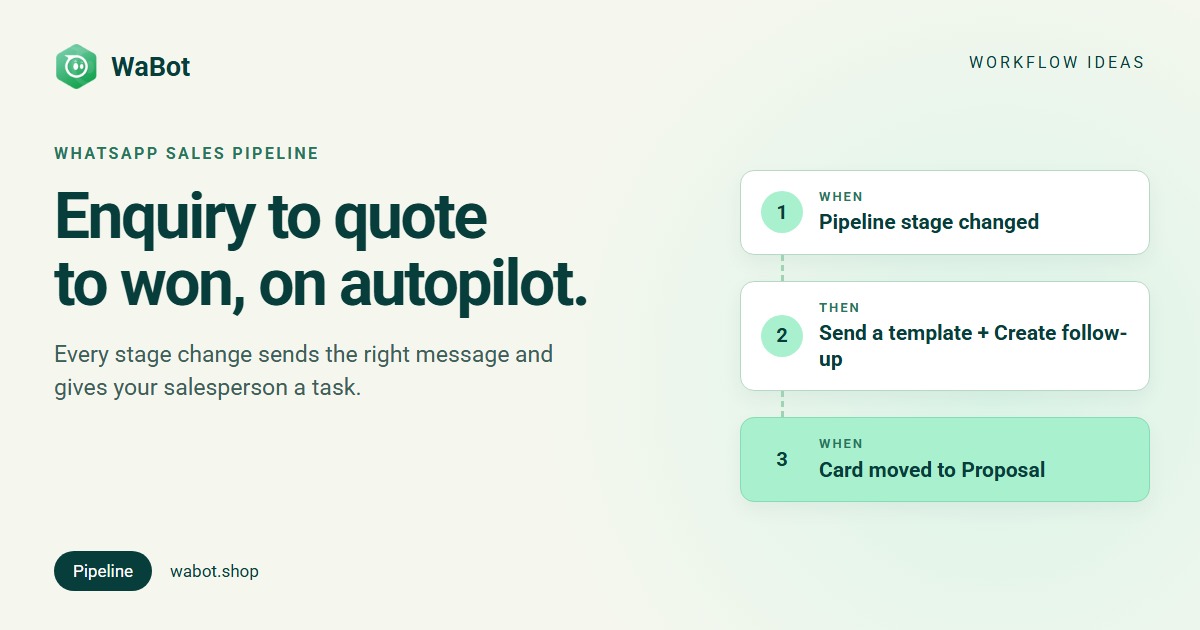
A WhatsApp sales pipeline automation fixes this with a simple board (New → Proposal → Won) and a workflow that reacts whenever a card moves. The customer gets the right message at each stage, the salesperson gets a task at the right time, and one tap on Book it marks the deal won. This post builds it in WaBot for a travel agency; real estate and B2B sales teams use the same steps with their own stage names.
New enquiry → quote sent → “Book it” → Won
What this workflow does
- Every new card on your Sales pipeline gets an instant thank-you template, and the salesperson gets a task: send the quote, due in 4 hours.
- When the card moves to Proposal (your quote is sent), the customer gets a template with two buttons, Book it and Not now, and the salesperson gets a chase the quote task due in 2 days.
- Book it marks the deal Won on the board. Not now tags the contact and books a check-back task two weeks out.
- Won cards get a thank-you template and an advance payment task.
Why it works
The board becomes the one place that is always right. Your team’s only job is to drag the card when something happens; the workflow sends the customer’s message and gives the salesperson a dated task. Tasks appear on the Follow-ups page and in the morning digest, so a quote sent on Monday gets chased on Wednesday even in a busy week.
Closing is one tap. The customer doesn’t have to type “yes, confirm”; they tap Book it and the card moves to Won on its own. Your win rate and pipeline value become real numbers, not an estimate.
Build this sales pipeline automation in Wabot, free
Create your free account here. Connect your WhatsApp number and you get 15 days of the Base Plan, workflows included, no card needed.
Before you start
- Turn on Pipelines. An admin opens Settings → Pipelines, switches on Use pipelines in this account and creates a pipeline. The Sales template gives you New, Qualified, Proposal, Negotiation, Won and Lost; travel agencies can pick Bookings (Enquiry, Itinerary sent, Quote, Advance paid, Booked, Lost). The steps below use the Sales names.
- Get three templates approved: an enquiry thank-you, a quote message with the quick reply buttons Book it and Not now, and a thank-you for booking (templates guide).
- Keep deal details out of the messages. Type the price and dates into the chat yourself, or send a PDF; card fields such as the deal title and value are not reliable inside message text today.
- Plan. Workflows are on the Base Plan (₹9,240/year + GST). Starter (₹840/month + GST) has the shared inbox and campaigns but not workflows. Connecting your number on the Free plan starts a 15-day Base Plan trial.
The full pipeline workflow, with both buttons
Build it in WaBot, step by step
Step 1: new card → thank-you and a quote task
- Open Automation → Workflows in the left menu and click Add workflow. Name it Sales pipeline, under How should it run? choose Automatic, under Start from choose Blank, and pick the Form editor.
- Click Choose a trigger → Pipeline stage changed. Pipeline: Sales. From stage: Any stage (this includes brand-new cards). To stage: New.
- Click Choose an action → Send a template, Send to: The customer, and pick the enquiry thank-you template.
- Add Create follow-up: Send the quote to {{name}}, Due in 4 hours, For: The chat’s assignee, and tick Link it to the contact’s open pipeline card.
Messages started by a pipeline change go out from your account’s default WhatsApp number.
Step 2: quote sent → buttons and a chase task
- Click Add step. Trigger: Pipeline stage changed, Sales, Any stage → Proposal.
- Action: Send a template, the quote template with the Book it / Not now buttons.
- Action: Add to groups or tags → tag Quoted.
- Action: Create follow-up: Chase the quote with {{name}}, Due in 2 days, For: The chat’s assignee, linked to the card.
Step 3: “Book it” → Won
- Add step. Trigger: Customer sends a message, WhatsApp Interactive quick reply buttons where the title is exactly Book it.
- Action: Mark deal won or lost → Pipeline: Sales → Mark as: Won. This moves the contact’s most recently updated open card in that pipeline to the first won stage. No message here; step 5 sends the thank-you.
Step 4: “Not now” → keep them warm
- Add step with the same trigger and the title Not now.
- Action: Send a message, Message type Text only. The customer just tapped, so a normal message is fine.
- Action: Add to groups or tags → tag Not now, then Create follow-up: Check back with {{name}} about the quote, Due in 14 days, For: The chat’s assignee.
Step 5: Won → thank-you and the next task
- Add step. Trigger: Pipeline stage changed, Sales, Any stage → Won.
- Action: Send a template: the thank-you for booking.
- Action: Create follow-up: Collect the advance from {{name}}, Due in 1 day, For: The chat’s assignee, linked to the card.
Step 6: test and switch on
- Click Save, clear the Set up panel, turn on Step on for each step and the switch on the workflow card.
- Create a card for your own number, drag it New → Proposal, tap Book it on your phone and watch it land in Won. Repeat with Not now. Each step’s Runs list shows what ran for whom.
A stage change made by this workflow’s own actions won’t set off the same trigger again and again; WaBot stops that loop. More in the workflows guide.
Why a task, not an automatic “did you see the quote?” message. WaBot’s No reply for a while trigger can nudge a customer who goes quiet, but in the editor today it can’t be limited to customers with a quote out, so it would also nudge people you’ve just booked. A chase task for the salesperson is safer. For one automatic reminder in every quiet chat, see WhatsApp follow-up when a customer goes quiet.
Messages you can copy
Enquiry thank-you (template, step 1):
Hi! Thanks for your enquiry with Skyline Holidays. Our travel consultant is preparing your quote and will send it here within 4 hours. 🌴
Quote (template, buttons “Book it” and “Not now”, step 2):
Your quote is in the message above. Shall we go ahead? Tap Book it and we'll hold your dates, or Not now and we'll keep the quote on file.
Not now reply (normal message, step 4):
No problem! Your quote stays valid for 7 days and we've kept it on file. Reply here whenever you're ready, or tell us if you'd like a different option.
Won thank-you (template, step 5):
Thank you for choosing Skyline Holidays! 🎉 Your booking is confirmed on our side. Your consultant will message you about the advance payment and the next steps.
The thank-you and quote messages usually go out more than 24 hours after the customer last wrote to you, so they must be Meta-approved templates. Promotional messages only go to customers who agreed to hear from you. Meta’s message charges are billed by Meta directly, with no WaBot markup.
Variations and tips
Create cards from WhatsApp. A step with the trigger Text that contains quote and the action Create deal (Sales, stage New, Skip if the contact already has an open deal on) starts step 1 without anyone touching the board.
Real estate. Stages New → Site visit → Negotiation → Won. The Proposal step becomes “site visit scheduled”, with the buttons Confirm visit / Reschedule.
B2B sales teams. Add Change deal owner → The chat’s assignee in step 1, so the card follows whoever picked up the chat.
Lost deals. A step for Any stage → Lost with a Lost tag, for a win-back campaign later (only to people who agreed to hear from you).
Before and after. Qualify first with the WhatsApp lead qualification bot; after the trip, add the Google review request.
Put your WhatsApp sales pipeline on autopilot
Create your free account here. Connect your WhatsApp number and you get 15 days of the Base Plan, workflows included, no card needed.
Frequently asked questions
Do I need Pipelines switched on for this?
Yes. An admin opens Settings → Pipelines and switches on “Use pipelines in this account”, then creates a pipeline from a template.
Can the quote message include the price from the card?
Not reliably today. Type the quote into the chat or send a PDF, and let the template carry the question and the Book it / Not now buttons.
Which plan includes this?
Workflows and Pipelines are on the WaBot Base Plan (₹9,240/year + GST). Connecting your number starts a 15-day Base Plan trial. Meta’s message charges are billed by Meta directly.
Final thoughts
A sales pipeline on WhatsApp works when the board is always true. Let the workflow send the thank-you, the quote buttons and the thank-you for booking, and hand your team a dated task at every stage.
Start with the three pipeline steps and the Book it button, then add the Lost tag and the review request.