“Do you deliver to Kochi?” “What are your timings?” “Is there a branch in Thrissur?” Most of the messages you get on WhatsApp are the same ten questions, and someone on your team answers them all day while the customers with real problems wait.
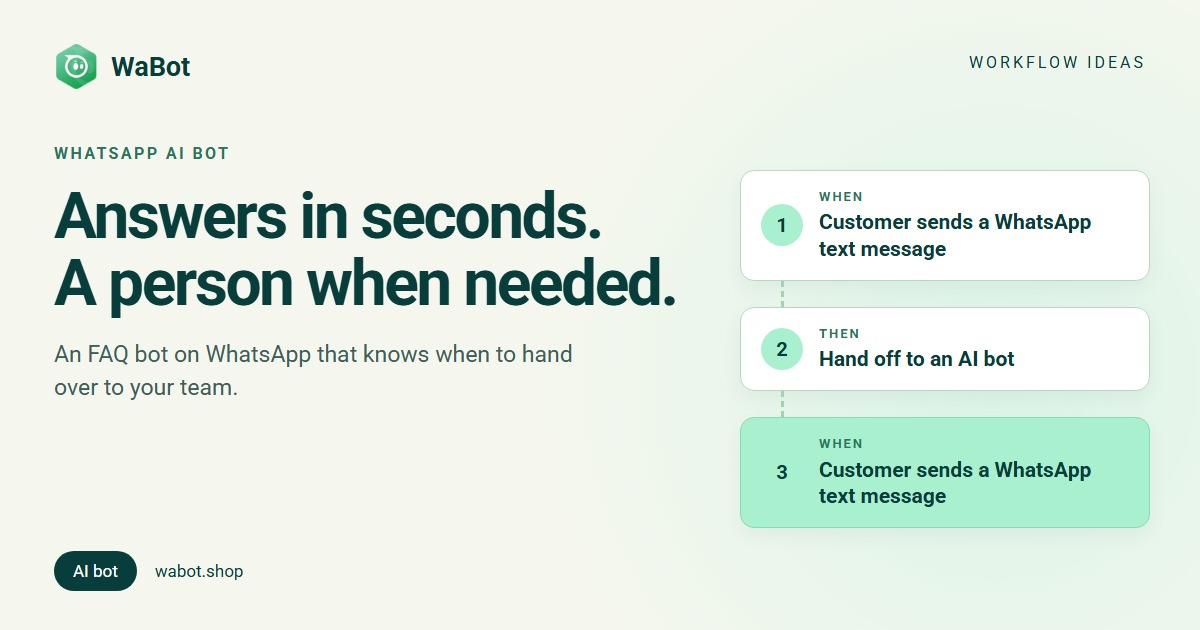
A WhatsApp FAQ bot answers those questions in seconds, from your own website and documents. The part that matters just as much is the exit: when a customer needs a person, they should get one without arguing with a bot. Here’s how to build both in WaBot.
FAQ bot answers, and “0” brings in a person
What this workflow does
- Answers customer questions on WhatsApp straight away, using what you’ve taught the bot: your website, documents and FAQs.
- Tells customers they can reply 0 at any time to talk to a person.
- When someone replies 0, confirms it and assigns the chat to a teammate (a specific person, round-robin or least busy).
- Leaves your team with only the chats that need a human.
Why it works
- Most questions have one right answer. Timings, delivery areas, prices and documents needed don’t change from customer to customer. A bot that reads your own pages can answer them well.
- A clear way out builds trust. Customers put up with a bot when they know how to reach a person. “Reply 0” is simple, works on any phone and doesn’t depend on spelling.
- The bot only knows what you give it. Answers come from your knowledge, and you write the instructions, including what to do when it isn’t sure.
- Your team handles fewer, better chats. Assigned chats land with one person, so nothing is answered twice or missed.
Before you start: teach the bot
- In the left menu, open AI Agents → Agent Knowledge and add what the bot should know: Add via website, Add via sitemap (up to 10 pages), or Add info manually for FAQs. Wait until each item shows Indexed.
- Open AI Agents → AI bots and click Create AI Bot. Choose the channel and a department such as Customer Support, select its documents under Data Configuration, and write the Instructions, for example: “Answer only from the provided documents. If you’re not sure, or the customer has a complaint, tell them to reply 0 to talk to our team.”
- Set a Fallback Message for questions it can’t answer, such as “I’m not sure about that. Reply 0 and our team will help.” Start in Test mode with your own number, then switch to Live.
- Make sure Bot Response is on for your number under Settings → Meta Platforms, and the AI switch is on for the conversation in the inbox. New contacts follow your number’s setting.
The AI agents guide walks through each screen.
Build it in WaBot, step by step
Step 1: send questions to the bot
- Open Workflows in the left menu and click Add workflow. Name it, e.g. FAQ bot with handover, choose Automatic and start from Blank.
- Click Choose a trigger → Customer sends a message. Fill in the sentence: When a customer sends a WhatsApp Text message that is not 0.
- Click Choose an action → Hand off to an AI bot. Under Select AI bot, pick your FAQ bot.
- Set Idle Time and Time Format, e.g. 30 Minutes. This is how long the bot stays in charge of the chat after its last reply. Fill in the Exit Message too; the form requires it.
Step 2: hand over to a person
- Add a second step with the trigger Customer sends a message and the sentence WhatsApp Text message that is exactly 0.
- Action: Send a message (Text only): “Connecting you to our team. Someone will reply here shortly.”
- Action: Assign to team member. Choose A specific teammate, Round-robin or Least busy, and keep Only if the chat isn’t assigned yet on. The teammate gets a notification in the app and on their phone.
- Optional: Create follow-up (“Call back {{senderName}} about their issue”, due in 2 hours) so the request can’t be forgotten.
Step 3: test and switch on
- Click Save and clear the Set up panel.
- Turn on Step on for both steps and the switch on the workflow’s card.
- From your own phone (a test number while the bot is in Test mode), ask a few real questions, then reply 0 and check that the chat is assigned.
When a teammate takes over, they should switch off the AI switch in the chat header. Assigning a chat doesn’t stop the bot by itself, and while the switch is on the bot keeps answering the customer’s text messages.
Build your WhatsApp FAQ bot in WaBot.
Messages you can copy
Bot instructions (paste into the bot’s Instructions and adjust):
You are the WhatsApp assistant for [Business]. Answer only from the provided documents, in 2-3 short sentences. Use simple English. If you don't know the answer, if the customer is upset, or if they ask for a person, say: "Reply 0 and a person from our team will help you." Never make up prices or dates.
Handover message:
Thanks! I'm connecting you to our team. Someone will reply here within 15 minutes during working hours (Mon–Sat, 9 AM–7 PM).
Fallback message:
Sorry, I'm not sure about that one. Reply 0 and a person from our team will help you.
The bot replies inside WhatsApp’s 24-hour window, which opens each time the customer messages you, so plain messages are fine here. Anything you send after the window has closed must be a Meta-approved template, and marketing messages only go to customers who agreed to hear from you.
What it costs
Workflows are on the Base Plan (₹9,240/year + GST). The Starter plan (₹840/month + GST) has the shared inbox and campaigns but not workflows. AI replies are pay-as-you-go from your WaBot wallet, and you can see usage under Settings → Pricing → Usage. If you’d rather use your own OpenAI, Anthropic Claude or Azure key, add it under AI Agents → AI Providers. Meta’s own message charges are billed by Meta directly, with no WaBot markup.
Variations and tips
- Office hours only. Keep the bot on all day, but make the handover message honest about when a person will reply.
- Separate bots per number. If you have a sales number and a support number, create one bot for each channel with its own documents.
- Keep improving the knowledge. Read the bot’s chats every week and add an FAQ entry for each question it couldn’t answer.
- Static greeting first? If you only need a fixed reply, see 25 WhatsApp auto reply messages. For how teams share chats, see the WhatsApp shared inbox guide.
Let a bot answer the easy questions and your team the rest.
Frequently asked questions
Can a WhatsApp bot answer from my own website?
Yes. In WaBot, add your website, sitemap pages, documents or manual FAQs under AI Agents → Agent Knowledge. The bot answers from what you add there.
How does a customer reach a person?
In this workflow the customer replies 0. A second step sends a short confirmation and assigns the chat to a teammate, who sees it in the shared inbox.
Will the bot keep replying after a person takes over?
It can. Assigning a chat doesn’t switch the bot off, so the teammate should turn off the AI switch in that conversation’s header.
How much does the AI cost?
AI replies are pay-as-you-go from your WaBot wallet, or billed to your own OpenAI, Claude or Azure key if you add one. Workflows need the Base Plan (₹9,240/year + GST).
Final thoughts
A good FAQ bot is short, accurate and easy to leave. Teach it your real answers, give customers a one-character way to reach a person, and let your team spend its time on the chats that need them.
Start in Test mode with your own number, ask the ten questions you hear most, and switch to Live when you’re happy with the answers.