In festival season every order comes with a question: “Did my order go through?” “When will it ship?” “Will it come before Diwali?” If the answer is only in an email, the customer asks again on WhatsApp, on Instagram and on the phone, and your team answers the same thing all day.
A Shopify WhatsApp order notification answers it before they ask. This post shows one WaBot workflow with two steps: a confirmation when the order is placed, and a shipping update with the courier and tracking link when you fulfil it.
Shopify order updates on WhatsApp
What this workflow does
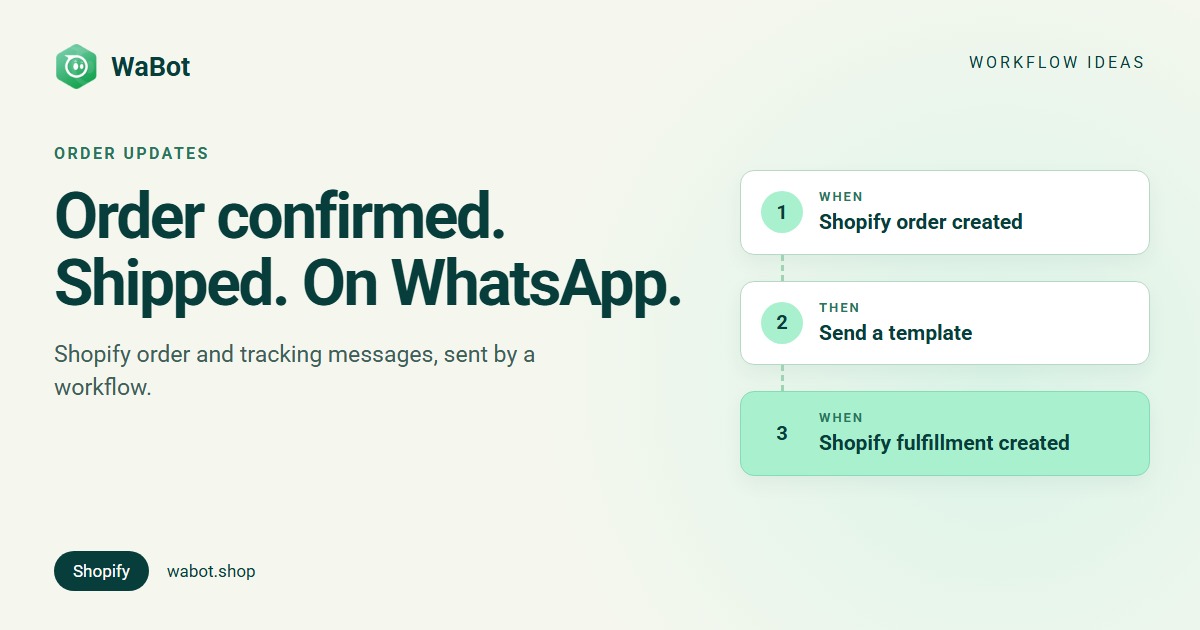
- When an order is created in your Shopify store, WaBot sends the customer a WhatsApp confirmation with their name, order number and amount.
- When you fulfil the order in Shopify, WaBot sends a shipping update with the courier name, tracking number and tracking link.
- Replies land in your shared inbox, so if the customer writes back (“Can you change the address?”), your team sees it straight away.
- Orders without a customer phone number are skipped, because there is nobody to message.
Why it works
Customers in India are used to getting order updates on WhatsApp. A confirmation they can scroll back to settles the “did it go through?” worry, and a tracking link they can tap answers “where is it?” before it becomes a support chat.
It also saves your team. Every “where is my order?” message that doesn’t arrive is a few minutes of someone’s day, and in the Diwali, Christmas and New Year rush those minutes add up.
And it starts a WhatsApp conversation with a buyer who has already paid or ordered. When they reply, you can answer for free inside the 24-hour window.
Build it in WaBot, step by step
You need your Shopify store connected (Settings → Integrations → Shopify, see the Shopify guide).
Want a quick start? Under Settings → Integrations → Shopify → Configure, the Automation tab has Order Confirmation and Order Fulfillment switches. Each one installs a message template, waits for Meta’s approval and sets up a ready-made workflow. The steps below build the same thing by hand, so you can word it your way.
1. Create two templates
- Go to Templates and create two Utility templates: order_confirmed and order_shipped, using the messages in “Messages you can copy” below. Submit them for Meta’s approval.
2. Step 1: order confirmation
- In the left menu, open Automation → Workflows and click Add Workflow. Give it a name, choose Automatic under How should it run? and Form editor under Build with.
- For the trigger, pick the Shopify order created event (under What starts this workflow?, search “Shopify”; Shopify events are listed under the Shopify heading).
- Open the Variables section and use Add variable (From trigger data): first_name →
response.data.customer.first_name, order_no →response.data.nameand amount →response.data.total_price. - Add the action Send a template, pick order_confirmed and fill its variables with
{{first_name}},{{order_no}}and{{amount}}.
3. Step 2: shipping update with tracking
- Add a new step and pick the Shopify fulfillment created event as its trigger.
- In its Variables, add first_name →
response.data.customer.first_name, order_no →response.data.name(Shopify numbers each shipment, so this reads like #1042.1), courier →response.data.tracking_company, awb →response.data.tracking_numberand track_url →response.data.tracking_url. - Add Send a template with order_shipped and fill in those variables.
4. Test and switch on
- Use Send a test in the editor to preview each template on your own WhatsApp.
- Place a test order with your own number in the shipping address, then fulfil it in Shopify with a tracking number. Both messages should arrive.
- When it works, flip the workflow’s switch on the Workflows page to Active.
Tracking only comes through if Shopify has it. Add the tracking number and courier when you fulfil the order in Shopify (or let your shipping app add them). If you often ship without tracking, make a second shipping template without the tracking line.
Use one shipping trigger, not two. Shopify also has an order fulfilled event, which fires when the whole order is fulfilled. Fulfillment created carries the tracking details directly and also fires for partial shipments. Pick one so customers don’t get two shipping messages.
Messages you can copy
Hi {{1}}! 🪔 Thank you for shopping with [Store].
Your order {{2}} for ₹{{3}} is confirmed. We'll send you the tracking link here as soon as it ships.
Good news, {{1}}! Your order {{2}} has shipped with {{3}} 🚚
Tracking number: {{4}}
Track it here: {{5}}
Hi {{1}}, thanks for your order {{2}}! Because of the festive rush, orders are shipping in 2–3 days. We'll message you with tracking as soon as it's on its way. 🎄
Order and shipping updates are business-initiated, so they must be Meta-approved templates, normally in the Utility category. Keep them about the order: if you add offers, Meta may treat the template as marketing, and marketing messages should only go to customers who agreed to hear from you. More copy-paste templates: 30+ template examples; which category to pick: template categories explained.
Variations and tips
Cash on delivery? Add a quick-reply button to the confirmation template so buyers confirm before you ship; their replies land in your inbox.
The rest of the journey: catalog, payment links, reviews and win-back campaigns are covered in our WhatsApp for ecommerce guide.
Busy inbox? If customers reply to the shipping message, add a step that assigns replies to your team. See the workflows guide.
What it costs
Workflows are on the Base Plan (₹9,240/year + GST). Starter (₹840/month + GST) has the shared inbox and campaigns but not workflows, and the Free plan lets you sign up and connect your number. Meta charges for template messages directly, with no WaBot markup. Connecting a number starts a 15-day Base Plan trial, no card needed. See Meta’s rates for India.
Send your first Shopify order update on WhatsApp
Create your free WaBot account, connect your Shopify store and your WhatsApp number, and switch on order confirmation and shipping updates. Connecting a number starts a 15-day Base Plan trial, no card needed.
Frequently asked questions
Can Shopify send order notifications on WhatsApp by itself?
Shopify sends order emails and SMS. For WhatsApp you need the WhatsApp Business API through a provider like WaBot, connected to your Shopify store.
Does the shipping message include the tracking link?
Yes, if the fulfillment in Shopify has one. The fulfillment created event carries the courier name, tracking number and tracking URL, and you put them into your template.
Which phone number is the message sent to?
The customer’s phone number from the Shopify order (their saved address, shipping or billing address). Orders without a phone number are skipped.
Do I need separate templates for confirmation and shipping?
Yes. Each message the business starts needs its own Meta-approved template.
Final thoughts
Two templates and a two-step workflow cover the questions every online shop gets in festival season: did it go through, and where is it?
Set it up once and it keeps working through every sale season, Christmas and New Year included.