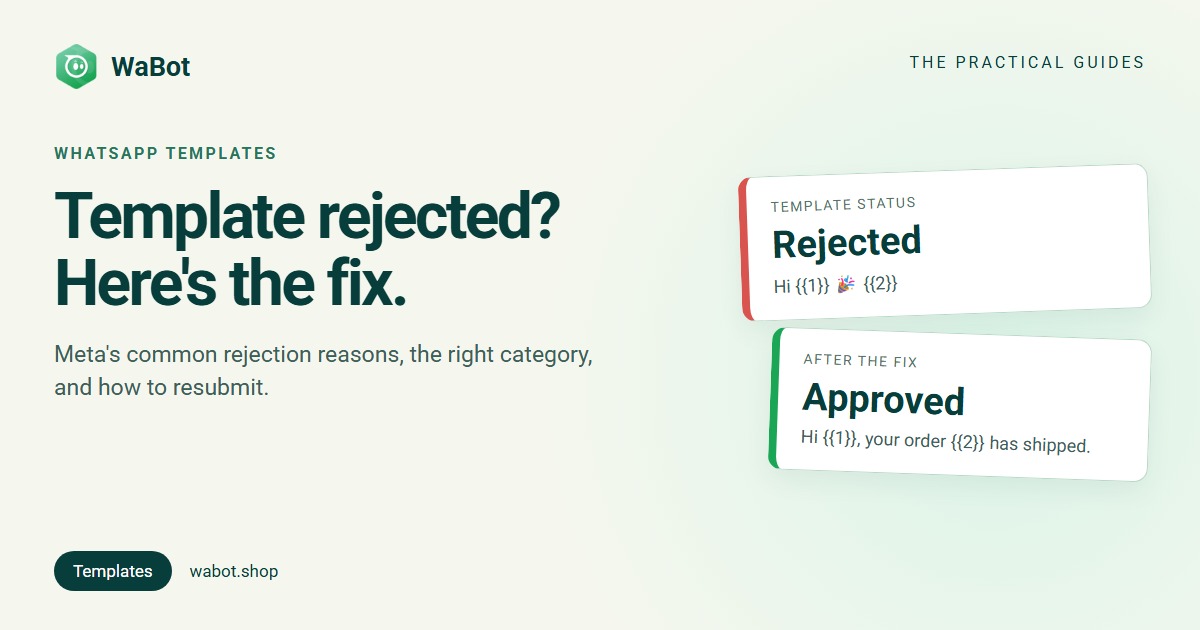
You wrote a WhatsApp message template, submitted it, and a few hours later it says Rejected. Or worse: your order-update template was approved as Utility, and one day it shows up as Marketing.
Most rejections come from a short list of reasons that Meta documents, and most are easy to fix.
This guide covers the common WhatsApp template rejection reasons with a rejected and a fixed example for each, the rules for Marketing, Utility and Authentication templates, and how to appeal or resubmit.
First, how template review works
Every template you create is checked by Meta before you can send it. Meta says a decision can take up to 24 hours. If the template is rejected, you can either edit it and resubmit, or appeal the decision. The rejection reason is shown in Meta’s Business Support Home.
Templates are needed when you message a customer first, or after 24 hours since their last message. New to this? Read WhatsApp Business app vs API first.
Common reasons Meta rejects WhatsApp templates
These are the reasons Meta lists in its template review guide, each with a likely-rejected and a fixed example.
1. Broken or wrongly formatted variables
Variables are the blanks your system fills in, like the customer’s name. Meta wants them written as {{1}}, {{2}} and so on, with matching double curly brackets, numbered in order, and with no special characters such as #, $ or % inside them.
Rejected:
Hi {{1}, your order {{#order}} is ready. Pay {{3}} at the counter.
Fixed:
Hi {{1}}, your order {{2}} is ready. Please pay {{3}} at the counter.
2. A variable at the very start or end
Meta does not allow a template to start or end with a variable (it calls these “dangling parameters”). Put some fixed text before the first one and after the last one.
Rejected:
{{1}}, your appointment is confirmed for {{2}}
Fixed:
Hello {{1}}, your appointment is confirmed for {{2}}. Reply 1 to reschedule.
3. Too many variables for the amount of text
If the message is mostly blanks, the reviewer cannot tell what you will send. Meta gives no exact ratio, so write a real sentence around each variable.
Rejected:
Hi {{1}}, {{2}} {{3}} {{4}} on {{5}}.
Fixed:
Hi {{1}}, your booking for {{2}} is confirmed for {{3}}. Our team will call you a day before. Thank you for choosing us.
4. Missing or unhelpful sample values
If your template has variables, Meta asks for sample values so the reviewer can see what the real message looks like. Use realistic samples that fit the sentence, not “test” or “xyz”.
Rejected (samples: {{1}} = test, {{2}} = abc):
Hi {{1}}, your order {{2}} has been shipped.
Fixed (samples: {{1}} = Priya, {{2}} = #10452):
Hi {{1}}, your order {{2}} has been shipped.
5. Content against WhatsApp’s Business or Commerce Policy
Templates cannot ask customers for sensitive details like full card numbers, bank account numbers or ID card numbers. WhatsApp’s policy also restricts some goods and services, such as drugs, firearms, adult products, real-money gambling and payday loans. Check the WhatsApp Business Messaging Policy before you write offers for these.
Rejected:
Hi {{1}}, to complete your refund please reply with your full card number and CVV.
Fixed:
Hi {{1}}, your refund of {{2}} has been started and will reach your original payment method in 5-7 working days.
6. Threatening or abusive wording
Meta rejects content that threatens customers, for example with legal action or public shaming.
Rejected:
Hi {{1}}, pay {{2}} today or we will take legal action and inform your neighbours.
Fixed:
Hi {{1}}, a gentle reminder that {{2}} is due on {{3}}. Reply here if you need help with the payment.
7. Duplicate of an existing template
A new template with the same body and footer wording as one you already have will be rejected as a duplicate. Edit the existing one instead.
8. Wrong category
If you pick a category that does not match the content, Meta can reject the template with the reason INCORRECT_CATEGORY. The one exception: if you pick Utility and Meta decides it is Marketing, Meta now approves it as Marketing instead of rejecting it. More on this below.
Create, submit and track WhatsApp templates in one place.
Marketing vs Utility vs Authentication templates
Every template has one of three categories. The category decides what you can say, and Meta charges different rates for each category. See current rates in our WhatsApp Business API pricing guide for India.
| Marketing | Utility | Authentication | |
|---|---|---|---|
| What it’s for | Offers, launches, announcements, re-engaging customers | Updates about an order, booking, account or payment the customer already has | One-time passcodes to verify a login or transaction |
| Example | “Thanks for your last order! Enjoy 15% off your next one this week.” | “Your order {{1}} is confirmed and will ship by {{2}}.” | “{{1}} is your verification code.” |
| Can it include a promotion? | Yes | No. Any upsell makes it Marketing | No |
| Special rules | Most flexible category | Must be non-promotional and specific to the customer, or essential (like a safety alert) | Built from Meta’s template library, with a code button; no URLs, media or emojis |
The Utility trap
Meta says a template with mixed content, such as an order update with a discount at the end, counts as Marketing. So does unclear content, like a template that only says “Congratulations!” or is just a variable.
Becomes Marketing:
Hi {{1}}, your order {{2}} has shipped. Use code SAVE10 for 10% off your next order!
Stays Utility:
Hi {{1}}, your order {{2}} has shipped and should reach you by {{3}}. Track it here: {{4}}
Want the offer too? Send it as a separate Marketing template, to customers who agreed to hear offers from you.
When Meta changes a template’s category after approval
Approval is not the end. Meta regularly re-checks approved templates against its category rules. According to Meta’s template categorization docs:
- Utility that should be Marketing: Meta changes the category to Marketing. Normally you get one day’s notice by email and webhook first. The template stays approved and you can keep sending it, now as Marketing.
- No notice for repeat issues: businesses Meta has warned about category misuse get the change instantly, without the one-day notice.
- Marketing or Utility that should be Authentication: the template is rejected on the first day of the following month and can no longer be sent.
- You can ask for a review: you have 60 days to request a review of a category change from Business Support Home, through WhatsApp Manager.
Why it matters: Marketing messages cost more per message than Utility, and Meta applies limits on how many marketing messages a person receives. A template you budgeted as Utility can quietly cost more and start failing for some customers.
How WaBot shows a category change
When a template message fails because WhatsApp limited messages to that customer, WaBot checks the template’s category with Meta. If Meta has moved it from Utility to Marketing, WaBot saves the change and shows it in two places:
- Templates → My templates: the Category column shows Marketing with a warning icon. Hover over it to see: “Meta re-categorised this template as Marketing; rewrite it without promotional wording.” On mobile, the template card says re-categorised by Meta.
- Inbox: under the failed message, the same note appears, so your team knows why it was not delivered.
Rejections show up in WaBot’s Updates bell under Templates, for example Template “order_update” rejected with the reason Meta sent, such as Rejected: incorrect category. The Status column in My templates shows Approved, Pending, Rejected, Paused, Disabled or In appeal, and you can filter the list by status.
How to fix and resubmit a rejected template
- Read the reason. Check the rejection reason in Business Support Home, or in WaBot’s Updates.
- Edit, don’t duplicate. Meta lets you edit rejected and paused templates as many times as you need. Fix the wording, variables or samples, then resubmit.
- Appeal if you think Meta got it wrong. In WhatsApp Manager, edit the template, add a sample, and submit the appeal. Meta says appeals must include a sample and a decision is made within 24 hours.
- Change category with a new template. Meta does not let you edit the category of an approved template. If you need a different category, create a new template.
Editing an approved template has limits: Meta allows up to 10 edits in 30 days, or 1 edit in 24 hours. Each edit goes through review again.
If you delete an approved template, you cannot reuse its name for 30 days.
In WaBot, templates live under Templates, with three tabs: My templates, Facebook library (Meta’s ready-made templates) and Wabot library. When you write your own, the body editor has a Get AI Suggestions button that drafts the text for you. Step-by-step help is in our message templates guide.
Pre-submit checklist
- ✅ Variables are {{1}}, {{2}}, {{3}}, in order, with double curly brackets on both sides
- ✅ The template does not start or end with a variable
- ✅ There’s real text around every variable
- ✅ Every variable has a realistic sample value
- ✅ The category matches the content: no offers inside Utility
- ✅ No request for card numbers, bank details or ID numbers
- ✅ Polite tone, no threats, no ALL CAPS pressure
- ✅ It’s not a copy of a template you already have
- ✅ The product or service is allowed under WhatsApp’s Business Policy
To keep your number healthy once you start sending, read how to send WhatsApp bulk messages without getting banned. For ready examples to adapt, see 20 WhatsApp message templates for travel agents.
Get your templates approved faster with Wabot
Create your free account here. Connect your WhatsApp number and you get 15 days of the Base Plan, workflows included, no card needed.
Frequently asked questions
Why was my WhatsApp template rejected?
The most common reasons Meta lists are badly formatted variables, a variable at the start or end, too many variables for the text, missing samples, content against WhatsApp’s policies, threatening wording, duplicates, and the wrong category. The exact reason is shown in Meta’s Business Support Home.
How long does WhatsApp template approval take?
Meta says an approval decision can take up to 24 hours. Appeals are also decided within 24 hours.
Why did my Utility template change to Marketing?
Meta re-checks approved templates. If a Utility template contains promotional wording, or is too unclear to count as a transactional update, Meta moves it to Marketing, usually with one day’s notice. You can request a review within 60 days.
Can I edit an approved WhatsApp template?
Yes, up to 10 times in 30 days and once in 24 hours, and each edit is reviewed again. You cannot change the category of an approved template; create a new one instead.
Do I need a green tick to send approved templates?
No. Once Meta approves a template, you can send it from your WhatsApp Business API number. The green tick is a separate badge for your business name. Read more in our guide to the WhatsApp green tick.
Final thoughts
A rejected template is rarely a dead end. Fix the variables, add honest samples, keep offers out of Utility, and resubmit.
Pick the category that matches what the message really does, and keep an eye on category changes after approval, because they change what each message costs.