You sent the fee details, the site-visit slots or the quote. The customer said “ok, will check” and then nothing. Two days later nobody on your team remembers to follow up, and the enquiry goes cold. Most of those people weren’t saying no. They got busy.
This post shows a WhatsApp follow-up message automation in WaBot that notices the silence for you. When a customer hasn’t replied for a set time, it sends one polite reminder and gives your team a task. A second version watches the other side: when a customer’s message sits unanswered, it pulls in a teammate.
Customer goes quiet after a quote, WaBot follows up once
What this workflow does
- Watches every WhatsApp chat for a silence after your last message, such as a quote, fee details or a booking link.
- After the wait you choose (anything from 5 minutes to 30 days), it sends one follow-up template.
- Creates a follow-up task so a person also calls or writes to the customer.
- Runs once per silence. It won’t nudge the same customer again until they reply.
- A second workflow does the opposite: when a customer’s message gets no answer from your team, it assigns the chat or creates a task.
Why it works
A reminder works because it reaches people who meant to reply and forgot. One short, friendly message brings your offer back to the top of their chat list. It doesn’t nag, because the workflow only sends one per silence.
The team-side version fixes the leak at your end. A shared inbox can hide a chat that everyone thought someone else was handling. With a timer on every unanswered message, nothing waits for hours just because the team was busy.
The timing is based on the conversation itself, not on a fixed schedule. The wait starts from the last message, and every new message from your side starts it again. So a customer you’re actively chatting with never gets an automatic reminder in the middle of the conversation.
Build this follow-up workflow in WaBot.
Build it in WaBot, step by step
Workflows are on the Base Plan (₹9,240/year + GST). The Starter plan (₹840/month + GST) includes the shared inbox and campaigns but not workflows. You can sign up and connect your number on the Free plan first.
Before you start: approve a follow-up template
By the time this workflow runs, the customer may not have written to you for more than 24 hours. Outside that 24-hour window WhatsApp only lets you send Meta-approved templates, so this workflow sends a template, not a normal message. Create one under Templates and wait for approval (see the templates guide). Keep it general, because it may go to any customer who went quiet.
Part 1: nudge the customer who stopped replying
- In the left menu, open Automation → Workflows and click Add workflow.
- Enter a Workflow name, such as Follow up when customer goes quiet. Under How should it run? choose Automatic, under Start from choose Blank, and build with the Form editor.
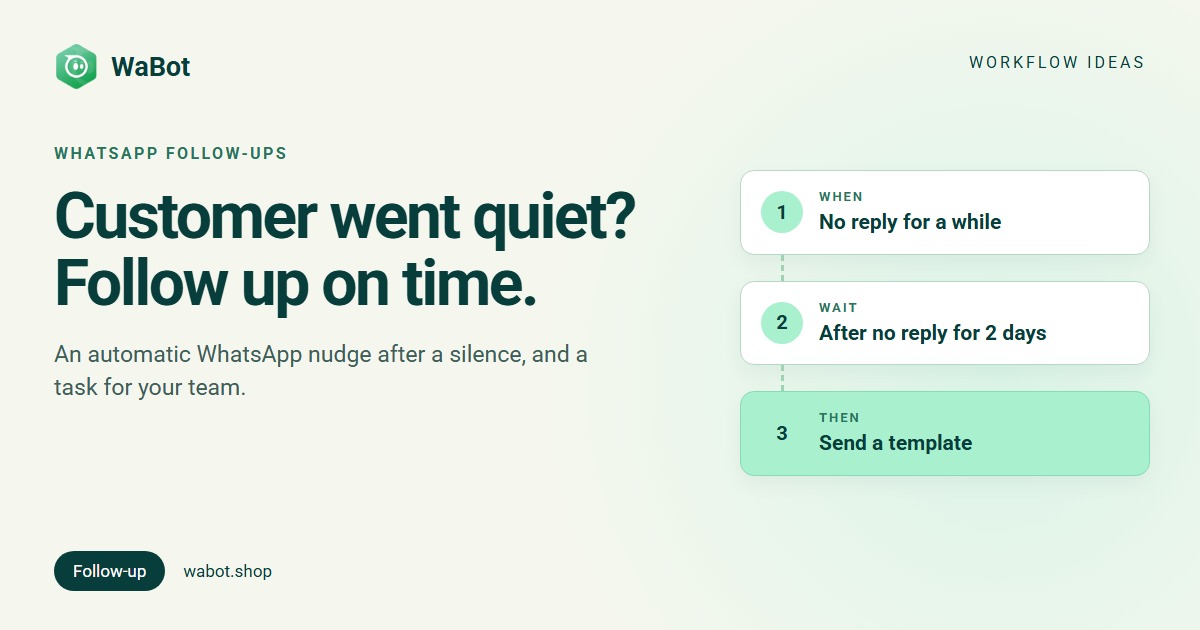
- Click Choose a trigger and pick No reply for a while (it’s in the Timing group).
- Under Start when, choose The customer hasn’t replied.
- Under After no reply for, enter the wait, for example 2 days. You can choose minutes, hours or days, from 5 minutes up to 30 days.
- Click Choose an action and pick Send a template. Choose your approved follow-up template and fill in any variables.
- Add a second action, Create follow-up. Write what the teammate should do, for example Call {{name}}, no reply to our last message. Set Due in to 1 day and For to The chat’s assignee.
- Click Send a test to get the template on your own WhatsApp and check how it reads.
- Click Save, make sure the Step on switch is on, then turn the workflow on with Turn on workflow or the switch on its card.
Important: this trigger has no extra conditions. It watches every chat, and any message you send starts the wait, including campaign broadcasts. If you send a campaign to 2,000 people, everyone who doesn’t reply will get this reminder after the wait. Write the template so it makes sense in any chat, or switch the workflow off before a big campaign.
Part 2: alert your team when nobody replied to the customer
- Add another workflow, for example Unanswered chat alert, with the trigger No reply for a while.
- Under Start when, choose Nobody has replied to the customer. Set After no reply for to something like 30 minutes.
- Add Assign to team member. Under How to choose, pick Least busy or Round-robin and choose the teammates. Leave Only if the chat isn’t assigned yet on if you don’t want to take chats away from people.
- Add Create follow-up: Reply to {{name}}, waiting {{waiting_hours}} hours, due in 0 minutes (due now), for The chat’s assignee.
- Save and turn it on.
Replies from your team or from a bot count as answers. The teammate gets a notification in the app and on their phone. You can use {{waiting_hours}} and {{waiting_since}} from this trigger in the follow-up text. This version sends nothing to the customer, so no template is needed.
For testing, set the wait to 5 minutes, message the business number from your own phone and watch what happens. Then set the real wait. Each step’s Runs list shows every contact it ran for, and why it skipped someone (for example, they replied in time). More detail is in the workflows guide.
Messages you can copy
Submit these as templates, because they go out after a silence. Marketing messages should only go to customers who agreed to hear from you.
Hi! Just checking in on our last message. Do you have any questions? Reply here and we'll help you right away.
Hello from [Business] 👋 We noticed you didn't get a chance to reply. Would you like us to call you, or is WhatsApp easier?
Hi! The details we shared are still valid. If the timing isn't right, reply LATER and we'll check back next month.
Namaste 🙏 Any doubts about the fees or schedule? Our counsellor is available today till 7 PM.
Variations and tips
Choose the wait by business type. Real estate and coaching enquiries usually need a day or two. Clinics confirming an appointment may want a few hours.
Want a second reminder? Add another workflow with a longer wait. Because each message you send restarts the wait, its timer counts from your first reminder. Two reminders is plenty.
Use the team-side version as a response-time rule. 30 minutes during working hours keeps every new lead from waiting.
Turn follow-ups into a routine. The Follow-ups page lists every task the workflow creates, and the Follow-up is due trigger can start another workflow when a task falls due.
Related reading: running a shared WhatsApp inbox, WhatsApp for coaching institutes and WhatsApp for real estate.
Stop losing quiet leads. Set up your follow-up workflow.
Frequently asked questions
Can WhatsApp send a follow-up message automatically?
Not from the WhatsApp Business app. On the WhatsApp Business API with WaBot, the “No reply for a while” workflow trigger sends a follow-up template automatically when a customer hasn’t replied for the time you choose.
Will the customer get many reminders?
No. The workflow runs once per silence. It won’t run again for that customer until they reply and then go quiet again.
Why does the follow-up have to be a template?
WhatsApp only allows free-form messages within 24 hours of the customer’s last message. A follow-up after a silence is often outside that window, so it must be a Meta-approved template.
How long can the wait be?
Anywhere from 5 minutes to 30 days, set in minutes, hours or days. Every new message restarts the wait.
Which plan includes this?
Workflows are on the WaBot Base Plan (₹9,240/year + GST). Meta’s own message charges are billed by Meta directly, with no WaBot markup.
Final thoughts
Most quiet customers just need one reminder at the right time. Let the workflow send it and create the call task, and your team can spend its time on the people who reply.
Start with one reminder after 2 days and a 30-minute alert for unanswered chats. Check the Runs list after a week and adjust the timing.