A customer who asked about a family holiday should not have to read every honeymoon offer you send. A useful WhatsApp contact list helps your team remember what each person wanted and choose who should receive the next update.
WaBot has two tools for this job: groups for collecting contacts into a list, and tags for describing them. Here is a practical way to use both without creating dozens of labels nobody understands.
Start with one business question
Before importing a spreadsheet or creating a group, decide what you need to find. For a travel agency, that might be “past travellers who want our upcoming family packages”. For a shop, it could be “customers interested in the new collection”.
Keep the first version small. Choose one audience, one reason to contact them and one person responsible for maintaining the list. A shorter, relevant list is easier to review than an entire address book.
Give groups and tags different jobs
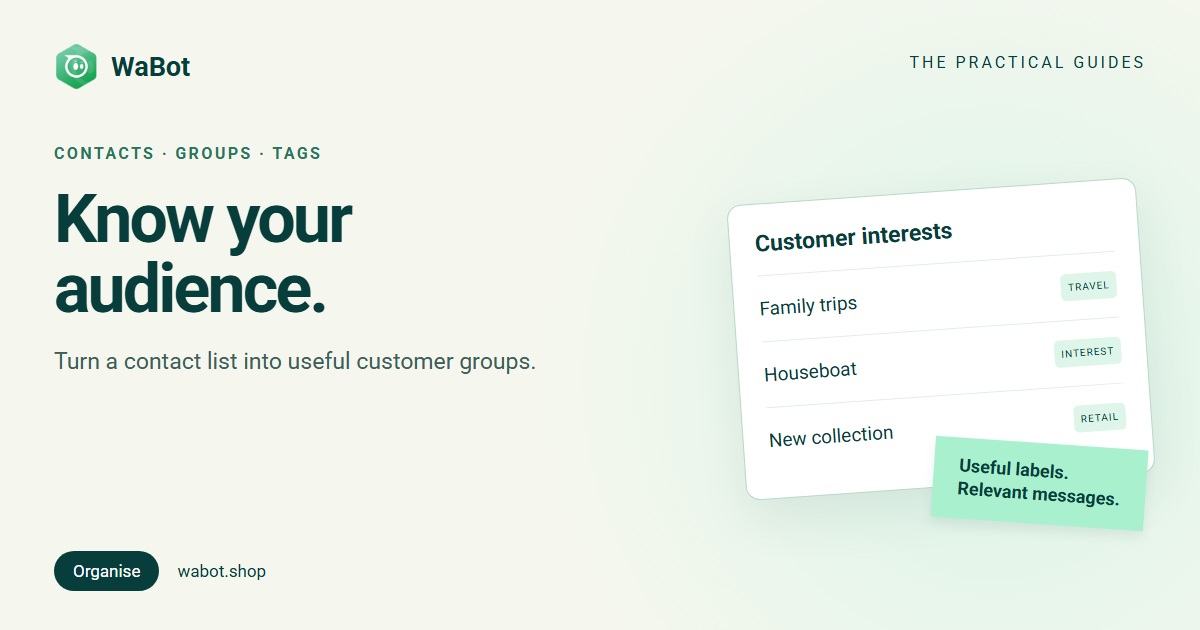
Use a group when you need a named collection, such as “Winter package subscribers”. Use tags for details that may apply across several groups, such as “Family trips”, “Houseboat interest” or “Prefers Malayalam”. These are example labels you can create for your business.
- Group: which customer list does this person belong to?
- Tag: what useful detail should the team remember?
- Assigned employee: who is responsible for this contact?
Choose one spelling for each label. “Family trip”, “Family trips” and “Family package” may sound similar, but three separate labels make filtering harder. Keep a short naming guide that the team can follow.
Set up your first organised list
- Open Contact → Groups and create a clearly named group. Assign the employee responsible for it where appropriate.
- Open Contact → Tags and create a few useful labels. Choose colours that make them easy for your team to recognise.
- Go to Contact → Contacts. Add a contact or open an existing record, check the phone number and assign the relevant group, tags and employee.
- For a batch of contacts, use Import and follow the upload and mapping steps shown in your account. Check phone numbers, country codes and the preview before confirming.
- Return to the contacts list and filter by the group or tag. Open a few records to confirm the right people are included.
Importing contacts and sending a campaign are separate actions. Review the list before using it as an audience; do not treat a successful upload as approval to send marketing.
Keep permission separate from an interest label
A tag such as “Past customer” describes a relationship. It does not prove that the customer wants future promotions. Check that recipients have opted in and that the planned message fits what they agreed to receive. Keep your consent records and honour opt-outs, as required by the WhatsApp Business Messaging Policy.
A label named “Opted in” can help your team organise records, but the label itself is not evidence of permission. Keep the original record of how and when the customer agreed.
Use the list for a relevant campaign
For a seasonal travel update, create an audience of people who asked for that type of offer and agreed to receive it. Review the final recipients instead of assuming that every member of a broad customer group is suitable.
WaBot’s full campaign builder supports selecting contacts through tags or groups. The Quick Campaign flow uses a contact picker. Use the flow that fits your audience, and check the recipient list before launching.
When the audience is ready, follow our guide to scheduling a WhatsApp campaign in WaBot.
Make maintenance part of the weekly routine
- Remove withdrawn permissions from future marketing selections.
- Update interests when the customer tells you their needs have changed.
- Review duplicate or incomplete records before adding another import.
- Retire outdated labels and make sure someone owns each active group.
Groups and tags help organise people; they do not replace a sales stage. If you also need to know which enquiries have a quote or a confirmed booking, use a pipeline to track progress.
Common questions
Does adding a tag send a message?
Adding a tag labels the contact. It does not launch a campaign; prepare and launch the campaign separately.
How many tags should we create?
Start with the labels that change how your team responds or selects an audience. Add another only when you have a clear use for it.
Make your next customer list easier to use.
Feature access and contact limits depend on your account and plan. Check your account settings or ask the WaBot team before importing a large list.