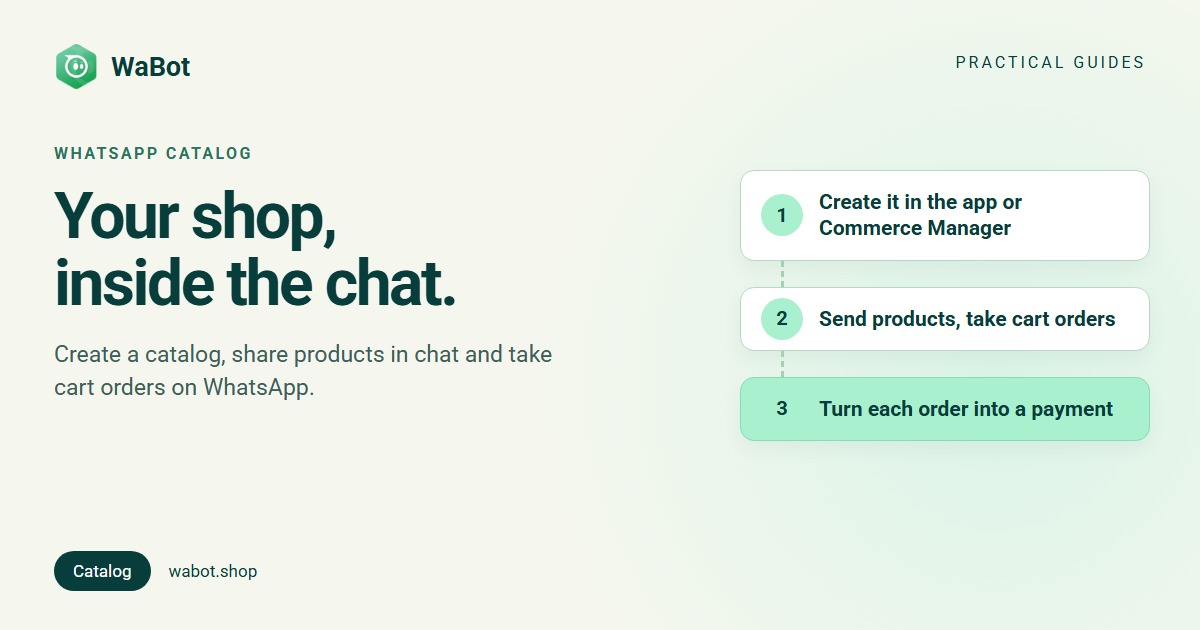
A WhatsApp catalog is your product list inside WhatsApp: customers browse items with photos and prices, add them to a cart and send you the order without leaving the chat. There are two ways to create one. If your number runs on the WhatsApp Business app, open Tools → Catalog (Business tools on some versions) and add items on the phone. If your number is on the WhatsApp Business API, you create the catalog in Meta Commerce Manager and connect it to your WhatsApp Business Account.
This guide walks through both, plus the approval rules that get items rejected, how to send products in a chat, what the cart and order message look like, and how to automate the step most businesses still do by hand: turning the order into a payment.
Which way applies to you
| WhatsApp Business app | WhatsApp Business API | |
|---|---|---|
| Where you create the catalog | In the app: Tools → Catalog | Meta Commerce Manager (or your platform syncs it) |
| Size | Up to 500 items, per Meta’s site | One catalog per WhatsApp Business Account; the same catalog can serve several numbers |
| Sending products | You share items from the phone | Product, multi-product and full-catalog messages, sent by hand or by automation |
| Orders | Cart orders arrive as chats you handle yourself | Orders arrive as data, so software can reply, request payment and tag the chat |
Not sure which you have? If you reply to customers in the WhatsApp Business app on your phone, follow the app steps; if you reply from a provider’s web inbox, follow the API steps. The differences are in WhatsApp Business app vs API.
Create a catalog in the WhatsApp Business app
These steps follow WhatsApp’s own help article, How to create and maintain a catalog:
- Open the WhatsApp Business app, go to Tools (Business tools on some versions) and tap Catalog.
- Tap Add new item.
- Add up to 10 images or videos of the item (each video up to 50 MB).
- Enter the item name and choose the country of origin, which WhatsApp requires when you add or edit an item. Price, sale price, description, website link and item code are optional but worth filling in.
- Tap Save. WhatsApp reviews each new item, and pending or rejected items aren’t visible to customers. Approved items appear in your catalog automatically; a rejected one shows a red exclamation icon next to its image.
You can group items into collections (“Diwali offers”, “Under ₹999”). Meta’s WhatsApp Business site says you can upload up to 500 items, and that collections and single items can be sent within a chat; you can also share a link to the catalog.
Create a catalog for an API number (Commerce Manager)
On the API, the catalog lives in your Meta Business portfolio rather than on a phone. The steps follow Meta’s catalogs documentation:
- In Meta Commerce Manager, using the business portfolio that owns your WhatsApp number, create a catalog. Meta’s help pages list several ways to fill it: adding items manually, a data feed (a spreadsheet or XML file that can refresh on a schedule), a partner e-commerce platform that integrates with Facebook, or the Meta Pixel on your website. If the business already has a Meta catalog, Meta says to use that one rather than create another.
- Connect the catalog to your WhatsApp Business Account (WABA), in WhatsApp Manager or through your API provider. Meta allows one catalog per WhatsApp account, and that catalog serves every phone number on it.
- Check the commerce settings for each phone number: whether the cart is enabled and whether the catalog is visible.
Items added to a connected catalog are reviewed automatically against WhatsApp’s policies, and a flagged item can be appealed in Commerce Manager (Meta's sell-products guide covers the review and appeal flow).
Edit items through the same source you added them with. Meta’s help pages warn that manual changes to items imported from a partner platform are overwritten at the next sync.
Catalog rules: why items get rejected
Catalogs must follow the Meta Commerce Policy; Meta’s Business Messaging Policy says businesses using catalogs must comply with it. The usual reasons an item is rejected:
- Prohibited categories. Among others: alcohol, tobacco, weapons, gambling, medical and healthcare products, prescription drugs, animals, and currency or financial instruments.
- Misleading listings. The policy bars misleading products and offers, so keep photos, names and prices true to the item.
- Services. The policy says commerce content may not promote selling services except on the WhatsApp Business app (or as appointments on Facebook and Instagram). If you sell services from an API number, check the policy before listing them.
- Local law. Sellers are responsible for following the law where they sell, and Meta’s API docs note that businesses based in India must comply with online selling rules.
Think an item was rejected by mistake? In the app, tap the item, tap Request another review, give your reason and tap Continue. For an API catalog, appeal in Commerce Manager. If the listing really did break a rule, fix the photo, name or description before asking again.
Sending products in a chat
Once the catalog is live, products travel inside messages. Meta’s share-products documentation lists the formats:
- Catalog message: a thumbnail of your catalog with a View catalog button.
- Single-product message: one item with its image, title and price.
- Multi-product message: up to 30 products, organised into sections, for example your festival collection.
- Product carousel: up to 10 product cards the customer scrolls sideways.
From there, the customer adds items to a cart and sends it to you as one order. According to Meta’s sell-products guide, they can add up to 99 units of each item, the cart belongs to that one chat, and it can’t be edited once sent; to change the order, they send a new cart.
Timing: these are normal messages, so you can send them within 24 hours of the customer’s last message. Outside that window you need an approved template (30+ template examples). Meta has template versions of the catalog, single-product, multi-product and carousel formats, or you can send a simple template that invites a reply (“Reply CATALOG to see the new collection”) and let the catalog message follow.
How WaBot handles this: from order to payment
On the API, the order arrives as data, which means the boring part can run itself. In WaBot:
- Open Commerce → Products, pick the WhatsApp number, and work through the checklist: Connect with Facebook (choose the portfolio that owns your catalog), then Select catalog. Add products lets you add items from WaBot, one by one or by CSV, and sync them to the Meta catalog.
- Configure payments: enter the Configuration name exactly as it appears in WhatsApp Manager (Account tools → Payment configurations) and choose Razorpay as the provider. The workflow’s payment request works with Razorpay only, in INR.
- Build a workflow: when a customer’s message contains catalog, Send a message with Message type Catalogue (the whole catalog, or Multi Product for a chosen set).
- Add a step with the trigger message type Order: it runs whenever a customer orders from the catalog. Its action sends a Payment message (Catalog Payment → Payment Gateway → Razorpay → Customer Orders), so the customer gets a Review and Pay button for exactly what they ordered.
- Two more steps read the payment result:
{{status}}is success sends the thank-you and tags the contact paid; failed assigns the chat to a teammate. Every order also shows up under Commerce → Orders with its payment status.
The full build, with the exact fields and its limits, is in WhatsApp catalog order payment automation. Workflows are on the Base Plan (₹9,240/year + GST); Starter (₹840/month + GST) has the shared inbox and campaigns but not workflows, and connecting your number on the Free plan starts a 15-day Base Plan trial. Meta’s message charges are billed by Meta directly, with no WaBot markup (India rates here). Setup help: WhatsApp +91 91889 12767 or hello@wabot.shop, and the commerce guide.
Messages you can copy
These are replies within 24 hours of the customer’s message, so they can be normal messages. Anything sent later, or any promotion, must be a Meta-approved template sent to people who agreed to hear from you.
Here's our catalog 🛍️ Tap below, add what you like to the cart and send the order. The payment link comes right here in the chat.
Got your order, thank you! Tap Review and Pay above to confirm it. We dispatch within 24 hours of payment.
The payment didn't go through, and nothing was charged. Reply RETRY for a fresh payment link, or tell us if you'd prefer UPI and our team will help.
Your catalog, taken to checkout automatically
Create your free WaBot account, connect your WhatsApp number and link your Meta catalog under Commerce → Products. Connecting starts a 15-day Base Plan trial, no card needed.
Frequently asked questions
How do I create a catalog on WhatsApp Business?
In the WhatsApp Business app: Tools (Business tools on some versions) → Catalog → Add new item, then add photos, a name and the country of origin, and save; WhatsApp reviews each item before customers can see it. On the WhatsApp Business API, create the catalog in Meta Commerce Manager and connect it to your WhatsApp Business Account.
How many items can a WhatsApp catalog have?
Meta’s WhatsApp Business site says you can upload up to 500 items to a Business app catalog. On the API, a WhatsApp Business Account has one connected catalog, and the same catalog can be used by several phone numbers.
Why was my catalog item rejected?
Items are reviewed against the Meta Commerce Policy. Common causes: a prohibited category (alcohol, medical and healthcare products, weapons and similar), a misleading listing, or a listing that breaks local selling rules. If you think it’s a mistake, tap the item in the app and choose Request another review, or appeal in Commerce Manager for an API catalog.
Can customers order and pay inside WhatsApp?
Yes. Customers add catalog items to a cart and send it as an order message. In India, a Razorpay payment configuration in WhatsApp Manager lets the business send a payment request with a Review and Pay button; WaBot’s workflow sends that request automatically when the order arrives.
Do I need a website to create a WhatsApp catalog?
No. The catalog lives inside WhatsApp (or Meta Commerce Manager), with photos, prices and descriptions. A website link is an optional field on each item.
The bottom line
Creating a WhatsApp catalog takes an afternoon: in the app it’s Business tools → Catalog → Add new item; on the API it’s a Commerce Manager catalog connected to your WhatsApp Business Account. Follow the commerce policy and the review step is painless.
The real win comes after: product messages in chat, cart orders arriving as data, and a payment request that goes out by itself. Set the catalog up first, then automate the order-to-payment step.