“Do you have a slot on Saturday?” arrives at 9 pm. Reception answers at 10 the next morning, asks three questions, waits, and by lunchtime the patient has booked elsewhere. Every clinic, salon, physiotherapy centre and tuition class on WhatsApp knows this one.
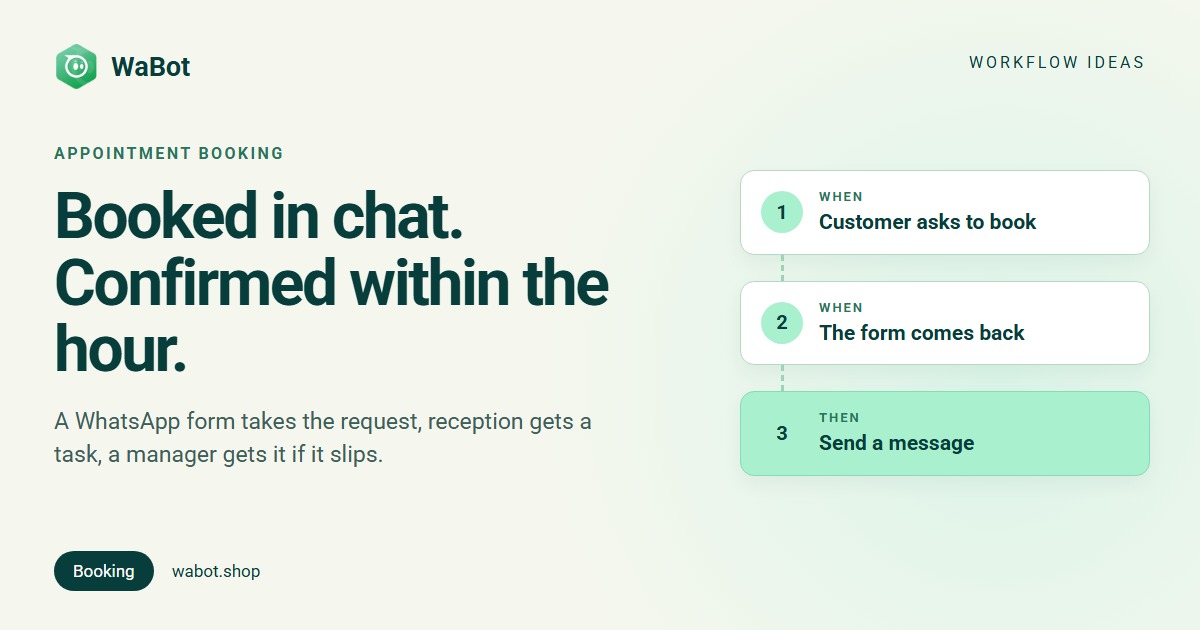
This post builds a WhatsApp appointment booking automation in WaBot. The customer fills a short form inside the chat (name, service, preferred date, preferred time). WaBot echoes the answers back at once, tags the chat and gives reception a task to confirm within an hour; if that task slips an hour past due, the chat goes to the manager and the customer hears from you again. What it does not do: pick the slot or send a reminder on the day. People confirm; the workflow makes sure they do it fast.
A booking request on WhatsApp: form in, instant confirmation, task for reception
What this workflow does
- When someone writes book, sends a WhatsApp Flow: a form inside the chat with name, service, preferred date and preferred time.
- When the form comes back, replies at once with the answers repeated back (
{{name}},{{service}},{{preferred_date}},{{preferred_time}}). - Tags the chat booking request, so reception can filter the inbox to open requests.
- Creates a follow-up Confirm the new booking request in the inbox, due in 1 hour, for the receptionist (Follow-ups page, phone push, 09:00 digest).
- If it’s still open an hour past due, assigns the chat to the manager and sends the customer a short “we’ll confirm shortly” template.
Why it works
A form beats a conversation for bookings. “Which service, which day, morning or evening?” is three messages each way when typed, and one screen when tapped. The customer finishes it in 30 seconds, at 9 pm, without anyone at the desk.
Echoing the answers back does real work: the customer knows the request landed, and reception sees it exactly as the customer meant it. The one-hour task turns “someone will confirm” into a deadline with a name on it, and the escalation only fires when that task is actually overdue. A person still checks the diary and confirms the slot; the workflow makes that happen within the hour instead of the next morning.
Build this WhatsApp booking workflow in Wabot, free
Create your free account here. Connect your WhatsApp number and you get 15 days of the Base Plan, workflows included, no card needed.
The full logic: three workflow steps and the overdue branch
Build it in WaBot, step by step
Workflows are on the Base Plan (₹9,240/year + GST). Starter (₹840/month + GST) has the shared inbox and campaigns but not workflows; connecting your number on the Free plan starts a 15-day Base Plan trial. You’ll also need logins for reception and the manager (Settings → Users, app notifications on: tasks arrive as a push, not an email) and one approved escalation template (Settings → Templates).
Step 1: create the booking form
- Open Automation → WhatsApp flows and click Add Whatsapp Flow. Name it Booking request and choose the APPOINTMENT_BOOKING category (WhatsApp Flows guide).
- Add four fields. Text Input Your name; Dropdown Service with your services as options; Date Picker Preferred date; Radio Buttons Preferred time with Morning, Afternoon and Evening.
- Check each Field Name: WaBot makes one from the label (Preferred date becomes
preferred_date); these are your workflow variables. For Dropdown and Radio options, set each Option value to a single readable word such asPhysiotherapyorMorning: the confirmation prints the value, not the label. - Click Publish Flow. A published flow can’t be edited, so test it from your own phone first.
Step 2: send the form when someone asks
- Open Automation → Workflows and click Add workflow. Name it Booking requests. Under How should it run? choose Automatic, under Start from choose Blank, and under Build with pick the Form editor.
- Click Choose a trigger → Customer sends a message. Fill in the sentence: When a customer sends a WhatsApp Text message that contains book. Matching is case-sensitive.
- Click Choose an action → Send a message, Message type Flow, and pick Booking request. Add a one-line body such as “Fill this 30-second form and we’ll hold a slot for you”.
- Click Save.
Step 3: confirm, tag and create the reception task
- Click Add step. Trigger: Customer sends a message, WhatsApp, message type Flow. Under Select a flow pick Booking request. The form’s fields now appear as variables.
- Action: Send a message, Message type Text only. Type the confirmation with the variables in it: Thanks {{name}}! Request received: {{service}}, {{preferred_date}}, {{preferred_time}}. Reception will confirm your slot within the hour.
- Action: Add to groups or tags → under Select Tags add booking request.
- Action: Create follow-up. Follow-up: Confirm the new booking request in the inbox. Due in: 1 hour. For: A specific teammate → your receptionist. The follow-up text can’t carry form answers; they’re in the chat anyway.
- Click Save.
What the date looks like. The Date Picker answer arrives as year-month-day, for example 2026-10-28, and that is what {{preferred_date}} prints. Prefer “28 Oct”? Make Preferred date a Text Input.
Where the answers work. Only in Send a message text on this step. Not in template variables, the follow-up text or pipeline deal titles.
Step 4: escalate when the confirmation slips
- Click Add step. Trigger: Follow-up is due. Under Start choose When it’s still open after its due time. Set Overdue by to 1 hour.
- Action: Assign to team member, How to choose: A specific teammate → the manager. Leave Only if the chat isn’t assigned yet off.
- Action: Send a template → your “we’ll confirm shortly” template.
- Click Save, make sure every step shows Step on, clear anything left in the Set up panel and click Turn on workflow.
This step reacts to every overdue follow-up in your account. “Follow-up is due” takes no conditions, so it can’t be limited to booking tasks: a hand-made “call back next week” task that slips by an hour also sends that chat to the manager and that customer the template. Either name the step Overdue follow-up: hand it to the manager and treat it as your general rule, or leave the customer template out and let the manager write after reading the chat.
Test and switch on
Click Send a test on step 3 to see the confirmation on your own phone. Then send book from a second phone, fill the form and watch the tag and the task appear on the Follow-ups page. To test the escalation, set Due in and Overdue by to 5 minutes, leave the task open and check the step’s Runs list; then set the real values (workflows guide).
Confirming the slot (the human part)
Nothing fires “at the appointment”: WaBot has no date trigger. Reception opens the chat from the task, checks the diary and replies with the slot (a normal message; the customer wrote less than 24 hours ago). For a day-before reminder, use the chat’s Schedule… option next to Send and set Send at; past 24 hours since the customer’s last message, WaBot asks for a template.
Messages you can copy
Confirmation (step 3, normal message with form variables):
Thanks {{name}}! 🙏 We've received your request:
Service: {{service}}
Date: {{preferred_date}} · {{preferred_time}}
Our reception will confirm your slot within the hour. Reply here if anything changes.
Escalation (step 4, approved template):
Sorry for the wait, {{1}}. Your booking request has reached our manager and we'll confirm your slot shortly. If it's urgent, call us on 0484 000 0000.
Slot confirmed (typed by reception, normal message):
Hi Anjali, your back-pain session is confirmed for Tue 28 Oct at 10:30 am with Dr. Menon. Please arrive 10 minutes early. See you then! 😊
Anything sent more than 24 hours after the customer’s last message must be a Meta-approved template (confirmations and reminders are utility messages), and marketing only goes to people who agreed to hear from you. Meta’s message charges are billed by Meta directly, with no WaBot markup.
Variations and tips
Salons: Service as a Dropdown of your menu, Preferred time as hourly Radio Buttons.
Tuition centres: ask for the class and grade instead of a date, and add Mark as lead on step 3.
Busy desk? Set the task For to Nobody (anyone can pick it up). Step 4 is the same escalation as in WhatsApp support SLA escalation; one serves the whole account.
Related reading: WhatsApp for clinics and hospitals, qualifying leads with a WhatsApp form and following up when a customer goes quiet.
Take booking requests on WhatsApp, confirmed within the hour
Create your free account here. Connect your WhatsApp number and you get 15 days of the Base Plan, workflows included, no card needed.
Frequently asked questions
Can WaBot book the appointment slot automatically?
No. The workflow collects the request, confirms receipt, tags the chat and gives reception a timed task. A person checks the diary and confirms the slot in the chat. There is no calendar integration or date trigger.
Can it remind the customer on the day of the appointment?
Not automatically; WaBot has no date or time trigger. From the inbox, use Schedule… to write the reminder now and set when it is sent; past 24 hours since the customer’s last message it must be an approved template.
Will the escalation step affect other chats?
Yes. “Follow-up is due” watches every follow-up in the account and can’t be limited to booking tasks, so treat it as your general overdue rule or leave out the customer message.
Final thoughts
Most lost bookings are lost in the twelve hours between “do you have a slot?” and “yes, 10:30 works”. A form collects the request at 9 pm, the echo tells the customer it landed, and a one-hour task makes the confirmation a deadline instead of a hope.
Build the form first, test it from your own phone, then switch on the workflow and watch the Follow-ups page for a week.