Festival weeks double the messages: “where is my order”, “is the clinic open on Sunday”, “send the invoice again”. In a shared inbox everyone assumes someone else has it. The customer sees two grey ticks and waits. By the time anyone notices, they have called three times or left a one-star review.
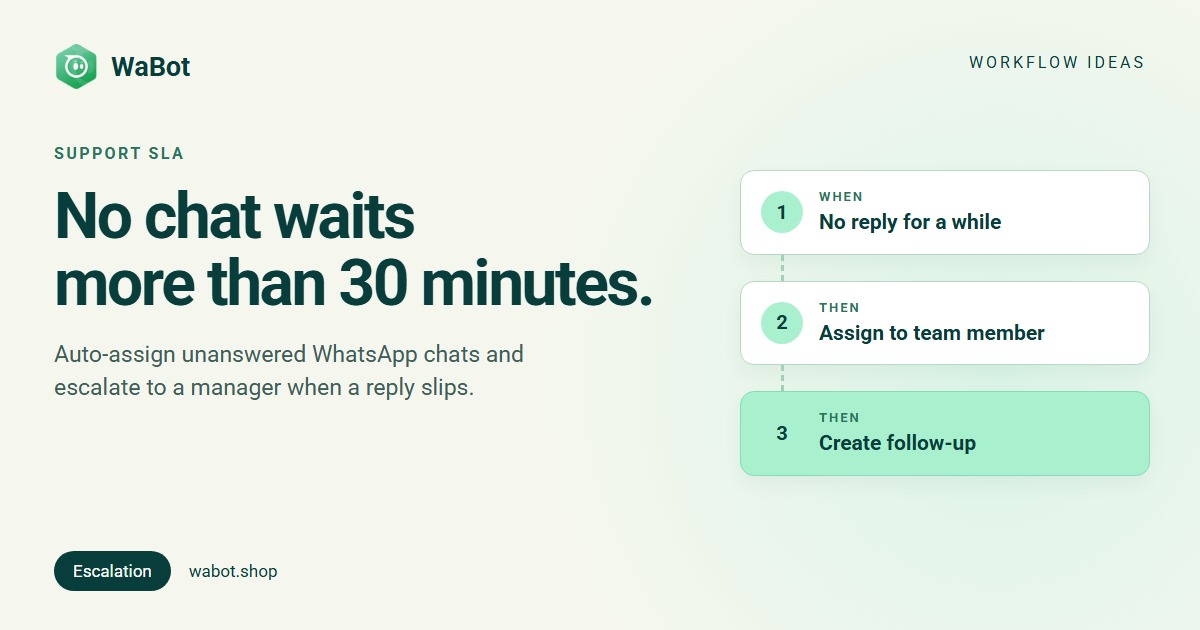
This post shows a WhatsApp support SLA escalation workflow in WaBot. If nobody on your team has replied to a customer for 30 minutes, the chat is assigned to the least busy teammate, who gets a task with a one-hour deadline. If that task is still open an hour past due, the chat moves to a manager, who gets their own task, and the customer gets a short apology with a promise.
A customer message goes unanswered: assign after 30 minutes, escalate after the deadline
What this workflow does
- Watches every customer message that gets no reply from your team or your AI bot for 30 minutes.
- Assigns the chat to the least busy teammate (the one with the fewest chats waiting for a reply), but only if nobody has it yet. They get a notification in the app and a push on their phone.
- Creates a follow-up Reply to {{name}} due in 1 hour for that teammate. It shows on the Follow-ups page and in the 09:00 morning digest.
- If the follow-up is still open an hour after it was due, assigns the chat to a specific person (the manager), creates a follow-up for them and sends the customer an apology template.
- Runs once per silence. As soon as someone replies, the timer for that chat is cleared.
Why it works
“Please reply faster” in the team group changes nothing. Two numbers written into the system do: 30 minutes to have an owner, one hour to reply. Nobody has to watch the inbox for stragglers, because the workflow does, on every chat, at night and on Sundays.
Least busy spreads the load to whoever actually has room, and only if the chat isn’t assigned yet means you never pull a chat away from someone who’s already on it. The teammate gets a push on their phone, so being away from the desk isn’t an excuse either.
Escalation gives the manager facts, not complaints: who was waiting, who had the task, how long it’s overdue. And the customer hears from you at the exact moment they’re most likely to call a competitor, with a promise you can keep.
Build this SLA escalation in Wabot, free
Create your free account here. Connect your WhatsApp number and you get 15 days of the Base Plan, workflows included, no card needed.
The full logic: two steps and the overdue branch
Build it in WaBot, step by step
Workflows are on the Base Plan (₹9,240/year + GST). The Starter plan (₹840/month + GST) includes the shared inbox and campaigns but not workflows. You can sign up and connect your number on the Free plan first; connecting a number starts a 15-day trial of the Base Plan.
Before you start
- Your teammates need WaBot logins (Settings → Users). The team guide covers invites and roles.
- An approved apology template (Settings → Templates). Step 2 can also run for follow-ups created by hand on older chats, where the 24-hour window may be closed, so a template is the safe choice.
- Ask the team to allow notifications in the WaBot app on their phones. Assignments arrive as a push, not as an email.
Step 1: assign unanswered chats after 30 minutes
- Open Automation → Workflows, click Add workflow. Enter a Workflow name such as Support SLA. Under How should it run? choose Automatic, under Start from choose Blank, and pick the Form editor.
- Click Choose a trigger and pick No reply for a while (in the Timing group). Under Start when choose Nobody has replied to the customer. Set After no reply for to 30 minutes.
- Under Actions, click Choose an action → Assign to team member. Under How to choose pick Least busy, choose two or more Teammates, and switch on Only if the chat isn’t assigned yet.
- Click Choose an action again → Create follow-up. Follow-up: Reply to {{name}}, waiting {{waiting_hours}} h. Due in: 1 hour. For: The chat’s assignee.
- Click Save.
Replies from a teammate or from your AI bot both count. If the bot answered within 30 minutes, the timer doesn’t fire. Also, assigning a chat switches the AI bot’s replies off for that chat, so a person takes over; a teammate can turn the AI back on from the inbox.
Step 2: escalate when the task slips
- Click Add step. Under Choose a trigger pick Follow-up is due. Under Start choose When it’s still open after its due time. Set Overdue by to 1 hour.
- Action: Assign to team member → How to choose: A specific teammate → the manager. Leave Only if the chat isn’t assigned yet off: the chat already has an owner, and the point is to move it.
- Action: Create follow-up → Escalated: {{name}} is still waiting. Original task: {{followup_text}}. Due in: 30 minutes. For: A specific teammate → the manager.
- Action: Send a template → your apology template.
- Click Save. Make sure both steps show Step on, then click Turn on workflow.
What Step 2 does not know. “Follow-up is due” watches every follow-up in the account, including the ones your team creates by hand from the inbox, and there is no setting to limit it to the tasks this workflow created. If an agent’s “call back next week” task slips by an hour, that chat also goes to the manager and that customer also gets the apology. Two ways to live with it: keep hand-made follow-ups for reply promises only, or leave the customer template out of Step 2 and let the manager write to the customer.
Keep the delays in the triggers. Leave Wait before this runs at 0 on the team actions; it isn’t applied to assignments and follow-ups in automatic runs.
Test and tune
For a test, set the wait to 5 minutes, Due in to 5 minutes and Overdue by to 5 minutes. Message your business number from your own phone and don’t reply from the inbox. After five minutes the chat is assigned, after about ten more the escalation runs. Each step’s Runs list shows every contact it ran for and why it skipped anyone, for example someone replied in time. Then set the real values. The workflows guide has more.
Messages you can copy
The customer message goes out as a template. The follow-up texts are internal: they appear on the Follow-ups page and in notifications, never in WhatsApp.
Sorry for the wait, {{1}}. Your message has reached our senior team and you'll have a reply within the hour.
Apologies for the delay 🙏 A team member is looking at your query right now. If it's urgent, call us on 0484 000 0000.
Follow-up for the teammate: Reply to {{name}}, waiting {{waiting_hours}} h
Follow-up for the manager: Escalated: {{name}} is still waiting. Original task: {{followup_text}}
Variations and tips
Clinics: 15 minutes for the first reply is realistic when reception is at the desk. There is no working-hours setting on the trigger, so either accept night-time assignments (the morning digest lists them at 09:00) or switch the workflow off at closing time.
Agencies: use Round-robin instead of Least busy if every account manager should get an equal share, and set the manager in Step 2 to the account lead.
Sales teams: the mirror image, The customer hasn’t replied, nudges leads who went quiet. See follow-up automation.
Make the SLA visible. Open the Follow-ups page in the morning: everything overdue is your yesterday, in one list.
Related reading: running a shared WhatsApp inbox and WhatsApp for clinics and hospitals.
Give your support team a 30-minute SLA. Start free
Create your free account here. Connect your WhatsApp number and you get 15 days of the Base Plan, workflows included, no card needed.
Frequently asked questions
What is a WhatsApp support SLA?
A promise about response time, such as “every customer gets a reply within an hour”, and a rule for what happens when it’s missed. On the WhatsApp Business API with WaBot, the “No reply for a while” and “Follow-up is due” triggers turn that promise into automatic assignment and escalation.
How does a teammate know a chat was assigned to them?
They get a notification in the WaBot app and a push on their phone (“Chat assigned to you”). There is no email. The follow-up task also appears on their Follow-ups page and in the 09:00 morning digest.
What counts as a reply?
Any message to the customer from a teammate or from your AI bot. If either replies within the wait, the timer for that chat is cleared.
Does this work with an AI bot answering first?
Yes. If the bot replies, the SLA is met. If the bot can’t answer and stays silent, the workflow assigns the chat to a person; assigning switches the bot off for that chat so the two don’t talk over each other.
Which plan includes this?
Workflows are on the WaBot Base Plan (₹9,240/year + GST). Meta’s own message charges are billed by Meta directly, with no WaBot markup.
Final thoughts
Most missed replies aren’t laziness. They’re a chat nobody owned. Give every chat an owner within 30 minutes and a deadline to reply, and let the escalation catch the few that still slip.
Start with 30 minutes and one hour, watch the Runs list and the Follow-ups page for a week, then tighten the numbers.