You live in Cursor. Your client wants a WhatsApp auto-reply for price questions and a booking form, and you’d rather describe it to the agent than click through another dashboard. Or you’re building the order-update feature yourself and want the agent to fire a real test message.
Cursor can do both through WaBot’s MCP server. Add one entry to ~/.cursor/mcp.json: the URL https://api.wabot.shop/mcp and two headers, clientid and clientsecret. Cursor’s MCP documentation supports remote Streamable HTTP servers with a headers object and resolves ${env:NAME} inside headers, so your secret can stay out of the file.
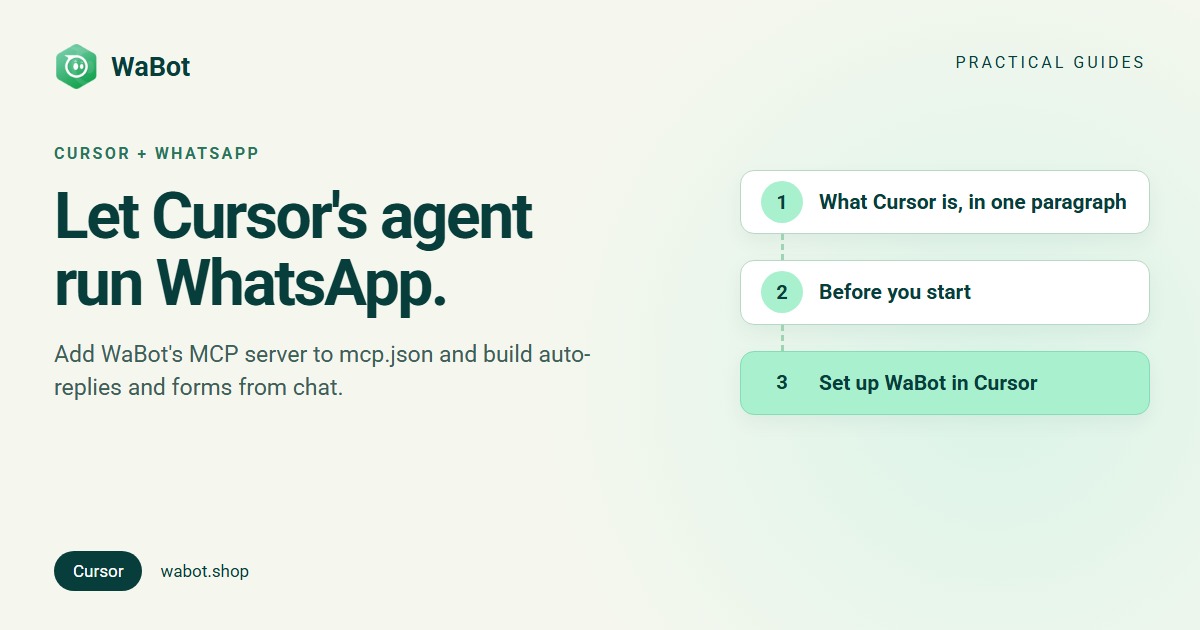
What Cursor is, in one paragraph
Cursor is an AI code editor built around an agent that reads your project, edits files, runs commands and calls tools. It comes as the editor, an Agent Window and a command-line agent, and the Cursor CLI docs say the CLI uses the same MCP configuration as the editor. MCP servers give the agent extra tools; once WaBot is connected, its 36 tools appear next to Cursor’s own.
Before you start
- A WaBot account with a connected WhatsApp number. In the WaBot app open Developer → Developer Credentials and copy the Client ID and Client Secret. The page has a Copy MCP config button and a link to the MCP guide.
- Cursor installed and signed in.
- Your own WhatsApp number for tests. Message your business number from it first so the 24-hour window is open.
Set up WaBot in Cursor
- Set two environment variables,
WABOT_CLIENT_IDandWABOT_CLIENT_SECRET, then restart Cursor so it sees them. - Create or open
~/.cursor/mcp.jsonin your home folder (global, for every project). Use.cursor/mcp.jsoninside a project only if you want the server just there. - Add the WaBot server:
{
  "mcpServers": {
    "wabot": {
      "url": "https://api.wabot.shop/mcp",
      "headers": {
        "clientid": "${env:WABOT_CLIENT_ID}",
        "clientsecret": "${env:WABOT_CLIENT_SECRET}"
      }
    }
  }
}- Save, then open Customize in the sidebar and check that wabot is listed and switched on. The same toggle disables it later without deleting the config.
- If it doesn’t connect, open the Output panel and choose MCP Logs for the error.
The ${env:...} syntax comes straight from Cursor’s docs, which list headers among the fields where variables are resolved. Their remote-server example uses exactly this shape: url plus headers, no type field.
WaBot’s Copy MCP config button gives you the same JSON with your real Client ID and Secret filled in. That’s fine to paste into the global ~/.cursor/mcp.json on your own machine. Never paste it into a project’s .cursor/mcp.json that goes into git; use the ${env:…} version there.
Using the Cursor CLI? It reads the same files. Check the connection from a terminal:
agent mcp list
agent mcp list-tools wabot
Check that it works
Using the wabot MCP tools, list my WhatsApp numbers and approved templates. Don't send anything.
Cursor asks for approval before running MCP tools by default; click the arrow next to a tool name to see its arguments. You should see get_account, list_channels and list_templates run and return your data. MCP tools follow Cursor’s Run Modes, so you can allowlist read-only tools later. Keep the sending tools on manual approval. The agent never needs your account ID; WaBot finds it from the Client ID.
Use case 1: an auto-reply for “price” messages
Spice Route Café answers “what’s the price?” all day. They already have an approved template, price_list.
Create a WaBot auto-reply called Price enquiry: when an incoming message includes the word "price", send the approved template price_list. Leave it switched off and show me the schematic. I'll tell you when to turn it on.
- Tools:
list_templates(to confirmprice_listis approved),create_simple_autoflowwithmatchText: "price"andmatchOperator: "includes", thenpreview_workflow_schematic. - What you see: a Mermaid diagram and step list of the new automation. New automations are created inactive. When you’re happy, say “turn it on” and the agent calls
set_workflow_status. Test by sending “price?” from your own phone. - Good to know: the trigger matches incoming text messages. You can also choose “is exactly” (
equal_to) or “starts with” (starts_with) if “includes” catches too much.
Use case 2: an appointment form as a WhatsApp Flow
A clinic wants patients to book inside WhatsApp instead of typing back and forth.
Create a WhatsApp Flow called Book an appointment with: a heading "Book your visit", text inputs for name and preferred date, a dropdown for Morning / Afternoon / Evening, and a Submit footer. Keep it as a draft and show me the fields.
- Tools:
list_whatsapp_flow_categoriesandlist_whatsapp_flow_field_types(to pick valid values),create_whatsapp_flow(saved as aDRAFT),update_whatsapp_flowfor changes, thenpublish_whatsapp_flowwhen you say so. - What you see: a draft form you can adjust by chatting (“add a phone number field”). Publish only when it’s final: Meta doesn’t allow editing a published Flow. You can deprecate it later and create a new version.
Use case 3: test your order-update code against a real phone
You’re writing the checkout code for a Shopify-style store and want to see the confirmation exactly as a customer would.
Send the approved template order_update to +91 98xxx xxxxx with name Asha and order 1042. Show me the message and number first. Then wait for my reply and summarise it.
- Tools:
get_account(forwhatsappPhoneId),send_template_message,wait_for_reply(waits up to 30 seconds per call), orget_messagesto read the conversation later. - What you see: the message on your phone and your reply quoted back in Cursor. A first message, or one sent more than 24 hours after the customer last wrote, has to be an approved template; inside the window the agent can reply with
send_session_message.
Stay safe: the agent sends real WhatsApp messages
- Ask the agent to show the message and recipient before every send, and approve sending tools one call at a time.
- Test on your own number before anyone else’s.
- Message only customers who agreed to hear from you; see WhatsApp opt-in rules.
- WaBot limits MCP to 60 requests a minute per Client ID and records every tool call in an audit log.
- If a Client Secret ever lands in a commit, treat it as leaked and contact WaBot support.
Limits to know
| Area | Through MCP | Not through MCP |
|---|---|---|
| Templates | Create, update, check approval (sync with Meta) | – |
| Messages | One template or session message at a time; read chats and replies | Campaigns, broadcast scheduling, campaign analytics, segmentation |
| Automations | Simple and chained auto-replies (2-10 steps), switch on and off | Deleting workflows; branching, webhooks, agent handoff, code steps |
| WhatsApp Flows | Draft, edit drafts, publish, deprecate | Editing a published Flow (Meta’s rule) |
WaBot can push reply notifications on the MCP event stream (subscribe_replies), but only clients that keep that stream open receive them, and Cursor’s docs don’t list notification support. Use wait_for_reply in Cursor. Using other tools too? See WhatsApp MCP in VS Code, WhatsApp MCP with Claude and the WhatsApp MCP server guide.
Connect Cursor to your WhatsApp number
Create your free WaBot account and connect your WhatsApp number (that starts a 15-day Base Plan trial, no card needed). Then copy your MCP config from Developer → Developer Credentials.
Frequently asked questions
How do I add a WhatsApp MCP server to Cursor?
Add an entry to ~/.cursor/mcp.json under mcpServers with url https://api.wabot.shop/mcp and a headers object containing clientid and clientsecret from WaBot’s Developer Credentials page. Then check it’s enabled under Customize in Cursor’s sidebar.
Can I keep the WaBot secret out of mcp.json?
Yes. Cursor resolves ${env:NAME} in headers, so use ${env:WABOT_CLIENT_ID} and ${env:WABOT_CLIENT_SECRET} and set those environment variables before starting Cursor.
Does the Cursor CLI work with WaBot too?
Yes. Cursor’s docs say the CLI uses the same MCP configuration as the editor. Run agent mcp list to see the server and agent mcp list-tools wabot to see its tools.
Will Cursor send WhatsApp messages without asking?
By default Cursor asks for approval before using MCP tools. Run Modes can let allowlisted tools run automatically, so keep send_template_message and send_session_message off that list.
Can Cursor run a WhatsApp broadcast campaign?
Not through MCP. Campaigns, scheduling, analytics and segmentation are done in the WaBot app.
The bottom line
Cursor connects to WhatsApp through WaBot with one mcp.json entry: the MCP URL plus clientid and clientsecret headers, ideally as ${env:…} references. From there the agent can build auto-replies, draft WhatsApp Flow forms and test your code against a real phone, with you approving every message that goes out.