You announce a Saturday workshop, a free demo class or a launch at the store. Fifty people say “interested” on Instagram. You collect names in a notebook, send reminders one by one on Friday night, and twelve people turn up.
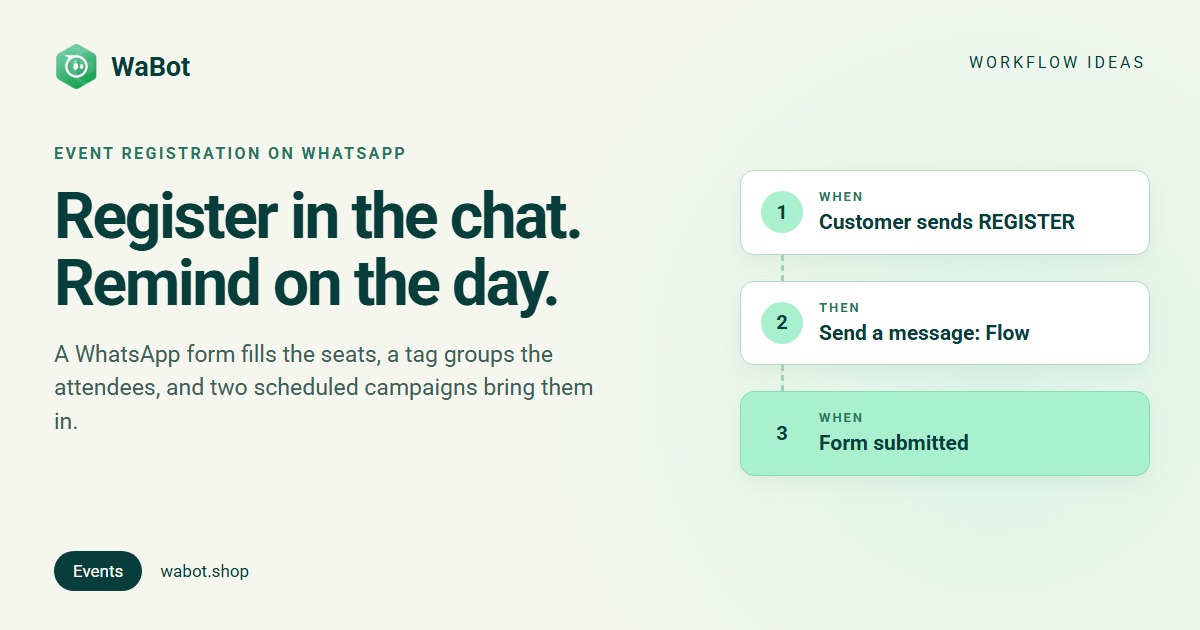
This post builds a WhatsApp event registration and reminder automation in WaBot. People send one keyword, fill in a short form inside the chat, and get an instant confirmation with the date, time and venue. Every registration is tagged with the event’s name. Two scheduled campaigns remind that group the evening before and on the morning, and after the event one click sends everyone the recording or the offer. The example is a baking studio’s workshop; coaching institutes, webinar hosts and shops change the words.
REGISTER → form → confirmation → reminders → after-event message
What this workflow does
- Starts when someone sends REGISTER, from a poster QR code, a bio link or a button on your welcome menu.
- Sends a WhatsApp Flow form in the chat: name, number of seats, anything else you need. No Google Form, no leaving WhatsApp.
- On submission, replies at once with a confirmation that uses the answers (
{{name}},{{seats}}) and the event details, and tags the contact event:sourdough-nov. - Reminders are not workflow steps: there is no date trigger in workflows. You schedule two Campaigns to everyone with the tag, for the evening before and the morning of the event.
- After the event, a second, manual workflow sends the recording or offer template to the same tag in one go from the Contacts page.
Why it works
Registering takes twenty seconds without leaving the chat, so more of the “interested” people actually register, and the instant confirmation answers the where-and-when questions before they’re asked.
The tag is the quiet hero. Every registration lands in one group you can message as a whole: a reminder on Friday evening, another on Saturday morning, the recipe pack on Sunday. And because reminders go out as campaigns, you see delivered and read counts for each. Most no-shows didn’t change their mind; they forgot.
Build this event registration flow in Wabot, free
Create your free account here. Connect your WhatsApp number and you get 15 days of the Base Plan, workflows included, no card needed.
Before you start
- A tag for the event, e.g. event:sourdough-nov, created under Contacts → Tags → New tag. One tag per event keeps the audiences separate.
- Approved templates for the two reminders and the after-event message. They go out long after the registration chat, so they must be Meta-approved marketing templates (templates guide) and only go to people who agreed to hear from you; sending REGISTER is that agreement, so say so in the confirmation.
- The registration form: under Automation → WhatsApp flows click Add Whatsapp Flow, Flow Name Workshop registration, Category SIGN_UP, pick your number. Then Manage fields: a Text Input with Field Name
name(required), a Dropdown Seats with Field Nameseatsand options 1, 2, 3, and a footer button Register. Upload to WhatsApp, then Publish Flow. - Plan. Workflows are on the Base Plan (₹9,240/year + GST). Starter (₹840/month + GST) has the shared inbox and campaigns but not workflows. Connecting your number on the Free plan starts a 15-day Base Plan trial.
Registration workflow, reminders and follow-up
Build it in WaBot, step by step
Step 1: the keyword opens the form
- Open Automation → Workflows and click Add workflow. Workflow name: Sourdough workshop registration. Under How should it run? choose Automatic, under Start from choose Blank, and use the Form editor.
- Click Choose a trigger → Customer sends a message: WhatsApp Text that is exactly REGISTER. Matching is case-sensitive; put the keyword in your wa.me link as
?text=REGISTER. - Click Choose an action → Send a message, Message type Flow. Body: the event name, date, time and price. Select Flow: Workshop registration. Flow CTA: Register. The customer just wrote to you, so a normal message is fine.
Step 2: confirm and tag
- Click Add step. Trigger: Customer sends a message, WhatsApp Flow, Select a flow: Workshop registration. Its fields show up under Variables as
nameandseats. - Action: Send a message, Text only: You’re in, {{name}}! Sourdough Basics · Sat 8 Nov · 10:00–13:00 · Batter Up Studio, Panampilly Nagar. Seats: {{seats}}. We’ll remind you the day before.
- Action: Add to groups or tags → Select Tags: event:sourdough-nov.
- Optional: Create deal in a Workshops pipeline (Pipelines must be on in Settings → Pipelines), Stage Registered, a fixed Title, and tick Skip if the contact already has an open deal. Keep form answers out of the deal title; they don’t work there.
- Click Save, use Send a test on step 1 to get the form on your own phone, register, and check step 2’s Runs list and your tag. Clear the Set up panel, make sure both steps show Step on, and click Turn on workflow (workflows guide).
Step 3: schedule the two reminder campaigns
Workflows have no “on this date” trigger, so the reminders are campaigns to the tag. Build each one a day or two before the event:
- Open Contacts. In the Tags filter choose Any of → event:sourdough-nov. Tick the checkbox header, then click Select all N matching so the whole tag is included, not just this page.
- In the bulk bar choose Start campaign. The Create Campaign wizard opens with the tag as the audience.
- Basic Details: a Campaign Name like Sourdough reminder, day before and your Channel. Templates & Variables: the approved reminder template. Contacts: the audience chip reads Tagged any of event:sourdough-nov; leave it.
- Schedule: under Launch Options choose Schedule for Later, then in Schedule Settings set Select Date (Friday) and Select Time (18:00). Click Save & Continue, then on ROI & Tracking click Launch Campaign. It now shows as Scheduled in the campaigns list.
- Repeat for the morning reminder: Saturday, 08:00.
The time is your device’s time. The date and time you pick are read from the computer or phone you’re using. If it’s set to another time zone, the campaign goes out at that zone’s 18:00.
Late registrations. Scheduled campaigns can be edited before they go out. If people keep registering after you scheduled, open the campaign and check its Contacts step the day before, or schedule once registrations close.
Don’t build the reminder as a “No reply for a while” step. That trigger watches every chat in the account, not just registrants.
After the event: one click to everyone
- Create a second workflow, Sourdough workshop follow-up, with How should it run? set to Manual. Its only action is Send a template: the recipe-pack-and-offer template, Wait before sending 0. Save and turn it on.
- Open Contacts, filter by the event tag, Select all N matching, and choose Trigger workflow… in the bulk bar. In Select a Workflow pick the follow-up, click next, choose your number under Select a Setting, and confirm with Trigger workflow. It runs right away; the date field in that dialog isn’t used for this action.
Keep manual-run workflows to Send a template with a 0 wait. In manual runs a template’s delay is applied twice, and Send a message ignores its delay and fails on {{variables}}.
Messages you can copy
Flow message body (step 1, Flow CTA: “Register”):
Sourdough Basics 🍞 Sat 8 Nov, 10:00–13:00 at Batter Up Studio, Panampilly Nagar. ₹1,500 per seat, all ingredients included. Reserve your seat in 20 seconds.
Confirmation (step 2, normal message):
You're in, {{name}}! 🎉 Sourdough Basics · Sat 8 Nov · 10:00–13:00 · Batter Up Studio, Panampilly Nagar (map: [link]). Seats: {{seats}}. We'll remind you the day before; reply STOP if you'd rather we didn't.
Day-before reminder (template, campaign on Friday 18:00):
See you tomorrow at 10:00, {{1}}! Sourdough Basics at Batter Up Studio, Panampilly Nagar. Wear something you don't mind flour on. Can't make it? Reply here and we'll move you to the next batch.
After the event (template, manual workflow):
Thank you for baking with us! 🙌 Your recipe pack: [link]. As a thank-you, ₹500 off the Croissant Weekend on 22 Nov, until Friday. Reply CROISSANT to grab a seat.
Reminders and the follow-up go out long after the registration message, so they must be Meta-approved marketing templates, and only to people who agreed to hear from you. Meta’s message charges are billed by Meta directly, with no WaBot markup.
Variations and tips
Webinars. Put the joining link in the morning template and the recording in the after-event one. See WhatsApp for coaching institutes for the demo-class version.
Several events at once. One keyword and one tag per event: REGISTER, DEMO, LAUNCH. Copy the workflow and change the keyword, flow and tag.
A button instead of a keyword. Add Register for the workshop to your welcome menu; the trigger becomes Interactive quick reply buttons with that title.
Related reading: sending bulk messages without getting banned and the campaigns guide.
Fill your next workshop from WhatsApp. Start free
Create your free account here. Connect your WhatsApp number and you get 15 days of the Base Plan, workflows included, no card needed.
Frequently asked questions
Can the workflow send the reminder on the event date by itself?
No. Workflows have no date or time trigger. Schedule a campaign to the event tag for the evening before and the morning of the event instead; you get delivery and read counts for each as a bonus.
Do people need to opt in before I send reminders?
Yes. Reminders are marketing templates sent outside the 24-hour window, so they only go to people who agreed to hear from you. Sending REGISTER is that consent; say in the confirmation that you’ll remind them, and honour STOP replies.
Can I pick the audience by tag in Quick campaign?
Quick campaign picks contacts by name or number. For a tag, start from the Contacts page: filter by the tag, select all matching, and choose Start campaign; the wizard opens with that audience.
Which plan includes this?
Workflows and WhatsApp Flows are on the WaBot Base Plan (₹9,240/year + GST). Starter has campaigns but not workflows. Connecting your number starts a 15-day Base Plan trial.
Final thoughts
Most empty seats belong to people who meant to come. A twenty-second form gets them registered, a tag keeps them together, and two reminders get them through the door.
Build the form, switch on the two-step workflow, put the REGISTER link on the poster, and schedule the reminders once the seats are filling.