The conversation may be in WhatsApp, but the next step often lives in someone’s memory: send the itinerary, revise the quote or check whether the advance arrived. When several people share the work, those details become difficult to follow.
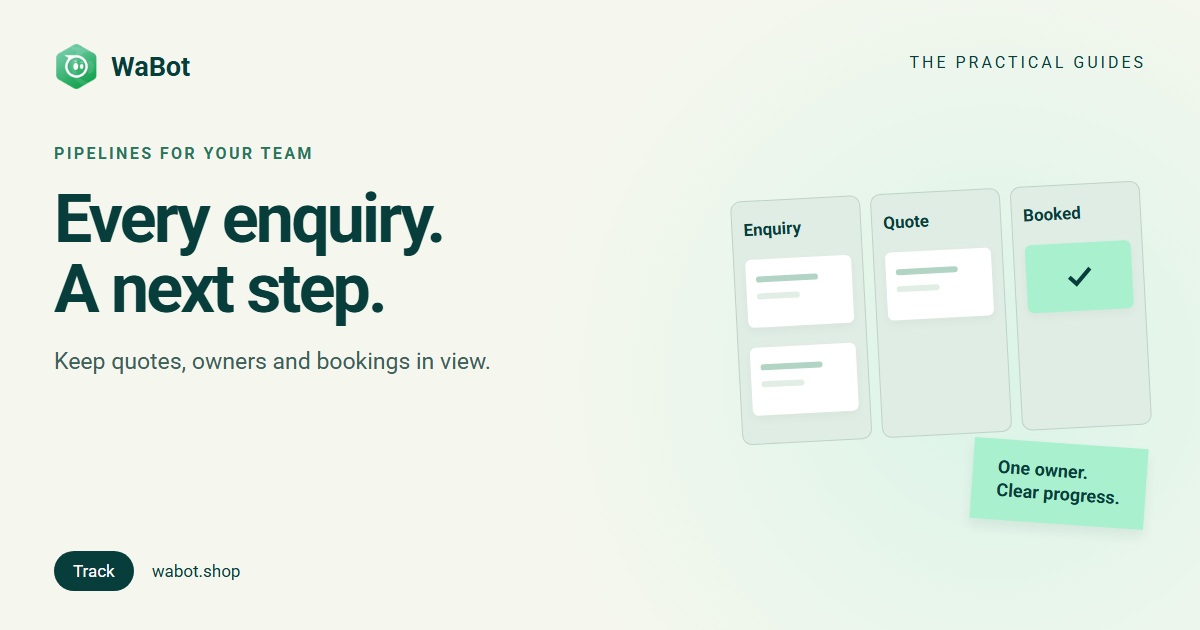
WaBot Pipelines gives each opportunity a card and a stage. Your team can see where the work stands, who owns it and what needs to happen next. This guide uses travel bookings as an example; the same approach works for admissions, retail enquiries and service proposals.
Choose what one card represents
Decide this before creating stages. For a travel agency, one card could represent one trip enquiry, such as “December family holiday”. Keep the card tied to the relevant contact so the conversation remains easy to find.
A customer can ask about different trips over time. Give cards specific titles instead of using the customer’s name alone. This helps the team distinguish separate opportunities without relying on memory.
Turn on the pipeline and choose a starting template
- Ask an admin to open Settings → Pipelines and enable the feature.
- Choose New pipeline and select the Travel template, or start with a blank pipeline.
- Give the pipeline a name that describes the work, such as “Travel bookings”.
- Review the stages and adjust their names or order to match how your team actually works.
- Check team access so the people handling enquiries can view and update their cards.
Pipelines are off by default. If the settings are not visible, check your role and account access with your administrator before looking for the board.
Agree on what each stage means
The Travel template includes Enquiry → Itinerary sent → Quote → Advance paid → Booked, plus Lost. The labels only help if everyone uses them consistently.
- Enquiry: a trip request has arrived and someone owns the response.
- Itinerary sent: the proposed trip has been shared with the customer.
- Quote: the team has supplied the price and relevant conditions.
- Advance paid: your team has verified the agreed advance payment.
- Booked: the booking is confirmed under your business process.
- Lost: the opportunity is closed without a booking.
These descriptions are a suggested working agreement, not automatic checks. Moving a card into “Advance paid” does not collect or verify a payment; your team must confirm it through the appropriate payment record.
Create a useful card
Open the pipeline and add a card for the contact. Use a clear title and assign an owner. Add the optional value and date if they are useful for your process; the Travel template labels these as package price and travel date.
Write a short note that another teammate can act on: what the customer requested, what has been shared and what the next step is. Keep personal details limited to what the team needs to serve the enquiry.
Example note: “Family holiday enquiry. Revised itinerary requested. Owner to confirm room options before sending the quote.” This is a suggested note, not a real customer record.
Update progress where the conversation happens
On the board, move a card to the appropriate stage as the enquiry progresses. Open the card to review its details, history and activities, or open the chat to continue the conversation.
The contact panel in the inbox also has a Pipeline section. It lets your team see the contact’s cards and change a stage without losing the context of the conversation.
Notes, follow-ups and reminders keep the next action visible. Before scheduling a customer message, check its timing and template requirements. A pipeline stage by itself is a record of progress; it is not a promise that a customer message will be sent automatically.
Use a short daily review
- Find open cards without an owner and assign responsibility.
- Review quotes waiting for a customer decision and agree on the next action.
- Check dates and upcoming follow-ups before the team starts new work.
- Close completed or lost opportunities so the open board stays useful.
- Read the card history when handing work to another teammate.
Use the owner and status filters to focus the review. The board should answer “what needs attention?” without making the team reread every conversation.
Use tags for interests and stages for progress
A tag such as “Houseboat interest” explains what a customer wants. A stage such as “Quote” explains where a particular enquiry stands. Use groups and tags alongside the pipeline instead of making dozens of tags for every possible stage.
For future offers, build a separate audience with appropriate permission and follow our campaign scheduling checklist. A closed booking does not automatically become permission for future marketing.
Give every enquiry a clear next step.
Available features depend on your account setup and permissions. For help configuring your stages, contact the WaBot team.