Your Diwali offer went out to 1,500 customers. Most of them opened it: two blue ticks. Sixty replied. The rest saw your message, maybe liked it, and got pulled away by the next notification. Sending the whole list a reminder would annoy the people who never opened it and the sixty who already answered.
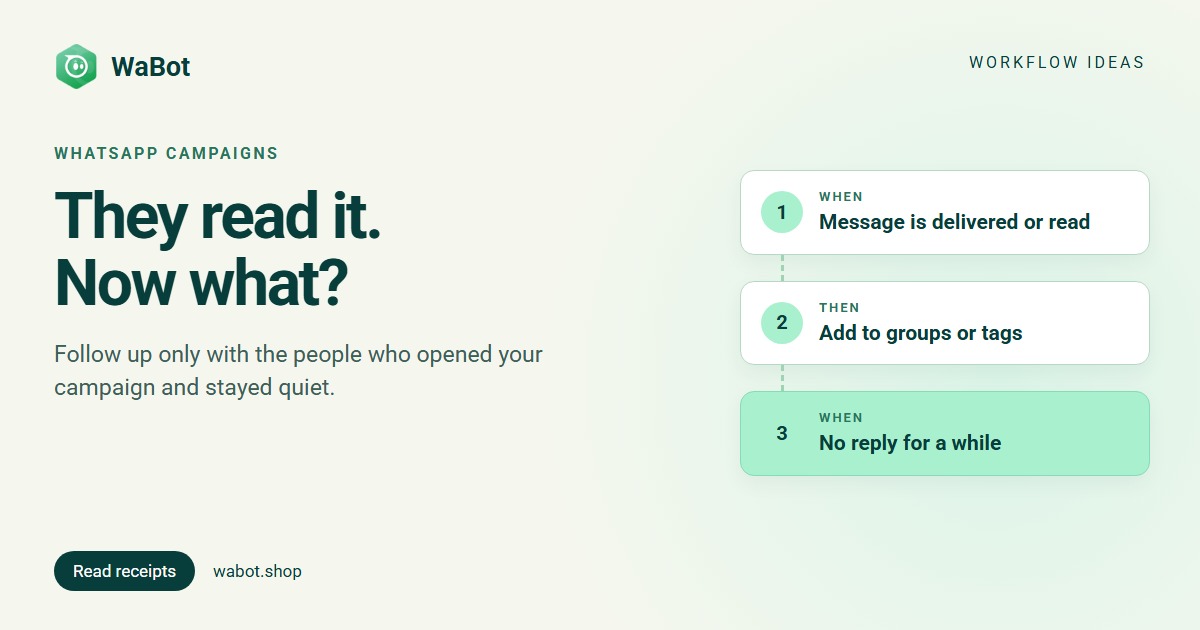
This post shows a WhatsApp read receipt follow up automation in WaBot: a workflow that notices the blue ticks on one specific campaign template, waits a day, and sends one short nudge only to the people who read it but didn’t reply. Everyone else hears nothing.
Read but no reply: one nudge, a day later
What this workflow does
- Watches the read receipts of one campaign template, not every message you send.
- Puts everyone who reads it into a contact group, so you can see the list under Contact → Groups and reuse it.
- Starts a one-day timer the moment the campaign goes out. If the person hasn’t written back by then and the read step ran for them, sends one approved nudge template.
- Never nudges people who didn’t open the campaign, or who replied to it.
- Runs once per silence: there is no second reminder unless they reply and go quiet again.
Why it works
People who read your offer and didn’t reply are the warm middle of your list. They don’t need convincing that you exist. They need a reason to act now, such as a deadline or low stock, and a reply that takes one tap. One short message with a button does that.
Fewer, better-aimed messages also protect your number. Every marketing message that gets ignored or blocked counts against your quality rating, and a low rating shrinks your messaging limits. Nudging only the readers means hundreds fewer messages to people who showed no interest.
The timing follows the person, not your calendar. The wait starts from the campaign itself, any reply from them cancels it, and the workflow only ever sends one nudge per silence. Nobody gets reminded in the middle of a conversation with you.
Build this read-but-no-reply nudge in Wabot, free
Create your free account here. Connect your WhatsApp number and you get 15 days of the Base Plan, workflows included, no card needed.
The full logic: two steps linked by a "next step" connection
Build it in WaBot, step by step
Workflows are on the Base Plan (₹9,240/year + GST). The Starter plan (₹840/month + GST) includes the shared inbox and campaigns but not workflows. You can sign up and connect your number on the Free plan first; connecting a number starts a 15-day trial of the Base Plan.
Before you start
- An approved nudge template (Settings → Templates). Keep it general and give it a quick-reply button, so answering is one tap. See the templates guide.
- The name of the template your campaign uses. The workflow watches the read receipts of that template only.
- An empty contact group under Contact → Groups, for example Read: Diwali offer.
- Use the Flowchart editor for this one. The second step must be linked to the first with a next step connection, and the Form editor can’t add that link to a “No reply for a while” step.
Step 1: mark everyone who reads the campaign
- Open Automation → Workflows, click Add workflow. Enter a Workflow name such as Read but no reply: Diwali offer. Under How should it run? choose Automatic, under Start from choose Blank, and pick the Flowchart editor.
- Click Add a trigger, then click the new block to configure it. Under Choose a trigger pick Message is delivered or read.
- Open Conditions → Add a condition group → Add rule. Under Choose what to check pick Status, condition is, value Read. Click Add rule again: Template is your campaign template. Set the join between the two rules to AND, then click Done.
- Use the + under the trigger block to add what happens next: Add to groups or tags → Select Groups → Read: Diwali offer. Click Done.
Both conditions are essential. Without them, this step runs on every status update of every message you send, including the messages this workflow sends itself, and the group fills up with everyone you have ever written to.
Step 2: nudge the readers who stayed quiet
- Drag a second Trigger block from the Blocks panel onto the canvas and click it. Choose No reply for a while. Under Start when pick The customer hasn’t replied. Set After no reply for to 1 day. Click Done.
- Connect the Add to groups or tags block to this new trigger block: drag from the first block’s handle onto the trigger. A dashed line labelled next step appears. This link is the filter: the nudge step now runs only for contacts the read step has already run for.
- Under the new trigger, add Send a template and pick your nudge template. Fill in any variables.
- Optional: add Create follow-up with the text Call {{name}}: read the Diwali offer, no reply, Due in 1 day, For The chat’s assignee, so a salesperson also calls the warmest leads.
- Click Save, then Turn on workflow. Now send the campaign (Campaigns → Create campaign) with that template, to customers who agreed to hear from you.
Testing and after the campaign
To test, set the wait to 5 minutes, send the campaign template to your own number from the inbox, open it and don’t reply. The nudge should arrive after five minutes. Each step’s Runs list shows who it ran for and why it skipped anyone. Then set the wait back to 1 day.
Switch it off a few days after the campaign. The next step link means “the read step has run for this contact”, and that stays true from then on. If you leave the workflow on and later send those people anything, anyone who goes quiet for a day gets the nudge again.
One workflow per campaign. For the next campaign, make a new workflow with the new template and a fresh group, rather than editing this one, for the same reason.
A broadcast starts the timer for everyone. Every recipient of the campaign gets a one-day timer, readers or not. Only the link to the read step keeps the nudge to readers, so don’t skip it.
Messages you can copy
These go out a day after the campaign, outside the 24-hour window, so submit them as templates. The quick-reply buttons go in the template too. Marketing messages only go to customers who agreed to hear from you.
Hi {{1}}! You had a look at our Diwali offer. It's on till 5 Nov. Shall we hold something for you?
Buttons: Yes, show me / Not this time
Still thinking about it? 3 days left on the festival prices. Reply with the item name and we'll send the payment link right here.
Namaste 🙏 We saw you checked out our new collection. Any questions on sizes or delivery? Just reply here and we'll help.
Variations and tips
The group is also an audience. On the last day of the sale, send a short “last day” campaign to the Read: Diwali offer group only, from Campaigns → Create campaign, instead of to the whole list.
Match the wait to the offer. A flash sale might use 4 hours; a new collection can wait 2 days.
Want a sales call instead of a message? Keep step 2 but swap the template for Create follow-up only. The team calls the readers; nobody gets an automatic message.
Don’t chase the non-readers. If someone didn’t open a message about an offer, a second message about the same offer rarely helps and often costs you a block.
Related reading: follow-up automation when customers go quiet, bulk messages without getting banned and Diwali WhatsApp messages for business.
Follow up with your readers, not your whole list. Start free
Create your free account here. Connect your WhatsApp number and you get 15 days of the Base Plan, workflows included, no card needed.
Frequently asked questions
Can WhatsApp tell me who read my campaign?
WhatsApp sends a read receipt to the Business API when a customer opens your message, if they have read receipts turned on. WaBot’s “Message is delivered or read” trigger turns that into a workflow event. Customers who have read receipts off only show as delivered, so this workflow treats them as non-readers and leaves them alone.
Why do I need both the Status and the Template condition?
The trigger fires for every status update of every message you send. The Status condition keeps it to reads, and the Template condition keeps it to this campaign. Without them, the step would run on your own replies and on the nudge itself.
Will someone who replied get the nudge?
No. The “No reply for a while” step only fires if the customer hasn’t written back since your campaign. Any reply cancels it, and the workflow sends at most one nudge per silence.
Why does the nudge have to be a template?
It goes out a day after the campaign, so the 24-hour window from the customer’s last message is usually closed. Outside that window WhatsApp only delivers Meta-approved templates.
Which plan includes this?
Workflows are on the WaBot Base Plan (₹9,240/year + GST). Meta’s own message charges are billed by Meta directly, with no WaBot markup.
Final thoughts
A read receipt is the cheapest signal of interest you get on WhatsApp. Use it: follow up with the people who opened your offer and let the rest be.
Build the two steps before your next campaign, test with your own number, and switch the workflow off once the nudges have gone out.